
Reset Personal Accounting Data
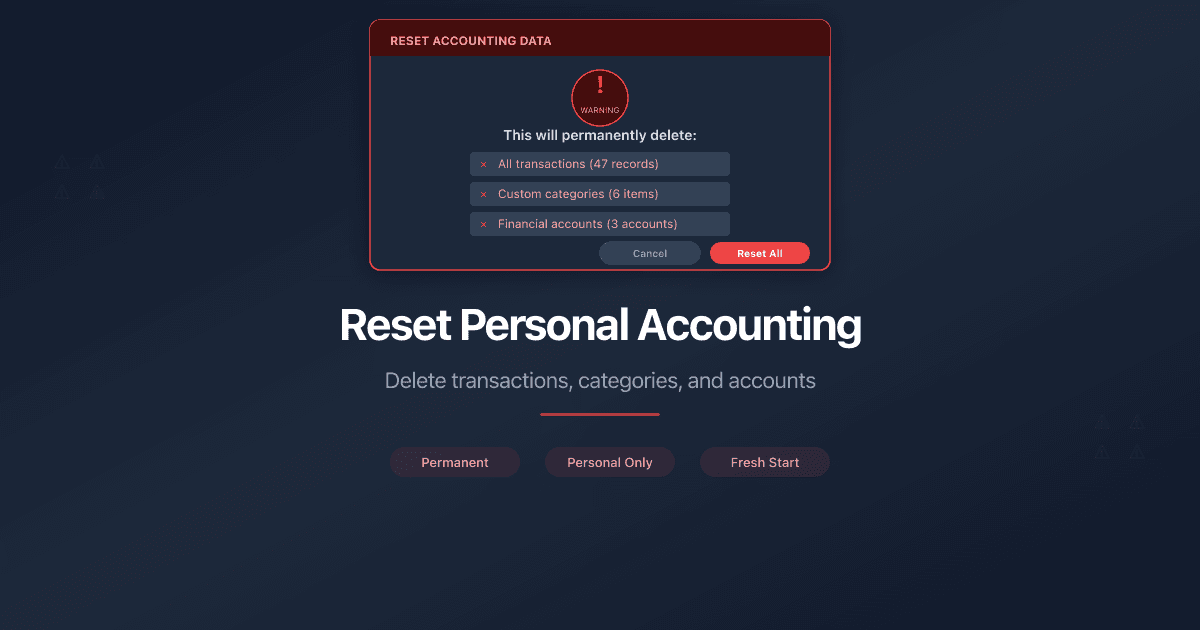
PaperLink personal accounting includes several bulk delete actions. Each one removes a specific type of data. All actions are in Settings > Accounting > Settings tab.
How Do I Delete All Expenses?
Removes every expense transaction. Your categories and financial accounts stay, but account balances are recalculated. The number next to the button shows how many expense transactions you have.
How Do I Delete All Incomes?
Removes every income transaction. Categories and accounts are not affected. Account balances are recalculated.
How Do I Delete All Transfers?
Removes every transfer transaction between your financial accounts. Accounts and categories stay. Balances are recalculated.
How Do I Delete All Expense Categories?
Removes all expense categories and all expense transactions. Transactions are deleted first because they belong to categories. Your financial accounts stay, but balances reset to their initial values.
How Do I Restore Default Expense Categories?
Adds back any missing default expense categories that PaperLink created during onboarding. Your custom categories are not affected. If all defaults are already present, nothing happens.
How Do I Delete All Income Categories?
Removes all income categories and all income transactions. Same logic as expense categories - transactions go first, then categories. Accounts stay with reset balances.
How Do I Restore Default Income Categories?
Adds back any missing default income categories. Custom categories are not affected.
How Do I Delete All Financial Accounts?
Removes all personal financial accounts and all personal transactions. Categories stay. If your team has transfers that target a deleted personal account, those transfers are converted to regular expenses with a note like "Transfer to Cash (account deleted)".
How Do I Clear All Balances?
Removes all transactions (expenses, incomes, and transfers) but keeps your financial accounts and categories. Every account balance goes to zero. Use this when you want to start tracking from scratch without recreating your account structure.
How Do I Reset All Personal Accounting?
The full reset. Deletes everything - all transactions, all categories, all financial accounts. This is in the Danger Zone section and requires you to type DELETE to confirm. Team transfers targeting your personal accounts are converted to expenses before deletion.
All delete actions are permanent and cannot be undone. PaperLink shows a confirmation dialog before each action. The number next to each button shows how many items will be removed.
Related
- Add a Financial Account - create bank, cash, crypto, and other accounts
- Manage Transaction Categories - add, edit, and organize income and expense categories
- Manage Currency Exchange Rates - set up currencies and exchange rates
Σας φάνηκε χρήσιμο αυτό το άρθρο;
Χρειάζεστε περισσότερη βοήθεια;
Περιηγηθείτε στο κέντρο βοήθειας ή επικοινωνήστε με την ομάδα μας για εξατομικευμένη υποστήριξη.
Σχετικά άρθρα
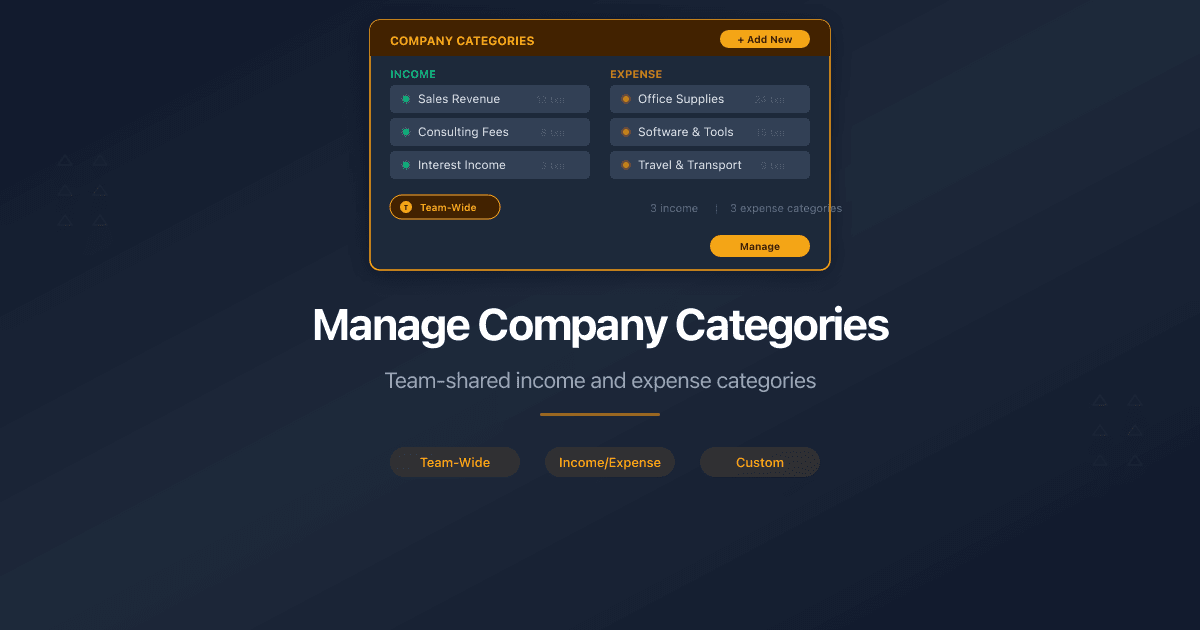
Manage Company Categories
How to manage income and expense categories for company accounting in PaperLink. Default categories, Uncategorized, and team-shared category trees.
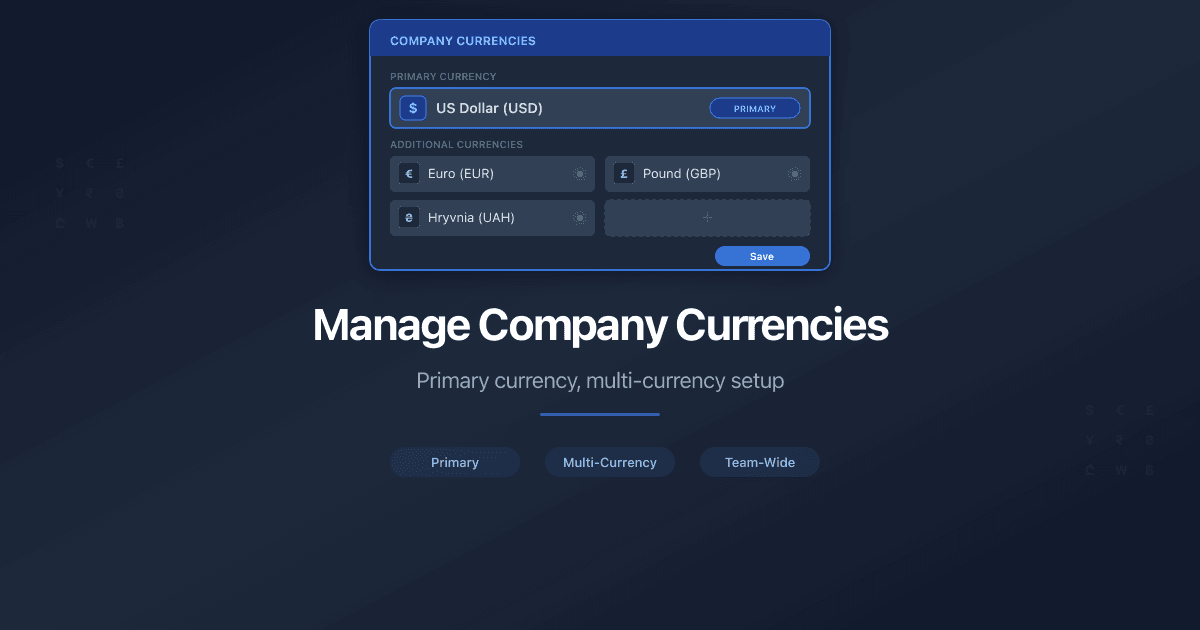
Manage Company Currencies
How to set up currencies for a company in PaperLink. Primary currency, add foreign currencies, auto and manual exchange rates.
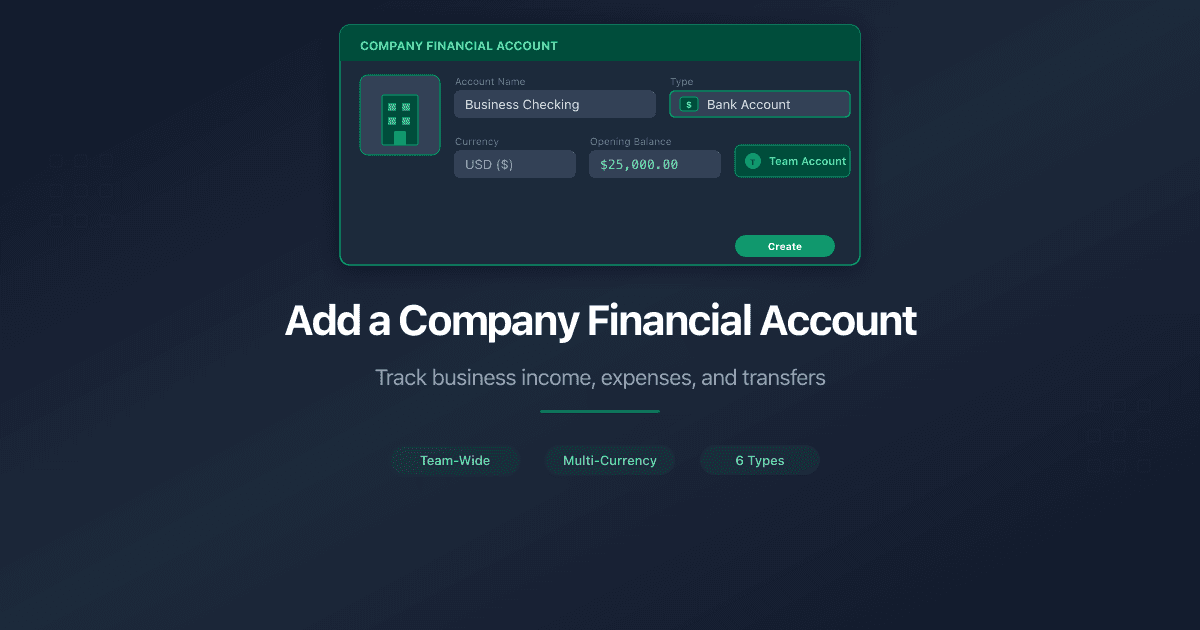
Add a Company Financial Account
How to add a company financial account in PaperLink. Track business income, pay taxes, and transfer funds between company and personal accounts.

Why Your Engagement Letters Need Tracking
Engagement letters start every consulting relationship. Track when clients open them, which pages they read, and whether they reviewed your fee schedule before signing.
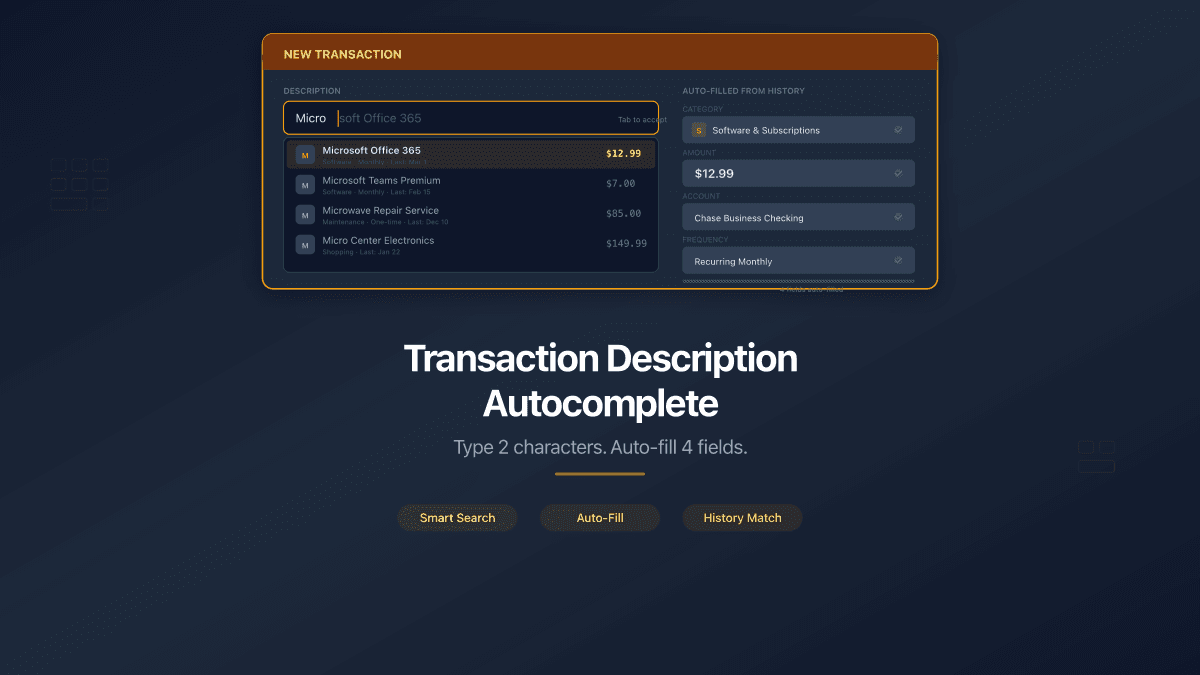
Transaction Description Autocomplete
PaperLink now auto-fills transaction forms from your history. Type 2 characters, pick a suggestion, and the description, account, amount, and category fill in automatically.