
Set Up a Data Room
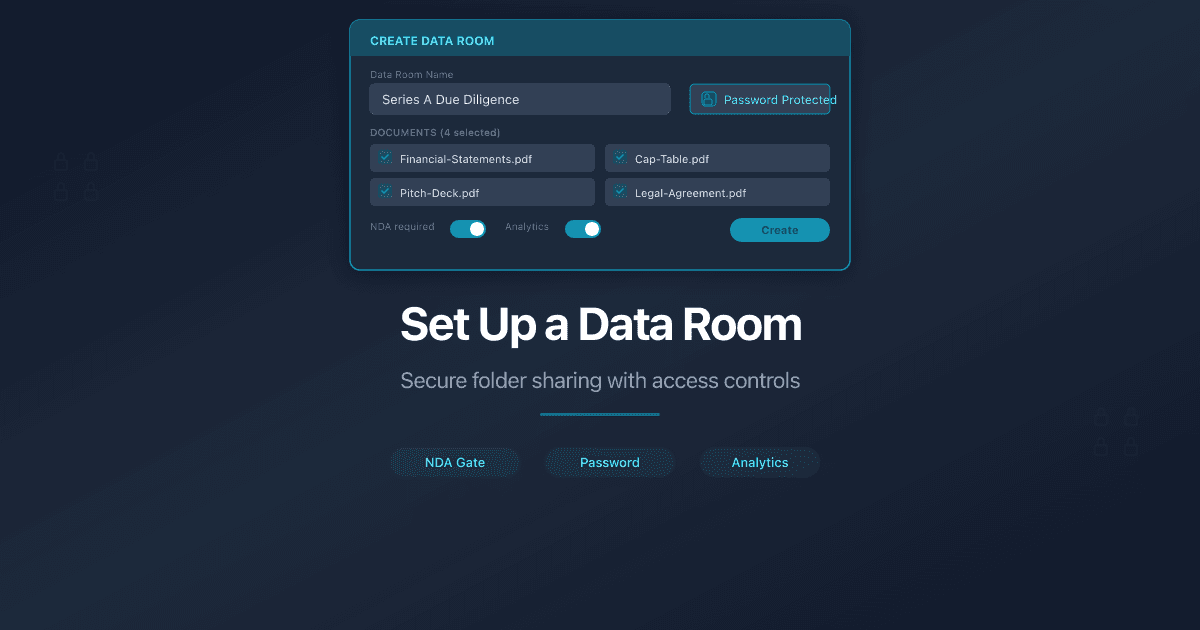
How Do I Set Up a Data Room?
A data room in PaperLink is a folder of documents shared through a single link with access controls and analytics. Use it for fundraising, due diligence, client deliverables, or any scenario where external parties need controlled access to multiple files.
Data rooms require a Data Rooms plan. Check your current plan under Team Settings > Billing.
Step 1: Create a Folder Structure
- Open Shared Documents in the sidebar.
- Click New Folder.
- In the Create New Folder dialog, type a category name (e.g., "Series A Data Room").
- Click Create Folder.
- Open the folder and repeat to create subfolders for each category - Financials, Legal, Product, Team.
A typical data room structure looks like this:
/Series A Data Room
  /Financials
  /Legal
  /Product
  /Team
Folders support up to 10 levels of nesting. See Organize Files with Folders for details on folder management.
Step 2: Add Documents
- Open a subfolder (e.g., Financials).
- Click Add Document.
- Upload files or import from a URL.
- Repeat for each subfolder until all documents are in place.
See Upload Documents for supported file types and upload details.
Step 3: Create a Sharing Link
- Return to the top-level data room folder.
- Open the Links & Analytics tab.
- Click Create Link.
This opens the link creation form with four sections.
Step 4: Configure Access Controls
Access Control section:
- Require email to view - viewers enter their email before accessing documents. This identifies every viewer in your analytics.
- Restrict to specific email (appears when email is required) - limit access to one email address.
- Require login to view - viewers must sign in with Google, LinkedIn, or Telegram. Provides verified identity.
- Password Protection - enter a password in the Password Protection (optional) field. Share the password separately from the link.
Viewer Permissions section:
- Allow PDF download - uncheck to prevent viewers from downloading files. They can view in the browser but not save copies.
- Require NDA/Agreement - check to show an agreement that viewers must accept before accessing documents. Enter the agreement text in the Agreement Text field (up to 5,000 characters). See Require an Agreement Before Viewing for details.
Link Settings section:
- Expiration Date - set a date after which the link stops working. See Set Link Expiration.
- Welcome Message - add a message viewers see before entering the data room (up to 500 characters).
- Custom Domain and Custom URL - available on plans that support custom domains.
Step 5: Share the Link
- Click Create Link.
- Copy the generated URL.
- Send the URL to your counterparty. If you set a password, share it through a separate channel.
Viewers who open the link complete any access gates (password, email, agreement) and then see the full folder structure in a browser-based viewer with breadcrumb navigation.
Create separate links for different audiences. A link for lead investors with download access and a 90-day expiration. A link for associates with view-only access and a 30-day expiration. Same data room, different permissions, separate analytics.
What Viewers See
After completing access gates, viewers see:
- Folder tree with all subfolders and documents
- Breadcrumb navigation to move between folders
- Document viewer - each file opens in the browser without downloading
- No PaperLink account required - viewers access everything through the link
Related
- Organize Files with Folders - create, rename, move, and manage folders
- Upload Documents - add files to your library
- Create a Sharing Link - link settings for individual files
- Require an Agreement Before Viewing - NDA and agreement gates
- Set Link Expiration - auto-revoke access after a deadline
- Understand Viewer Analytics - track who viewed your data room
- The Data Room Checklist for Startup Fundraising - what documents VCs expect at every stage
- What Is a Virtual Data Room? - when and how to use data rooms
- Collect Documents with Document Requests - attach a document checklist to folder links
هل كان هذا المقال مفيداً؟
تحتاج مساعدة إضافية؟
تصفّح مركز المساعدة أو تواصل مع فريقنا للحصول على مساعدة مخصصة.
مقالات ذات صلة
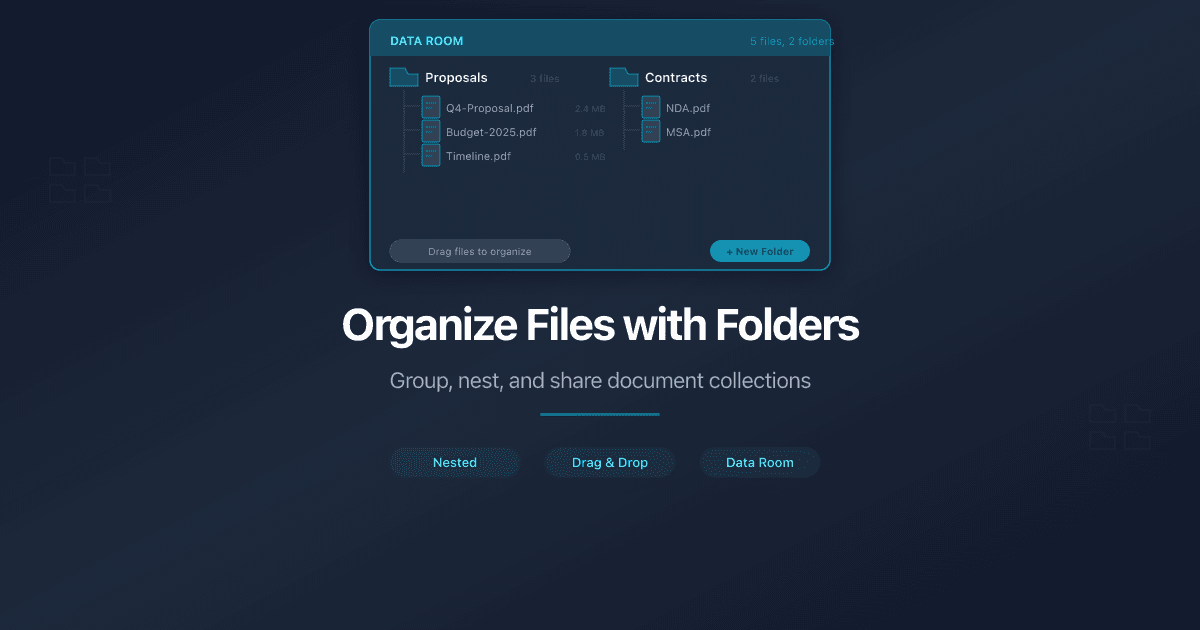
Organize Files with Folders
Create folders to organize your shared documents in PaperLink. Move files, rename folders, share entire folders via link, and nest up to 10 levels deep.
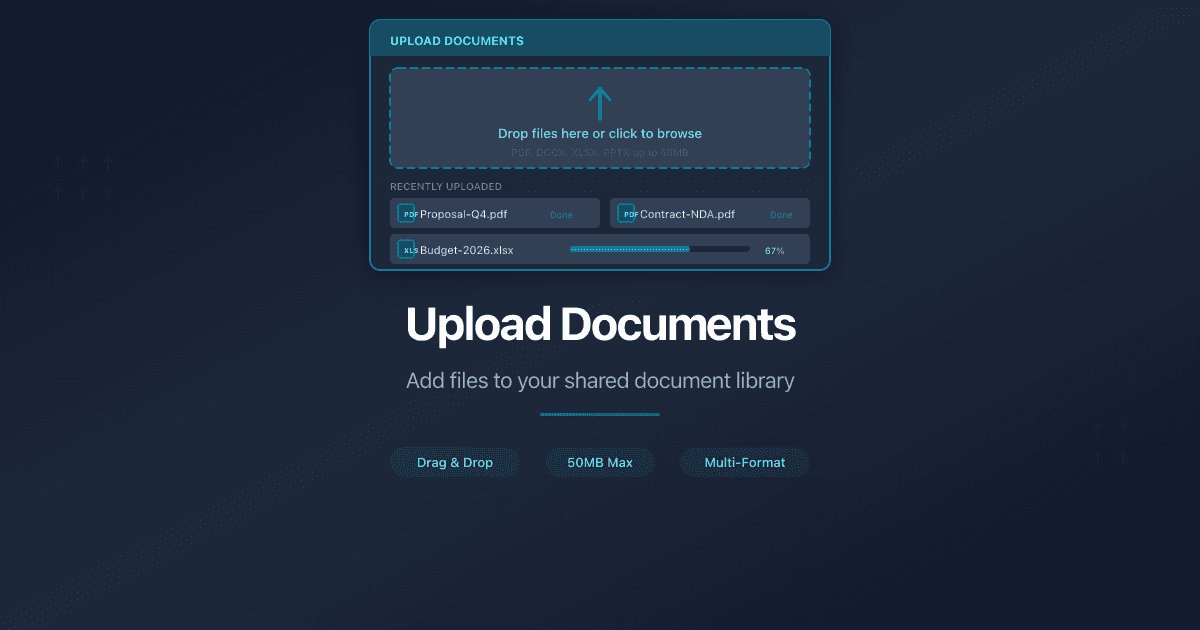
Upload Documents
Learn how to upload documents to PaperLink. Drag and drop or browse to add files to your shared document library.
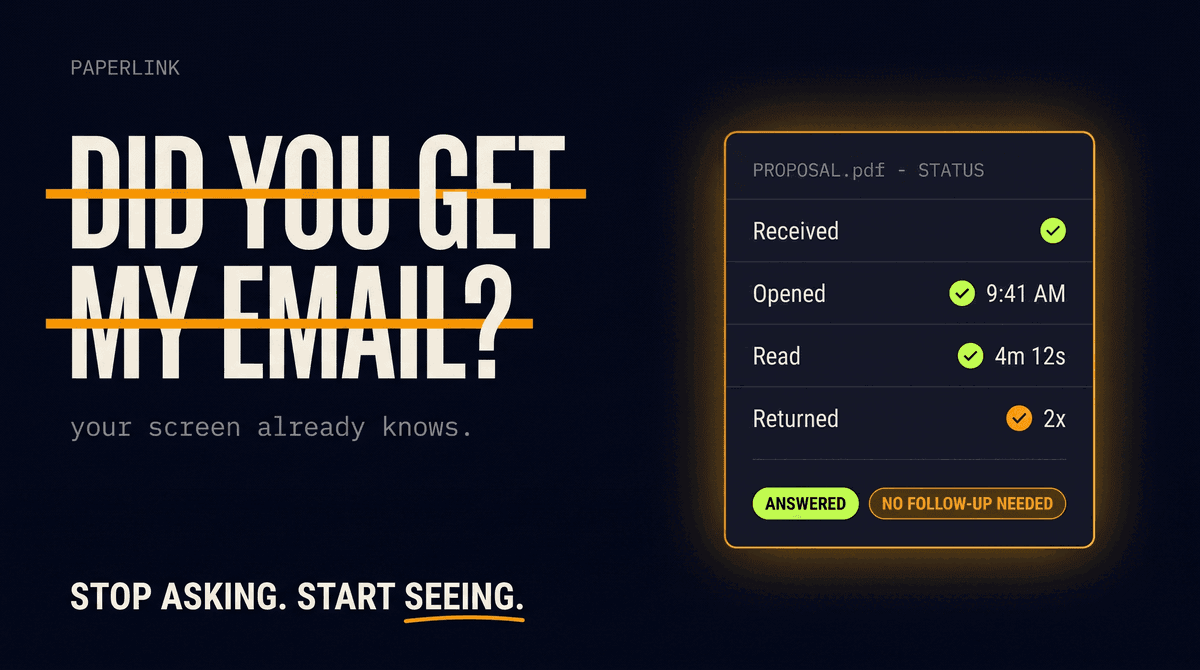
The End of "Did You Get My Email?"
Asking whether someone received your document is a relic of working blind. As shared documents carry their own analytics, that question is quietly disappearing from business.
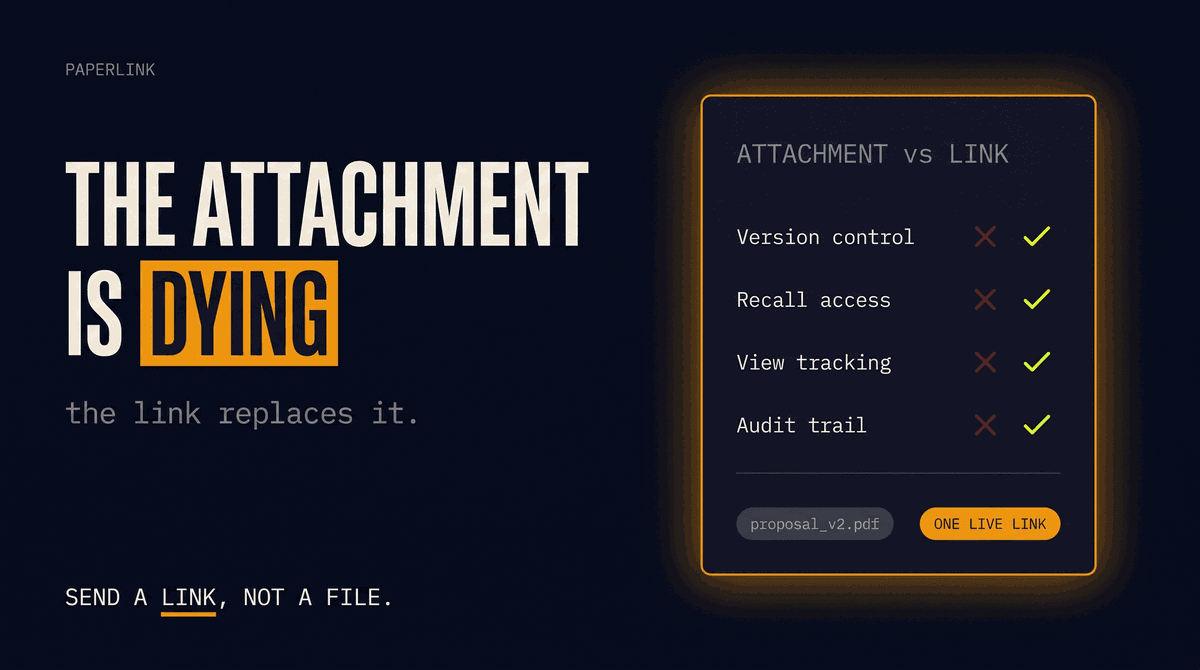
Why Email Attachments Are Dying in B2B Sales
The PDF attachment is a broken format for B2B sales: no access control, no version control, no recall. Why sales teams are replacing attachments with tracked links.

7 Digify Alternatives for Document Sharing in 2026
The best Digify alternatives for document sharing and data rooms in 2026. Honest comparison across security, pricing, analytics, and eSignature features.