
Connect PaperLink to Your AI Assistant
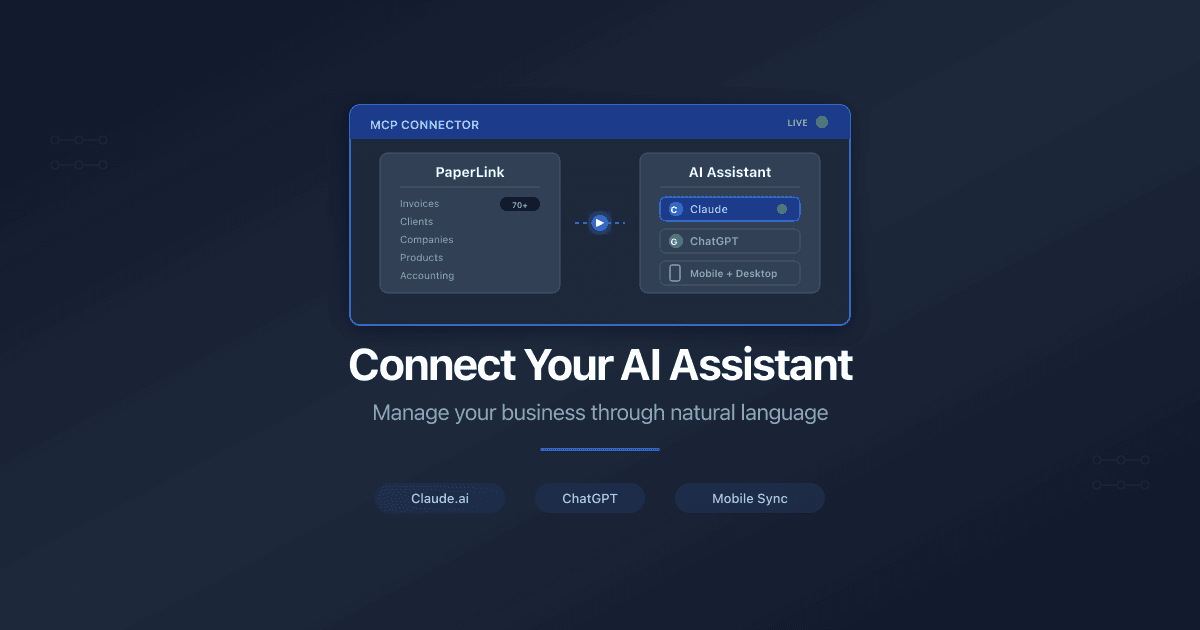
How Do I Connect PaperLink on Claude.ai?
PaperLink provides a remote MCP server that connects directly to Claude. Once connected, you get access to 70+ tools for managing invoices, estimates, clients, companies, products, and accounting - all through natural language.
How to Connect
- Open claude.ai and click the gear icon to open Settings.
- Go to the Connectors tab.
- Click Add custom connector.
- Enter the following:
- Name -
PaperLink - URL -
https://mcp.paperlink.online/api/mcp/mcp - Leave OAuth Client ID and OAuth Client Secret empty
- Name -
- Click Add.
- Back on the Connectors list, click Connect next to PaperLink.
- Complete the Google OAuth login in the browser window that opens.
- Return to any Claude chat. PaperLink tools are now available.
Read-only tools (listing invoices, viewing client details) run without confirmation. Tools that create, update, or delete data ask for your approval before executing.
Device Sync
After you connect on claude.ai, the connector automatically syncs to the Claude iOS app, Android app, and desktop app. You do not need to repeat the setup on each device.
You can only add connectors from the claude.ai web interface. Mobile and desktop apps show connectors that are already connected but cannot add new ones.
Plan Availability
| Claude Plan | Connectors |
|---|---|
| Free | 1 connector |
| Pro / Max | Unlimited |
| Team / Enterprise | Unlimited (admin enables connectors first) |
How Do I Connect PaperLink on ChatGPT?
ChatGPT also supports MCP connectors, but requires a Plus plan or higher. The connection flow is similar - add a custom connector with the same server URL.
Related
- How to Connect Your AI Assistant to PaperLink - detailed guide covering Claude Code and Cursor
- PaperLink MCP Server: 25 Tools for AI-Powered Business - overview of available tools
- Sign In to PaperLink - create your PaperLink account before connecting
War dieser Artikel hilfreich?
Brauchen Sie mehr Hilfe?
Durchsuchen Sie unser Hilfezentrum oder kontaktieren Sie unser Team für persönliche Unterstützung.
Verwandte Artikel
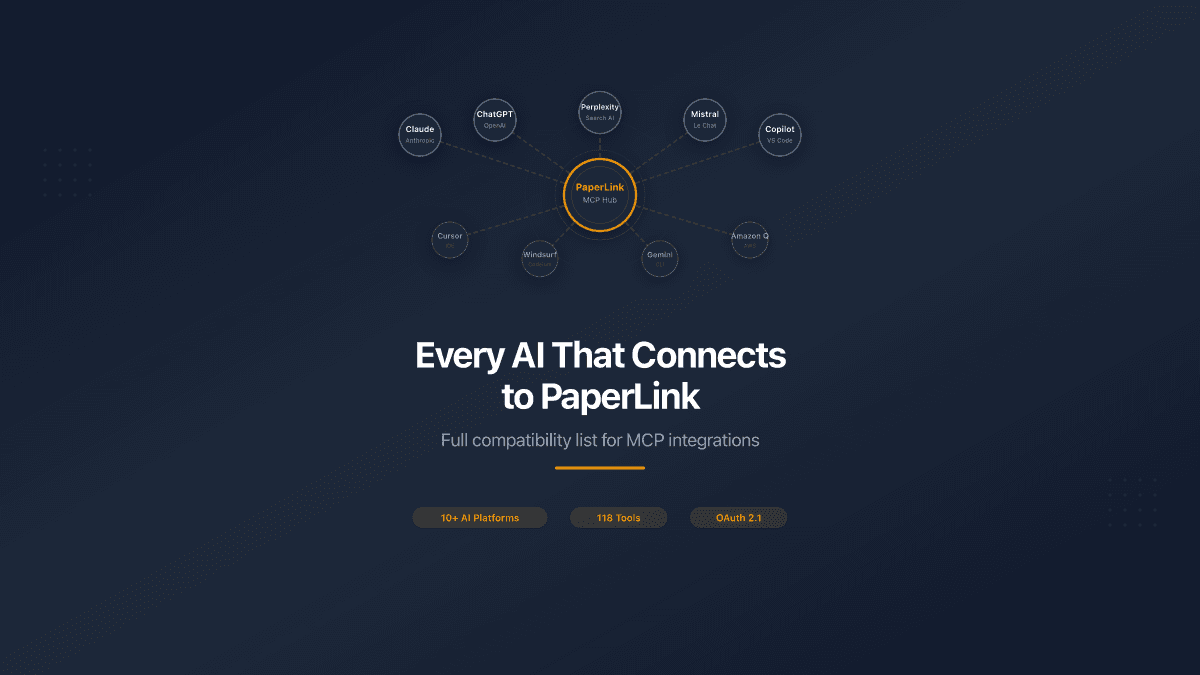
Every AI That Connects to PaperLink - Full Compatibility List
PaperLink works with Claude, ChatGPT, Perplexity, Mistral Le Chat, VS Code Copilot, Cursor, and more. Full compatibility table, connection instructions, and 118 tools across 13 business domains.
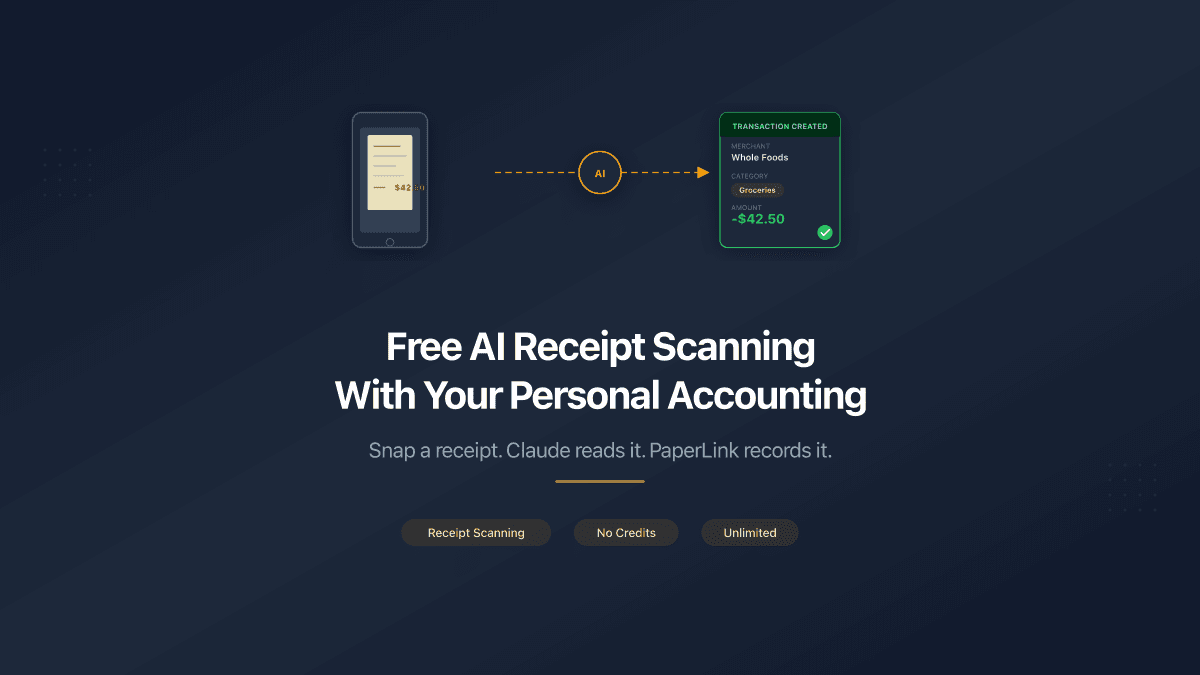
Free AI Receipt Scanning With Your Personal Accounting
Snap a photo of any receipt, send it to Claude, and PaperLink creates the transaction automatically. No credits, no per-scan fees, no limits.
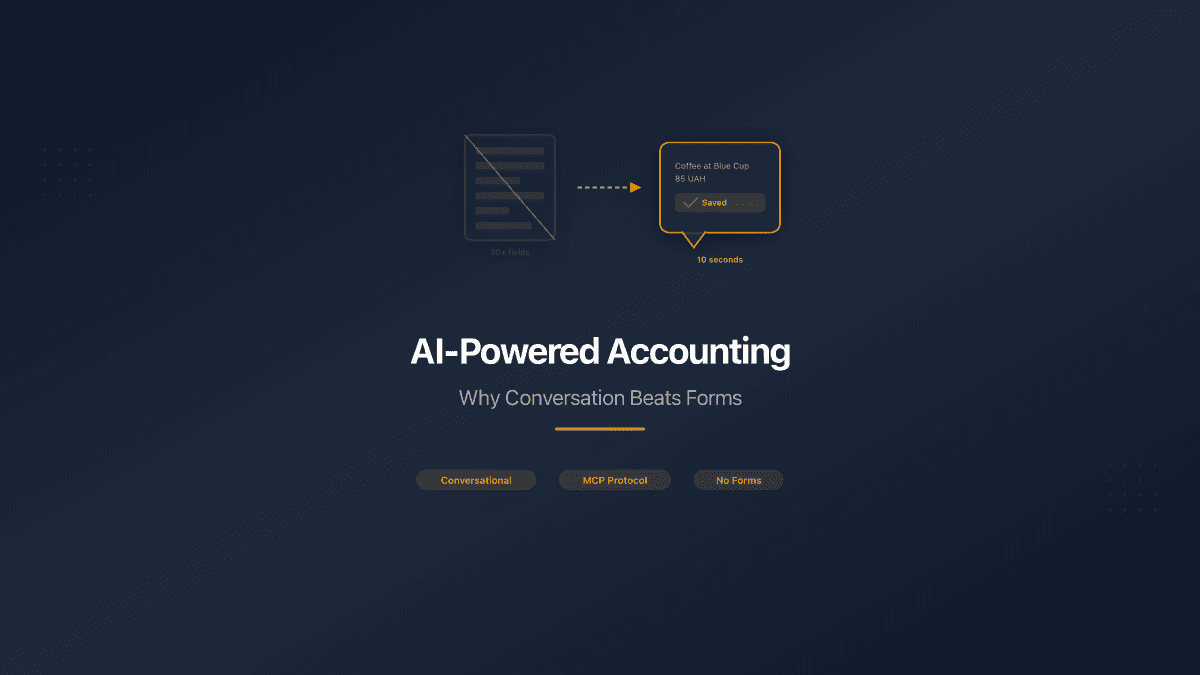
AI-Powered Accounting: Why Conversation Beats Forms
Forms were built for humans who type. AI speaks. MCP lets your AI assistant talk directly to your accounting system - no fields, no tabs, no data entry.