
Create an Invoice
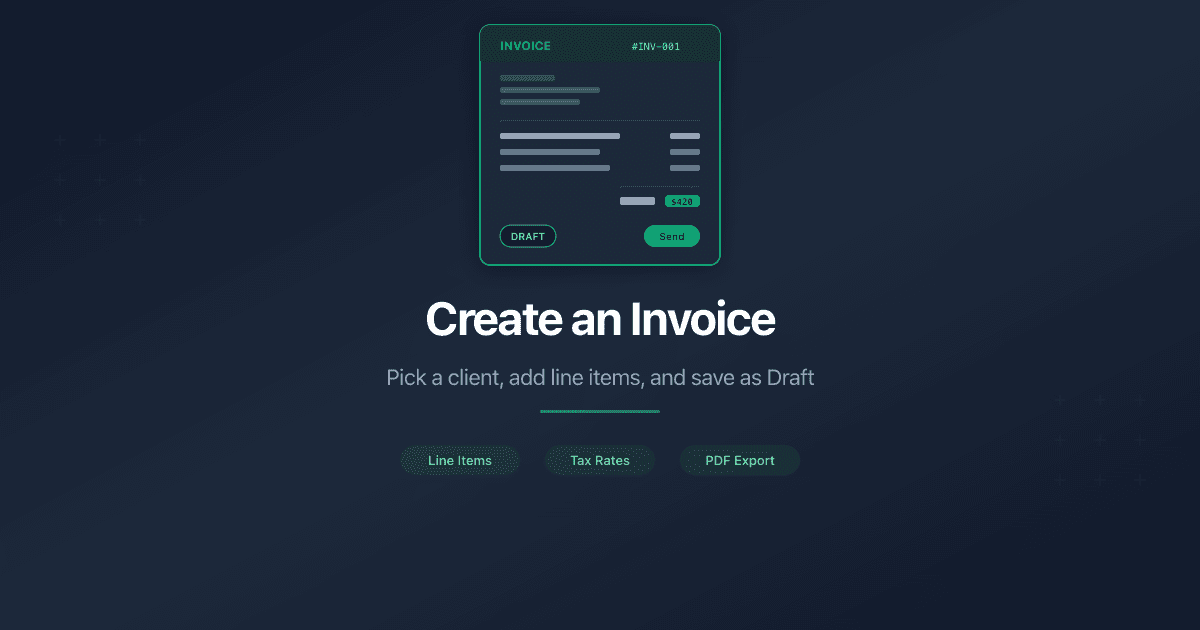
How Do I Create an Invoice?
An invoice is a billing document you send to a client. PaperLink pre-fills the client and company details you already saved, so creating an invoice is mostly about adding line items and setting dates.
Steps
- Open Invoices from the sidebar.
- Click New Invoice in the top-right corner.
- Fill in the form across five sections (described below).
- Click Save at the bottom.
PaperLink saves every new invoice as a Draft. You can edit all fields while the invoice is in Draft status.
Form Sections
Basic Information - who sends and who receives the invoice.
- Client - select the client you are invoicing. If your team has only one client, PaperLink selects it automatically.
- Company - select the company that issues the invoice. Auto-selected if you have only one company.
- Invoice Name - an optional internal label for this invoice.
Set up your company and at least one client before creating an invoice. PaperLink needs both to populate the document.
Document Information - dates and reference numbers.
- Invoice Number - auto-generated (format: INV-YYYY-NNNN). You can change it manually while in Draft. Must be unique within your team.
- Issue Date - the date the invoice is issued. Changing the issue date in Draft regenerates the invoice number.
- Due Date - when payment is expected.
- Tax Point Date - the date used for tax reporting, if different from the issue date.
- Payment Terms - select from: Net 7 days, Net 15 days, Net 30 days, Net 60 days, or Due on Receipt.
- Purchase Order Number - the client's PO reference, if they provided one.
- Reference Number - your own reference for cross-linking with other systems.
Line Items - the products or services you are billing for.
- Product - select a product from your catalog to add as a line item. Products already on the invoice are excluded from the dropdown.
- Each line item appears in a table showing the product name, SKU, quantity, unit price, and total.
- Click the edit icon on a line item to open the Edit Line Item dialog.
The Edit Line Item dialog lets you adjust four fields:
- Description - optional notes about this line item.
- Qty - quantity (required, minimum 0.01).
- Price - unit price (required).
- Tax % - tax rate as a percentage (0-100, optional).
- Total - calculated automatically (Qty x Price). Read-only.
Click Save Changes to apply.
When you add a product from the catalog, PaperLink copies the product's name, price, SKU, and description into the line item. Changing the product in the catalog later does not affect existing invoices - each invoice keeps its own snapshot of the product data at the time it was added.
Financial & Payment - discounts and payment details.
- Discount - a percentage or fixed amount deducted from the gross total. Select the discount type (Percentage or Fixed Amount) and enter the value.
- Payment Method - how the client will pay: Bank Transfer, Credit Card, Cash, Check, PayPal, or Other.
- Transaction ID - a reference number for the payment transaction.
- Applied Balance - account balance applied toward this invoice.
- Applied Credits - credits applied toward this invoice.
Notes & Legal - additional text that appears on the invoice.
- Notes - free-text notes for the client (up to 1000 characters).
- Legal Notice - legal terms and conditions printed on the document.
Invoice Totals
PaperLink calculates the invoice totals automatically based on your line items:
- Subtotal - sum of all line item totals (Qty x Price) before tax.
- Tax - sum of calculated tax per line item.
- Gross Total - Subtotal + Tax.
- Discount - the discount amount (percentage of gross total or fixed).
- Applied Balance and Applied Credits - deductions from the total.
- Total Due - the final amount the client owes (Gross Total minus Discount, Balance, and Credits).
What Happens Next
After saving, the invoice appears in your Invoices list with Draft status. While in Draft, you can edit any field - client, company, line items, dates, and payment details. The invoice number can also be changed in Draft.
Related
- Add a Product or Service - create products to use as invoice line items
- Set Up Your Company - configure the company that appears on your invoices
- Add a Business Client - add a company client to invoice
- Add an Individual Client - add a personal client to invoice
- Manage Invoice and Estimate Statuses - customize the invoice status workflow
Σας φάνηκε χρήσιμο αυτό το άρθρο;
Χρειάζεστε περισσότερη βοήθεια;
Περιηγηθείτε στο κέντρο βοήθειας ή επικοινωνήστε με την ομάδα μας για εξατομικευμένη υποστήριξη.
Σχετικά άρθρα
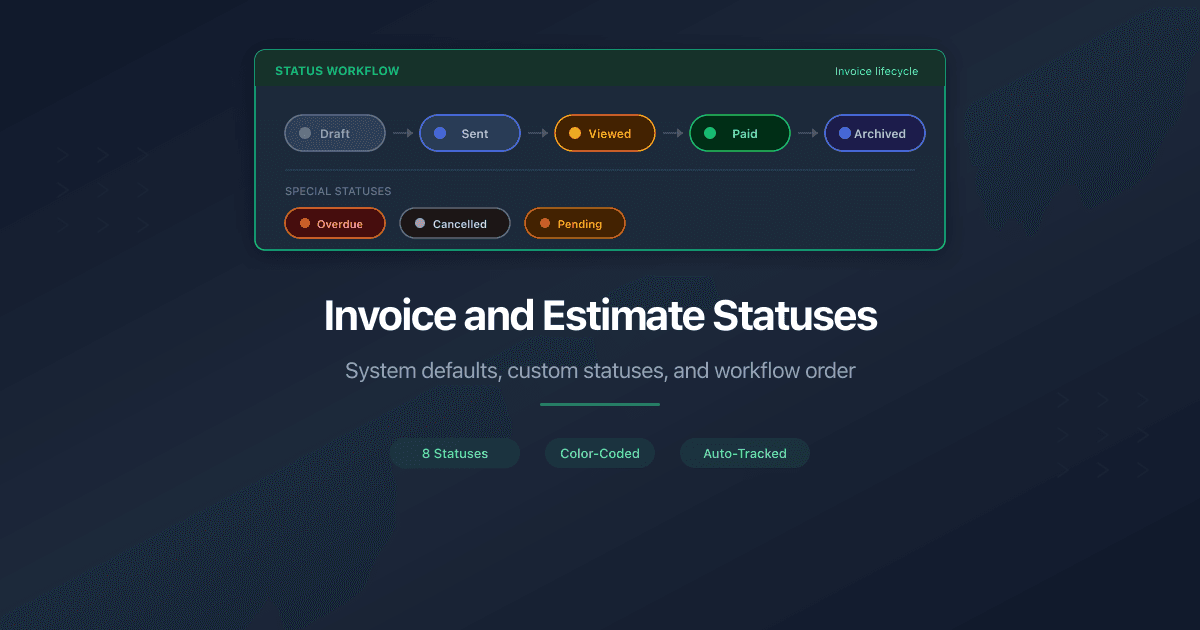
Manage Invoice and Estimate Statuses
Manage invoice and estimate statuses in PaperLink - system defaults, custom statuses, reordering, and colors. Admin and Owner only.
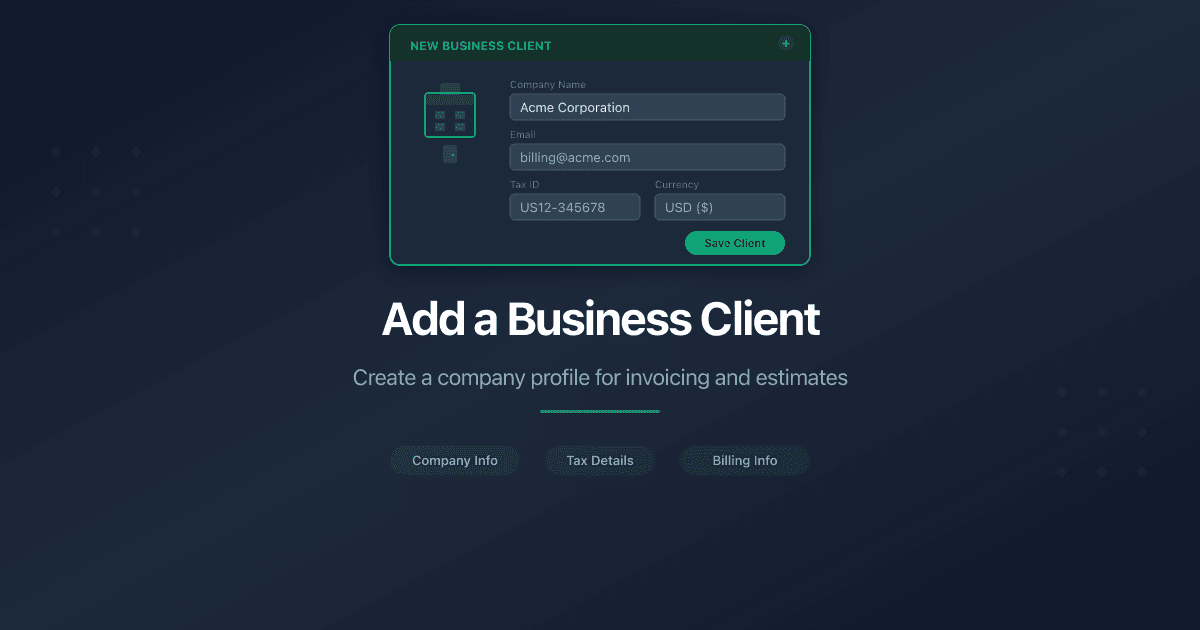
Add a Business Client
Add a business client in PaperLink - company name, contact details, address, banking, and tax IDs. This info appears on your invoices and estimates.
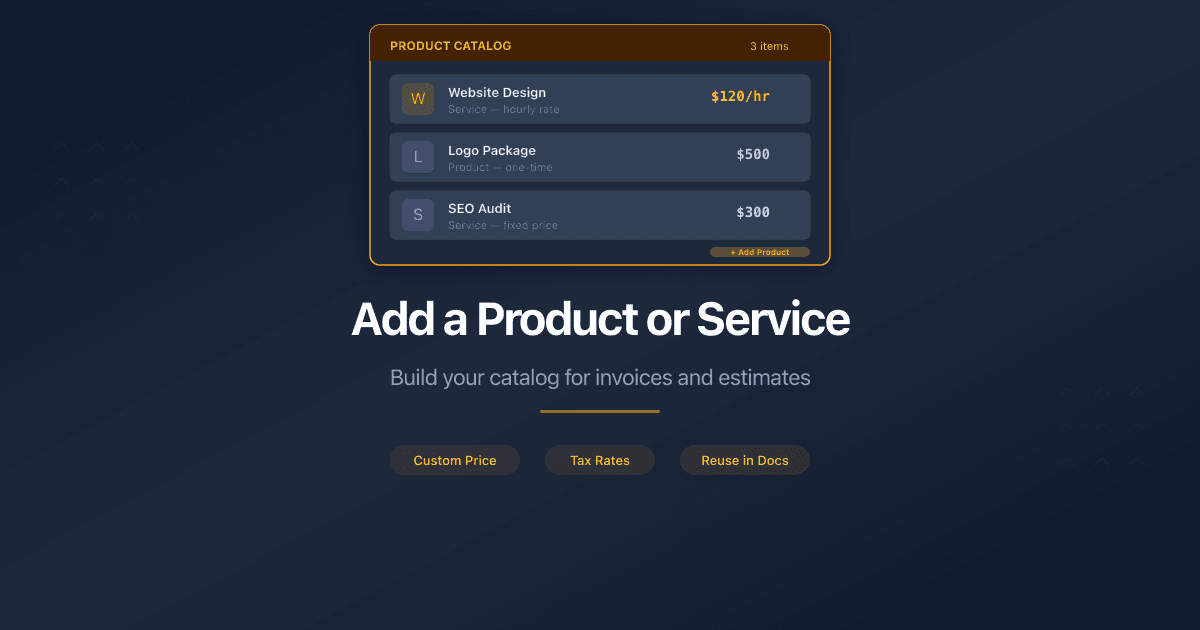
Add a Product or Service
Add a product or service to your PaperLink catalog. Set pricing, tax, SKU, and inventory - then reuse it on invoices and estimates.