Add a Product or Service
How Do I Add a Product or Service?
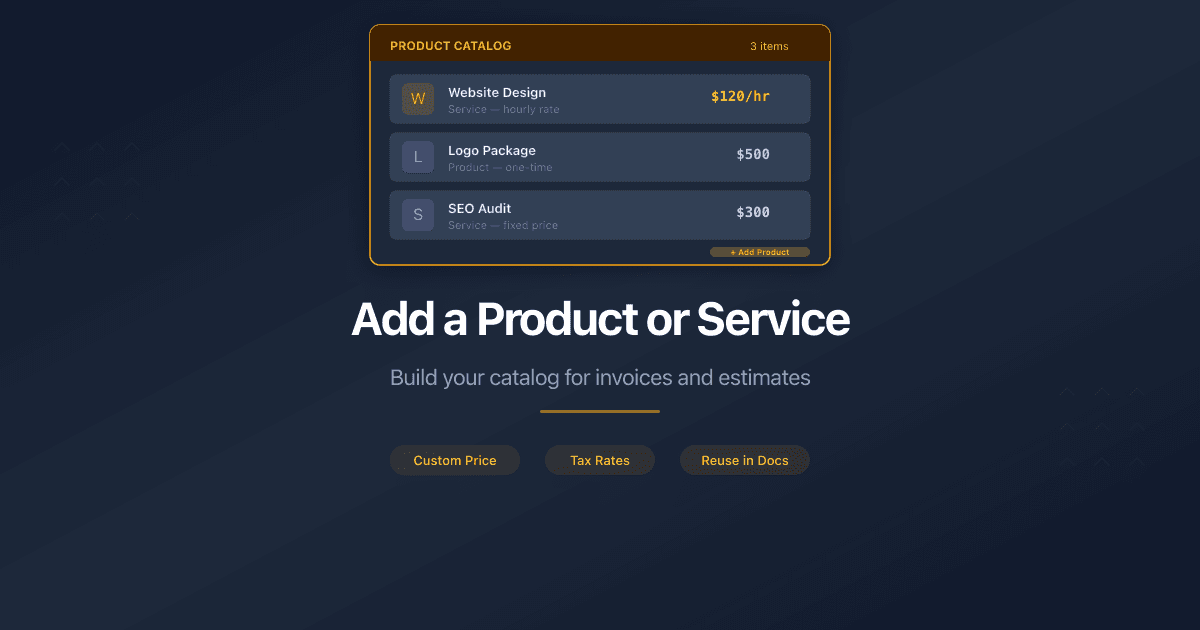
Products and services are reusable line items. Add them once, then pick from your catalog when creating invoices and estimates instead of typing the same details every time.
Steps
- Open Products from the sidebar.
- Click New Product in the top-right corner.
- Fill in the fields across five tabs: Basic Information, Pricing, Identification, Tax Information, and Inventory Management.
- Click Save at the bottom of the last tab.
Form Tabs
The form is split into five tabs. Only Product Name, Type, Unit of Measure, Unit Price, and Currency are required.
Basic Information - describe what you sell.
- Product Name - 2 to 100 characters. This appears on invoices and estimates.
- Description - optional details about the product or service.
- Type - choose Goods (physical items) or Services (time-based or labor-based work). This controls which units of measure are available.
- Unit of Measure - pick a unit that matches your type. Goods support weight, volume, length, and packaging units. Services support time-based units like hour, day, month, and service units like project, session, or license.
- Category - optional label to organize your catalog.
Pricing - set the price.
- Unit Price - the price per one unit. Accepts values with two decimal places.
- Currency - three-letter ISO code (USD, EUR, GBP, and others).
Identification - optional codes for tracking.
- SKU - your internal product code. Letters, numbers, hyphens, and underscores only.
- Barcode - an external barcode number for scanning.
Tax Information - configure tax handling.
- Tax Rate (%) - a value between 0 and 100.
- Price includes tax - toggle ON if the unit price already has tax built in. Leave OFF if tax should be added on top of the unit price.
Inventory Management - track stock levels.
- Track Inventory - toggle ON to enable stock tracking. Two extra fields appear:
- Current Stock - how many units you have now.
- Minimum Stock Level - PaperLink shows a warning when stock drops below this number.
Choose the correct Type first. The Unit of Measure dropdown stays disabled until you pick Goods or Services, because each type has its own set of units.
What Happens Next
After saving, the product appears in your Products list. When you create an invoice or estimate, pick it from the line item selector - PaperLink fills in the name, price, tax, and unit automatically.
If you enabled Track Inventory, stock decreases each time the product is added to a sent or paid invoice.
Related
- Create an Invoice - use your products as line items on invoices
- Set Up Your Company - configure the company that appears on your invoices
Was this article helpful?
Need more help?
Browse our help center or reach out to our team for personalized assistance.