
Connect to the PaperLink Public API
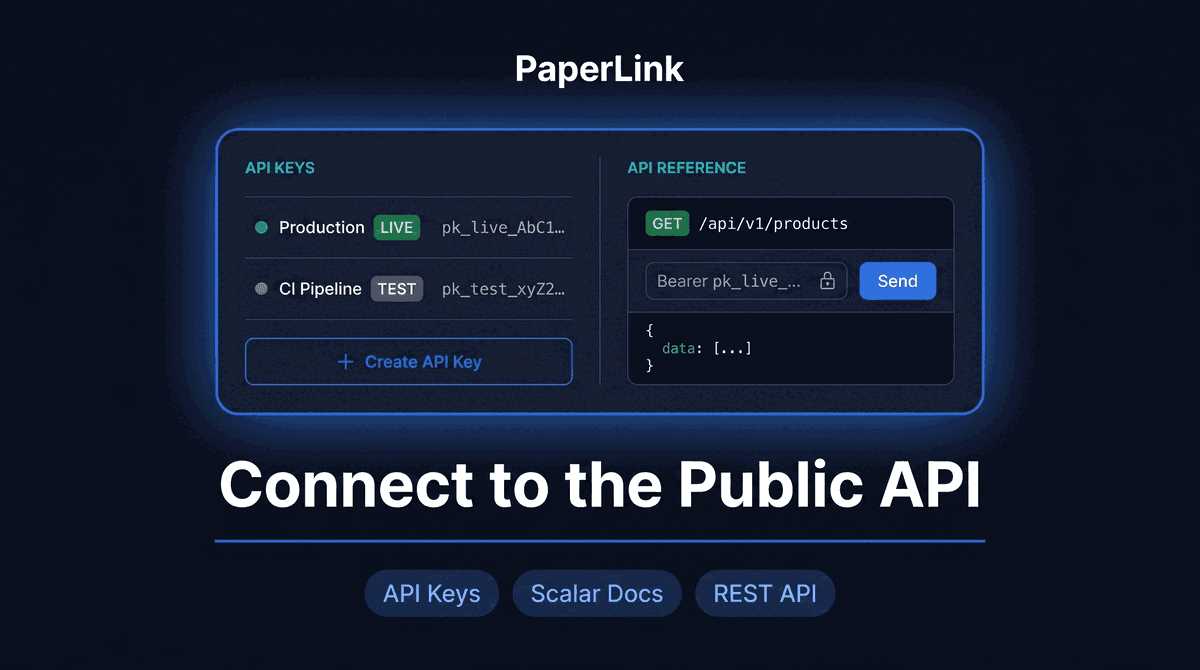
PaperLink's public REST API lets you integrate your team's data with external systems - CRMs, inventory tools, custom scripts, and automation pipelines. All access starts with an API key.
Only team OWNER and ADMIN roles can create and manage API keys. MANAGER and MEMBER roles do not have access to this page.
How Do I Open the Integrations Page?
- Go to Settings in the left sidebar.
- Click Integrations.
- Find the Public API card and click Connected (or open it directly from the card).
This takes you to the API Keys page where all keys for your team are listed.
How Do I Create an API Key?
- Click Create API Key in the top-right corner.
- Enter a Key name - this is for your reference only and is not exposed to the API. Use something descriptive like
Production BackendorCI Pipeline. - Choose a Mode:
- Live - accesses your real production data. Use this for active integrations.
- Test - accesses an isolated sandbox. Use this for development and CI/CD. Test keys cannot read or modify live data.
- Choose a Scope:
- Read & Write - can create, update, and delete data.
- Read-only - can only retrieve data. Use this for reporting tools and dashboards.
- Click Create key.
The token is shown only once immediately after creation. Copy it and store it securely now - PaperLink does not store the raw token and cannot show it again.
After creation, the confirmation screen shows:
- The full API token to copy
- A ready-to-use cURL example for your first request
How Do I Make My First API Request?
Use the token in the Authorization header as a Bearer token:
curl -H "Authorization: Bearer <your-token>" \
  https://app.paperlink.online/api/v1/products
Replace <your-token> with the key you just copied. The cURL example on the confirmation screen already has it filled in.
How Do I Manage Existing Keys?
On the API Keys page, each key shows:
- Name and key prefix (e.g.
pk_live_AbC...) - Mode badge - Live (green) or Test (grey)
- Scope - Read & Write or Read-only
- Creator - the team member who created the key
- Last used - when the key was last used to make an API call
Use the ... menu on any key to Rename or Revoke it.
A team can have up to 10 active keys. If you hit the limit, revoke keys that are no longer in use before creating new ones.
How Do I Revoke a Key?
- Find the key in the list and click ....
- Select Revoke.
- Confirm the action.
Revoked keys reject all API calls within seconds. The key remains visible in the list for 90 days so you can audit when it was revoked and by whom, then it disappears automatically.
Where Do I Find the API Documentation?
The full Developer Portal at developers.paperlink.online has the complete API reference with all endpoints, request and response schemas, and an interactive playground where you can make real requests directly from the browser.
Related
- PaperLink Developer Portal - full API documentation with guides, examples, and interactive playground
- PaperLink Now Has a Public REST API - what the API makes possible and how it is structured
- Connect Slack for Real-Time Notifications - get notified in Slack when someone engages with your documents
- Connect HURMA to Match Employees with Clients - sync your HR employee list with PaperLink clients
- Connect AI Assistant - link PaperLink with Claude, ChatGPT, and other AI tools via MCP
- Invite a Team Member - manage who has OWNER and ADMIN access on your team
¿Te resultó útil este artículo?
¿Necesitas más ayuda?
Explora nuestro centro de ayuda o contacta a nuestro equipo para asistencia personalizada.
Artículos relacionados
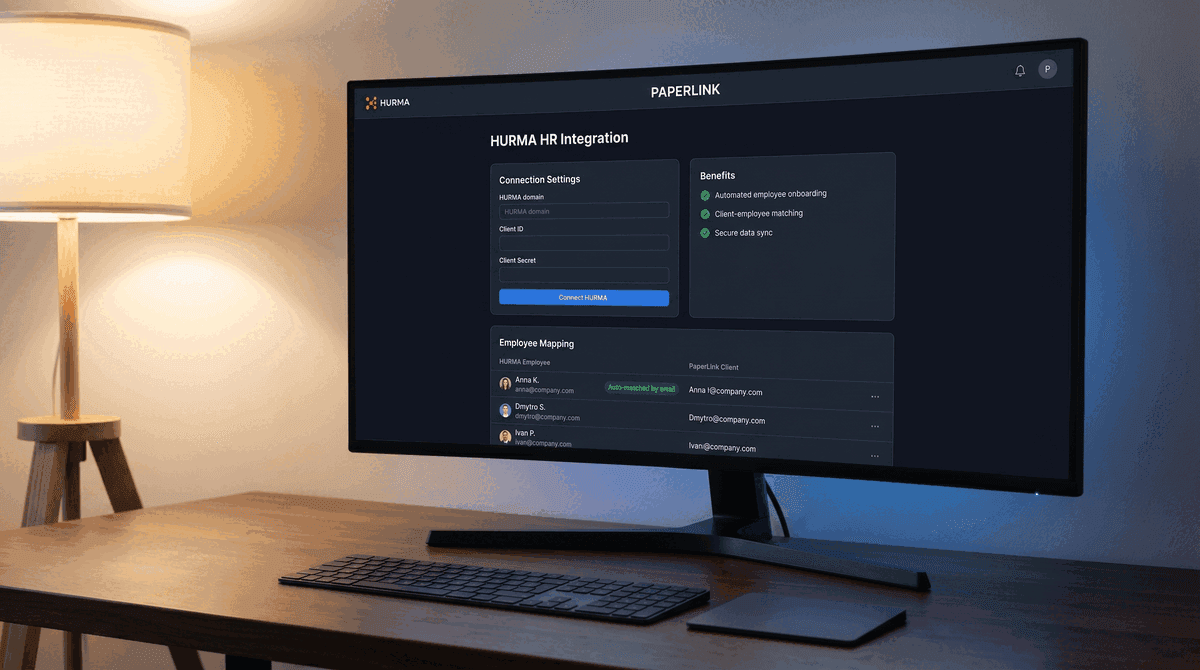
Connect HURMA to Match Employees with Clients
Connect your HURMA workspace to PaperLink to automatically match employees with clients. Set up OAuth credentials, map employees, and keep the list in sync.
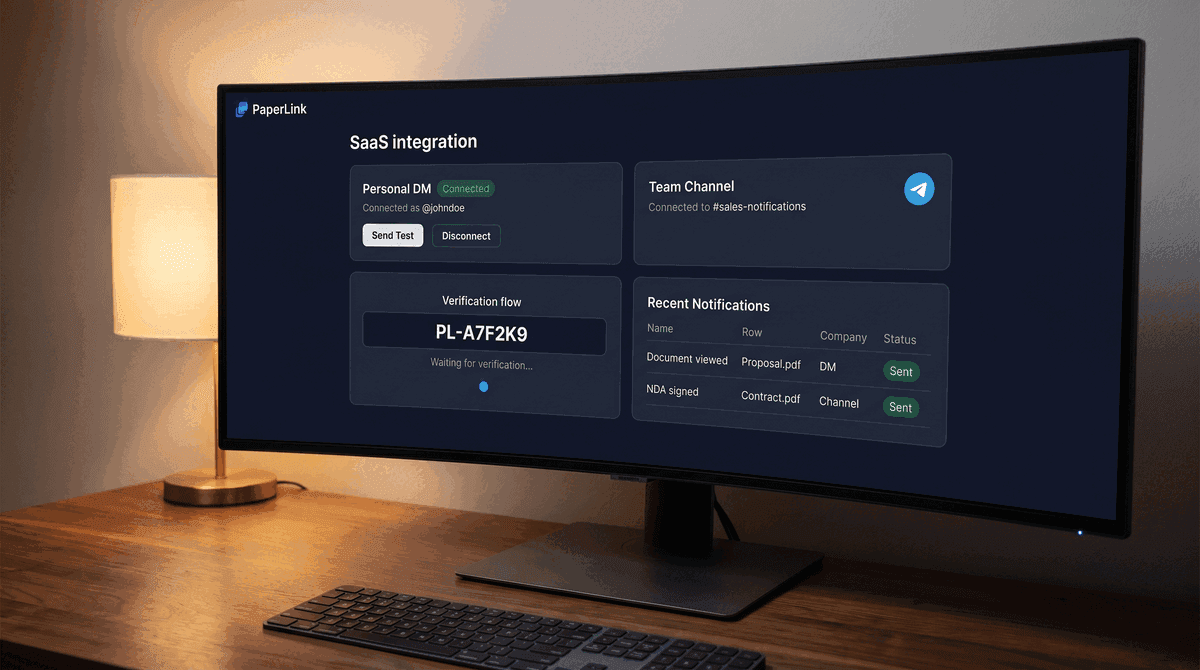
Connect Telegram for Document Notifications
Connect Telegram to get instant notifications when someone views, downloads, or signs your shared documents - in your DM or a team channel.
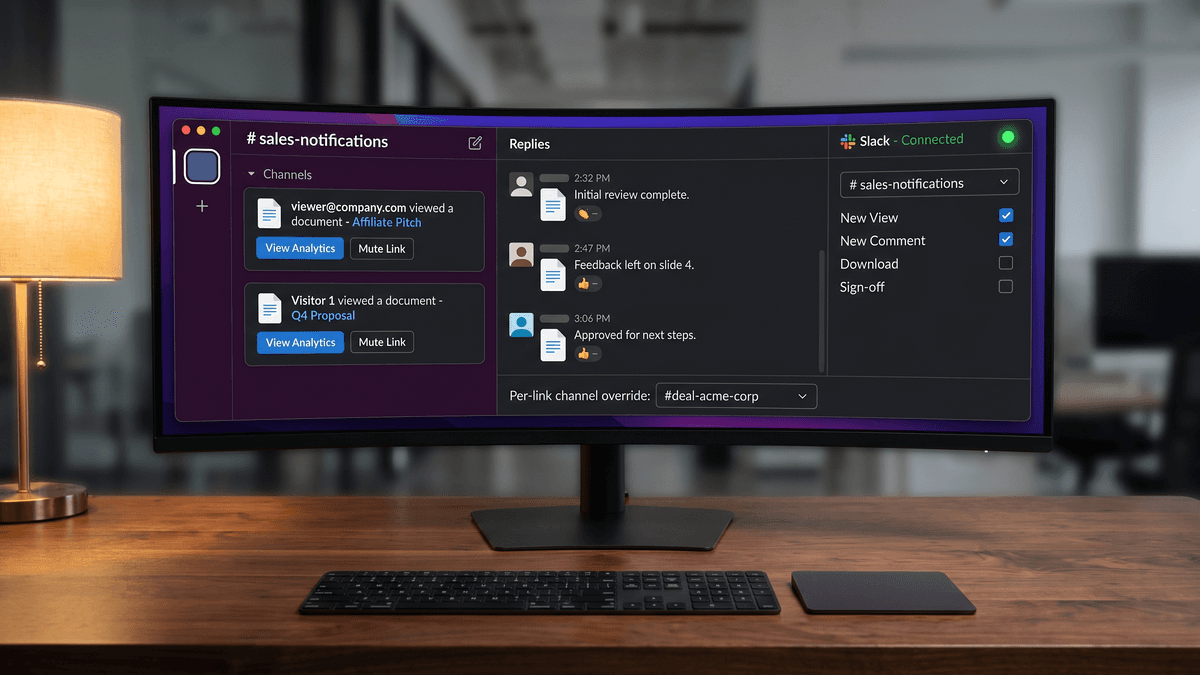
Connect Slack for Real-Time Notifications
Connect your Slack workspace to get instant notifications when someone views, downloads, or signs your shared documents. No Zapier needed.
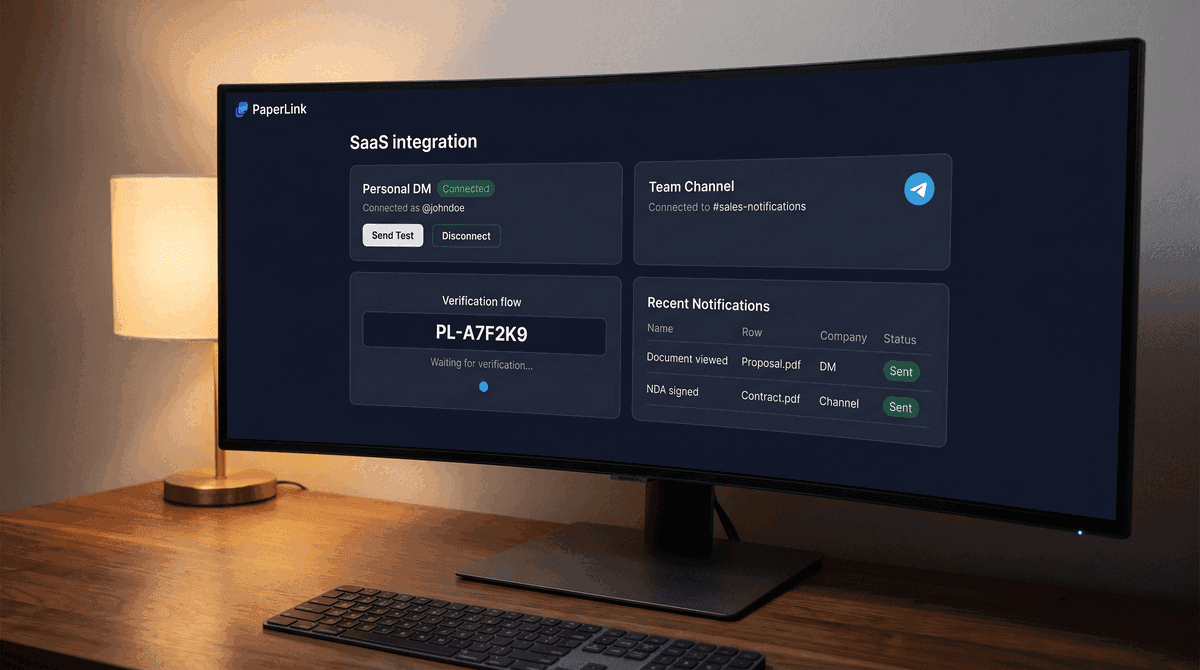
Telegram Notifications When Someone Views Your Document
Get a Telegram message the moment someone opens your shared document - in your personal DM and team channel simultaneously. Native bot, no Zapier needed.
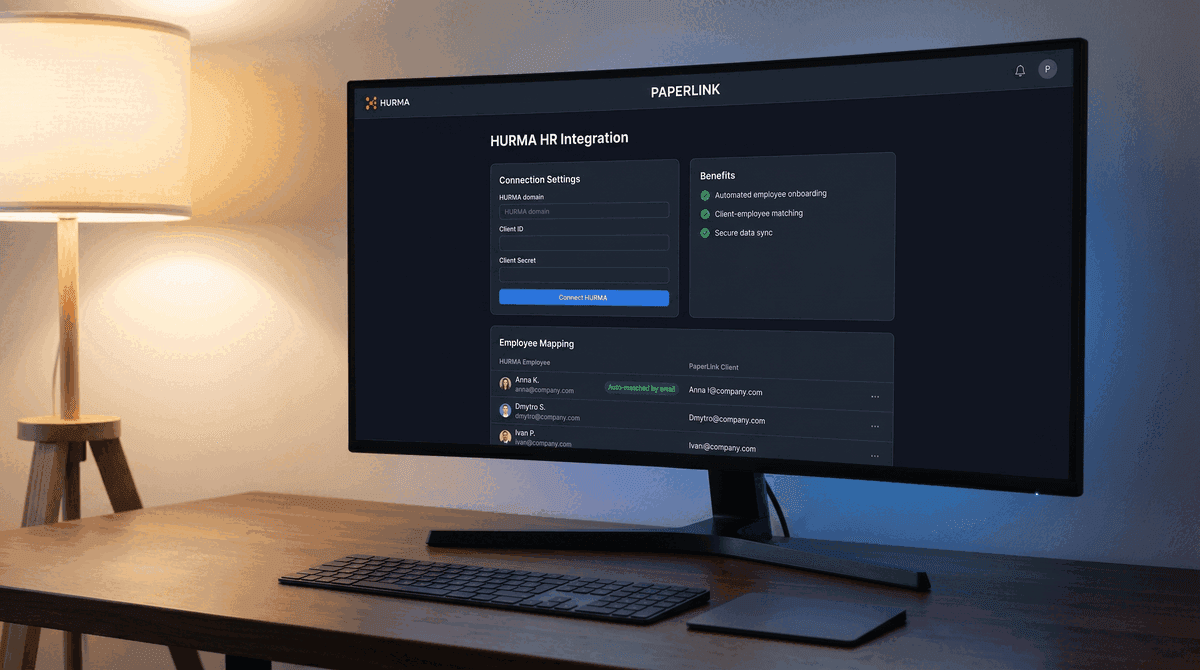
PaperLink Now Connects to HURMA
PaperLink connects to HURMA via OAuth. Match employees to clients automatically, keep the list in sync, and skip manual data entry when creating documents.
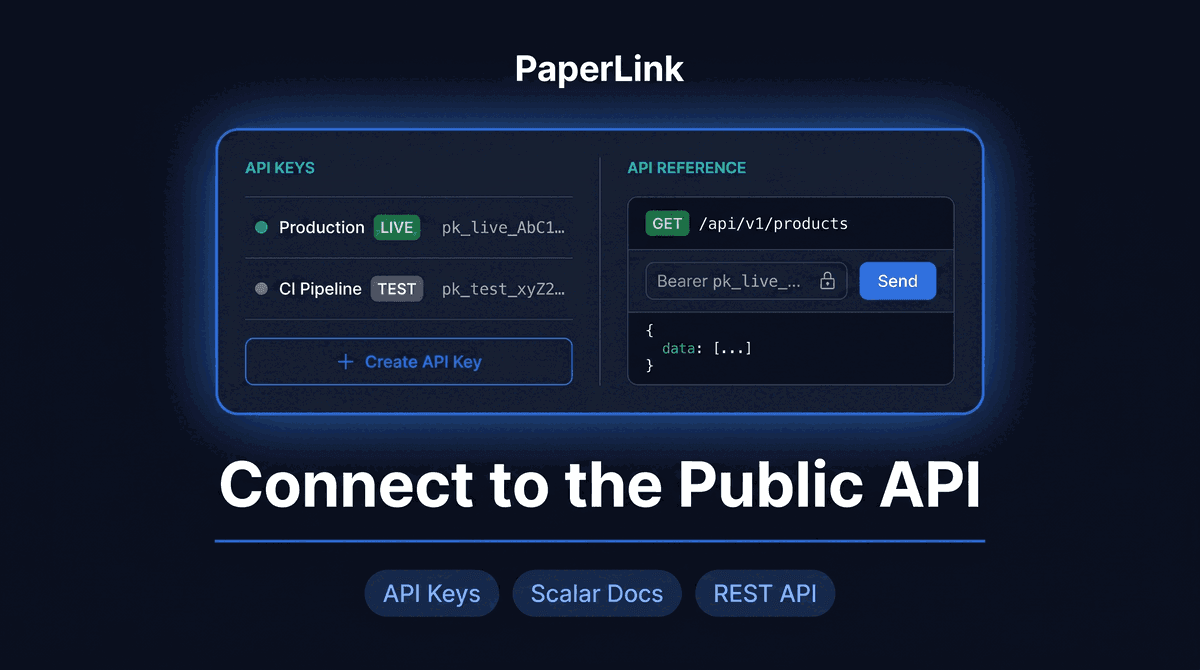
PaperLink Now Has a Public REST API
PaperLink now offers a versioned public REST API with API key authentication, test mode, and interactive API documentation. Connect your tools programmatically.