
Set Up Corporate Email for Document Notifications
How Do I Set Up Corporate Email?
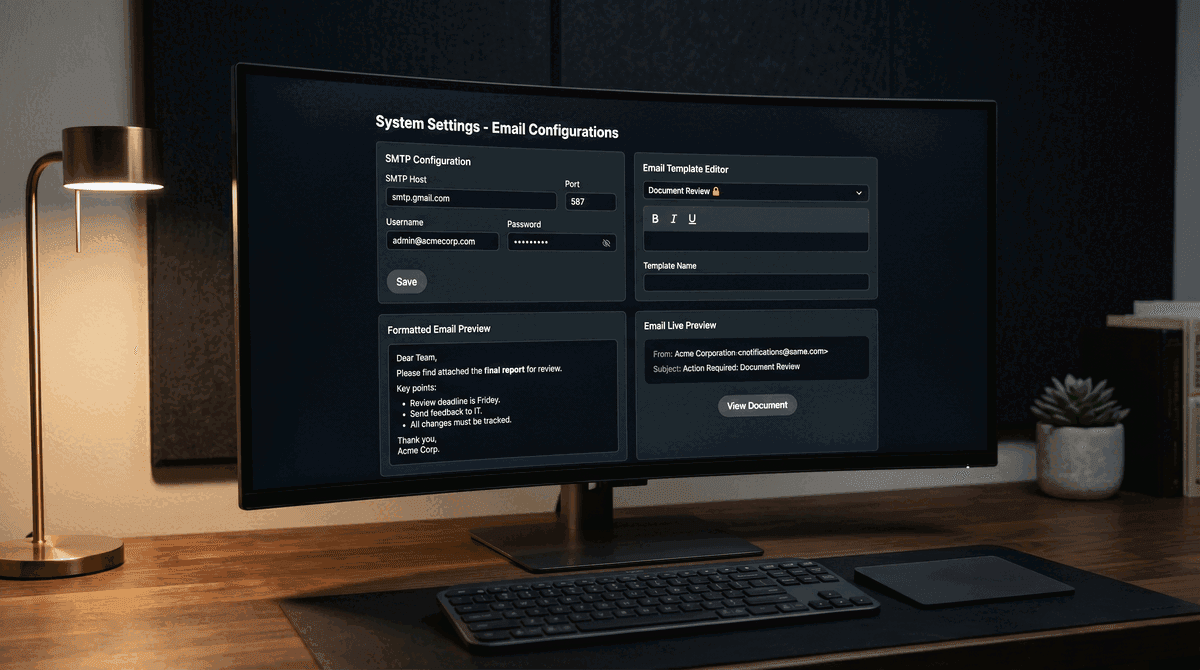
Corporate Email lets you send document sharing notifications from your own email address. Recipients see your company name and domain - not PaperLink - making every notification feel professional and on-brand.
This feature has three parts: SMTP connection (your email server), email templates (reusable message presets), and a live preview with test sending.
Corporate Email requires the Business plan or higher. Teams on the Free or Pro plan see an upgrade prompt on this page.
Who Can Manage Email Settings
Only team Owners and Admins can configure SMTP and manage email templates. Managers can create and edit their own templates but cannot change SMTP settings. Members do not see the Email tab.
How Do I Connect My SMTP Server?
SMTP is the protocol that sends emails. You connect PaperLink to your email provider (Gmail, Outlook, or any SMTP server) so notifications go out from your address.
Steps
- Open Settings from the sidebar.
- Go to Team > Branded Domains and select the Corporate Email tab.
- Fill in the SMTP fields:
| Field | What to Enter | Gmail Example |
|---|---|---|
| SMTP Host | Your email provider's SMTP server | smtp.gmail.com |
| Port | 587 (STARTTLS) for most providers, 465 for SSL | 587 |
| Username | Your email address (usually) | you@gmail.com |
| Password | Your email password or app password | See below |
| From Name | Name recipients see in their inbox | Acme Corporation |
| From Email | Address recipients see in the "from" field | documents@yourcompany.com |
- Click Test Connection to verify PaperLink can reach your email server.
- Click Save SMTP to save the configuration.
PaperLink encrypts your SMTP password using AES-256 encryption before storing it. The password is never visible after saving.
Gmail Setup
Gmail requires an App Password instead of your regular Google password.
- Go to myaccount.google.com/apppasswords.
- You need 2-Step Verification enabled on your Google account. If you don't have it, enable it first at myaccount.google.com/signinoptions/two-step-verification.
- Select Mail as the app and your device.
- Google generates a 16-character password. Copy it.
- Paste it into the Password field in PaperLink.
For Gmail, the From Email must match your Google account email. Sending from a different address fails silently or gets flagged as spam.
Outlook / Microsoft 365 Setup
| Field | Value |
|---|---|
| SMTP Host | smtp.office365.com |
| Port | 587 (STARTTLS) |
| Username | Your Microsoft email |
| Password | Your account password (or app password if MFA is enabled) |
Other Providers
Any SMTP server works. Check your email provider's documentation for the SMTP host, port, and authentication method. Common providers:
| Provider | Host | Port |
|---|---|---|
| Gmail | smtp.gmail.com | 587 |
| Outlook | smtp.office365.com | 587 |
| Yahoo | smtp.mail.yahoo.com | 465 |
| Zoho | smtp.zoho.com | 587 |
| Custom domain (cPanel) | Usually mail.yourdomain.com | 587 |
How Do Email Templates Work?
Email templates let you create reusable messages for document notifications. Instead of writing the same message every time you share a document, pick a template and go.
System Templates
PaperLink includes a built-in Document Review template that demonstrates rich formatting - bold text, bullet lists, and italics. System templates are marked with a lock icon and cannot be edited or deleted. You can copy a system template to create your own version.
Create a Template
- In the Email Template section, open the Template dropdown.
- Select + Create new template.
- Enter a Template Name (required) - for example, "Client Proposal" or "NDA Follow-up".
- Fill in the Subject line (optional, max 200 characters).
- Write your message in the Message Body using the formatting toolbar (Bold, Italic, Underline).
- Click Save Template.
Your template now appears in the dropdown for future use.
To start from the system template, select it from the dropdown, edit the content, then click Save Template. PaperLink saves it as a new custom template - the original system template stays unchanged.
Edit or Delete a Template
- Select a custom template from the dropdown. Edit the fields and click Save Template.
- To delete, select the template and click Delete. A confirmation prompt appears before removal.
System templates (marked with a lock icon) cannot be edited or deleted.
Template Variables
The document link and password (if set) are added automatically below your message. You do not need to include them in the template body.
How Do I Preview and Test an Email?
The Preview section below the template form shows exactly how your email looks to recipients. It updates in real time as you edit the subject and body.
To send a test email:
- Make sure SMTP is configured and saved.
- Click Send Test Email.
- PaperLink sends the email to your own account (the logged-in user's email).
- Check your inbox to verify formatting and delivery.
If the test email lands in spam, check your SPF and DKIM DNS records. Most email providers require these for reliable delivery.
Troubleshooting
"Connection failed" when testing SMTP
- Verify the host and port are correct for your provider.
- Check that your password is an App Password (for Gmail) and not your regular login password.
- Some corporate firewalls block outgoing SMTP traffic on port 587. Try port 465 (SSL).
Emails going to spam
- Set up SPF, DKIM, and DMARC records for your domain.
- Make sure the From Email matches the SMTP username for Gmail.
- Avoid spam trigger words in subject lines.
"SMTP is not configured" error
- Save your SMTP credentials first before sending test emails or notifications.
Related
- Add a Custom Domain - brand your sharing links alongside email
- Create a Sharing Link - share documents with clients
Cet article vous a-t-il été utile ?
Besoin d'aide ?
Parcourez notre centre d'aide ou contactez notre équipe pour une assistance personnalisée.