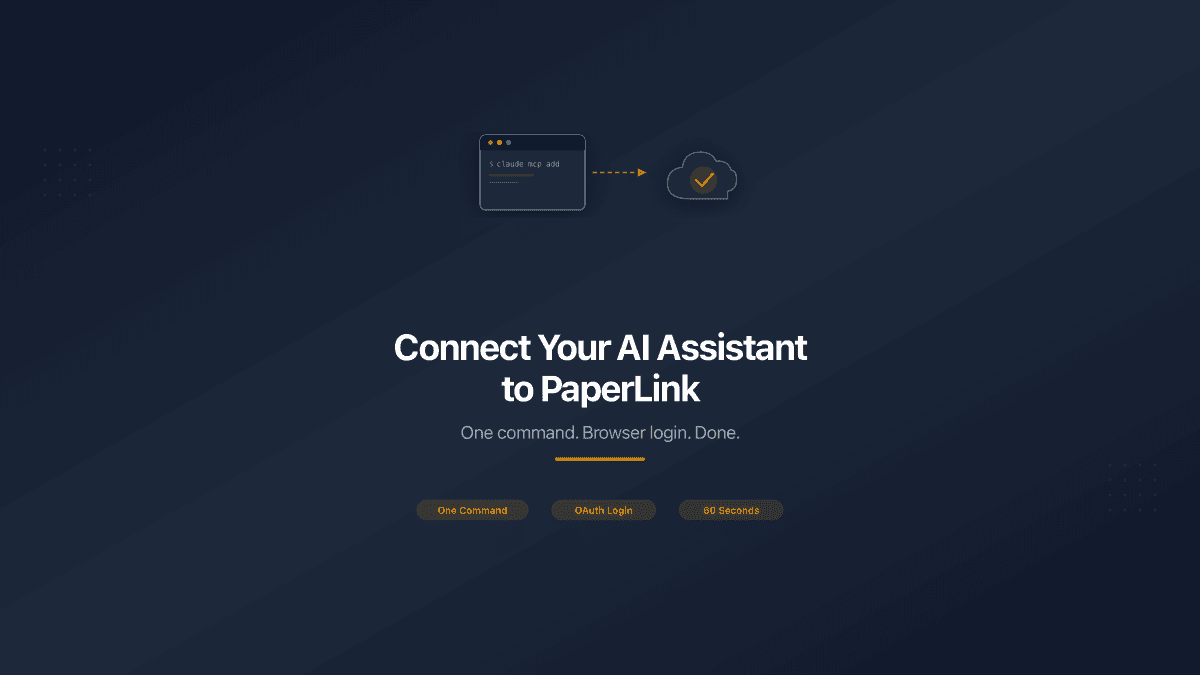
Most MCP server guides start with editing JSON config files and installing local packages. PaperLink works differently. The server is hosted in the cloud - you run one command in your terminal, log in through your browser, pick a team, choose permissions, and your AI starts working with your business data. Under 60 seconds, no dependencies.
This guide covers connecting from Claude Code and Cursor.
What You Need
- A PaperLink account (free tier works)
- Claude Code (Anthropic's terminal tool) or Cursor IDE
No npm packages. No Docker. No API keys.
PaperLink uses a remote hosted MCP server with OAuth authentication. Claude Desktop does not support remote servers yet - use Claude Code (terminal) or Cursor instead.
Connect from Claude Code
Open your terminal and run:
claude mcp add --transport http paperlink https://mcp.paperlink.online/api/mcp/mcp
Your default browser opens with the PaperLink login page. If you are already logged in, you skip straight to the consent screen.
On the consent screen, you do two things:
-
Select a team. Each MCP connection is scoped to one team. If you have multiple teams, pick the one you want your AI to access. You can add separate connections for other teams later.
-
Choose permissions. The consent screen shows checkboxes for each permission group:
- View your invoices
- View your transactions, accounts, and categories
- Create, update, and transfer transactions
- Delete your transactions
- View / create / update / archive companies
- View / create / update / archive clients
- View / create / update / archive products
Check the ones you want and click Allow. Your browser redirects back, and Claude Code confirms the connection is active.
You can uncheck everything except "View invoices" and "View transactions" to start with read-only access. Add more permissions later by reconnecting - run /mcp in Claude Code to re-authenticate with additional scopes.
Connect from Cursor
- Open Cursor settings
- Go to the MCP section
- Add a new remote server with URL:
https://mcp.paperlink.online/api/mcp/mcp - Your browser opens - log in, select a team, check the permissions you want
- Click Allow - return to Cursor, the connection is live
Verify the Connection
After connecting, test with a simple query:
- "What companies do I have?"
- "Show me recent transactions"
- "List my products"
If your AI returns data from your PaperLink account, everything works.
What You Can Do Once Connected
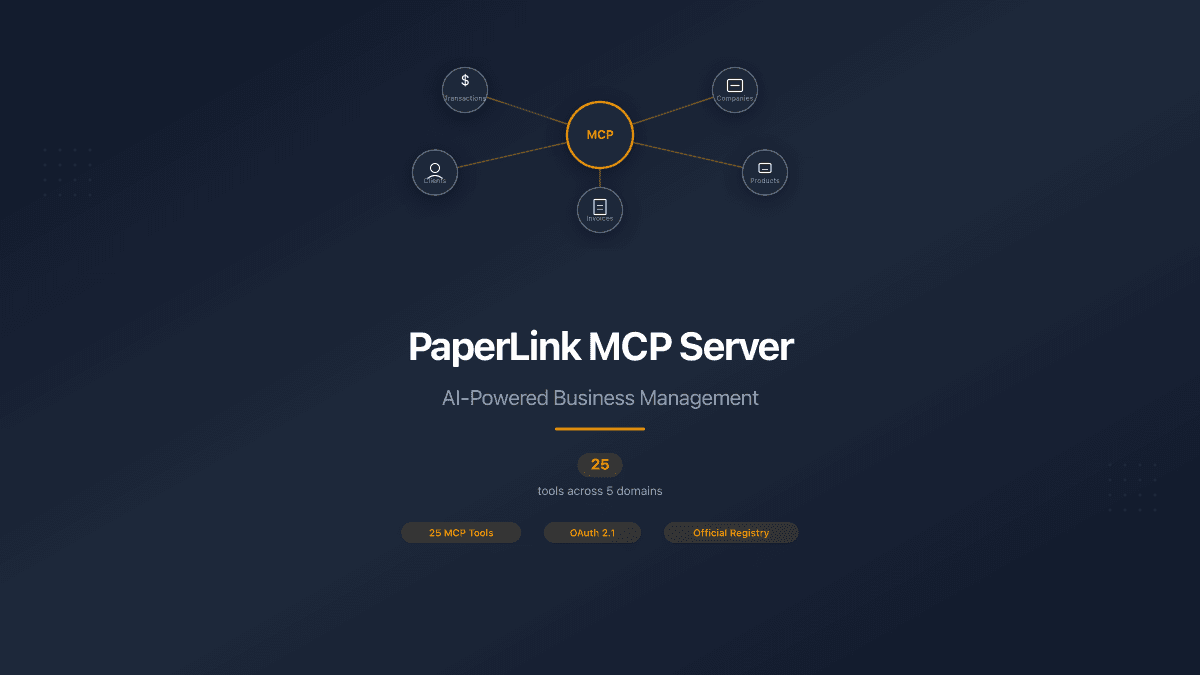
PaperLink exposes 25 tools across five domains. Here are examples of real conversations:
Record expenses:
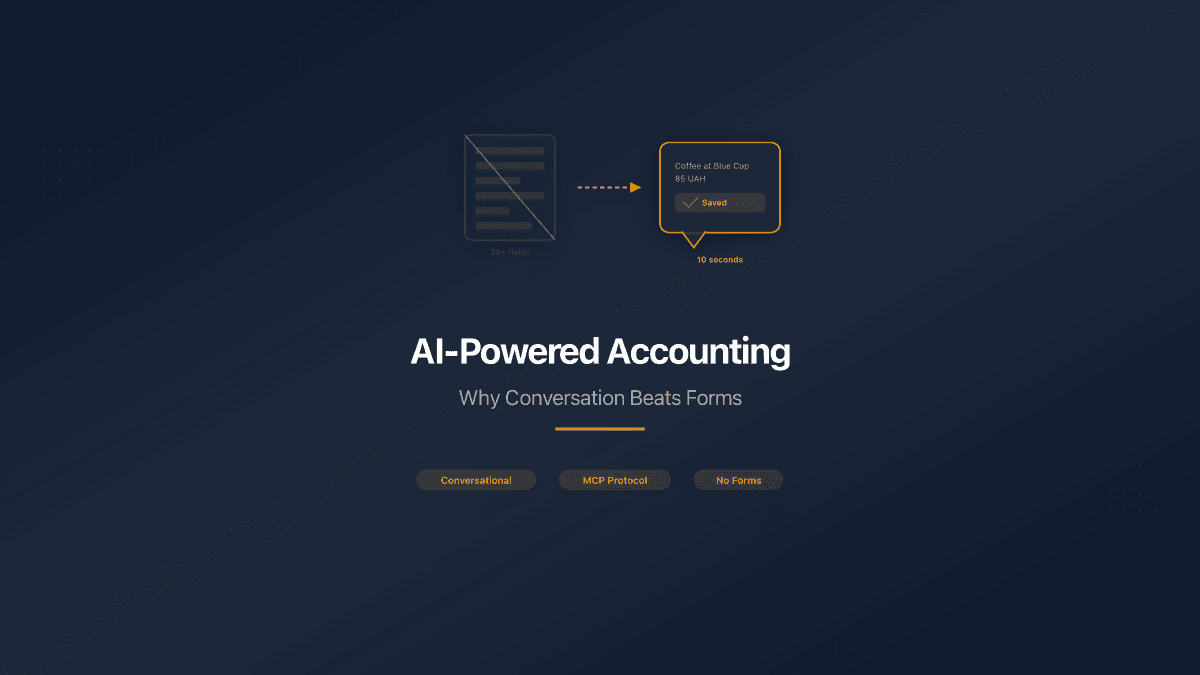
- "Coffee at Blue Cup, 85 UAH" - your AI finds the right category and bank account
- Send a photo of a grocery receipt - your AI reads each item and creates all transactions at once
Manage your business:
- "Add my company ТОВ Прометей, IBAN UA213..., registration 12345678"
- "Register a client - Google LLC, billing@google.com"
- "New service: Web Development, $150 per hour"
Update and organize:
- "Change the IBAN on my company to UA999..."
- "Archive the test product"
- "Transfer $100 from Wise to Mono Black"
Your AI always asks for confirmation before making any changes. If it picks the wrong category or amount, tell it - the AI shows you what it did and asks permission to fix it.
Managing Your Connection
Re-authenticate with more scopes: Run /mcp in Claude Code. Select "clear authentication" then reconnect. The new consent screen lets you check additional permission boxes.
Switch teams: Add a separate MCP connection for each team. Each connection has its own permissions and data isolation.
Revoke access: In your PaperLink account settings, you can see active MCP connections and revoke any of them instantly.
Troubleshooting
Connection refused or timeout: The MCP server URL is mcp.paperlink.online (not app.paperlink.online). PaperLink runs the MCP server on a dedicated subdomain.
"Insufficient scope" error: Your token is missing the required permission. Run /mcp in Claude Code, clear authentication, and reconnect with the additional scope checked.
AI returns no data: You may have selected the wrong team during consent. Each connection sees only one team's data. Reconnect and pick the correct team.
Token expired: Tokens refresh automatically. If something stops working, run /mcp and re-authenticate. Takes a few seconds.
How This Differs from Local MCP Servers
Most MCP guides involve installing servers locally, editing claude_desktop_config.json, and managing processes on your machine. PaperLink's server is fully hosted:
| Local MCP Server | PaperLink MCP |
|---|---|
| Install with npm or Docker | No installation |
| Edit JSON config files | One terminal command |
| Manage API keys | OAuth handles authentication |
| Runs on your machine | Runs in the cloud |
| You handle updates | Always current |
The tradeoff: local servers work offline and access local files. PaperLink's server requires internet but needs zero setup or maintenance.
Next Steps
Read the full list of 25 tools to see everything your AI can do with PaperLink. The server is listed on the official Anthropic MCP Registry and MCP.so.
Connect and start managing your business through conversation.