
Connect Slack for Real-Time Notifications
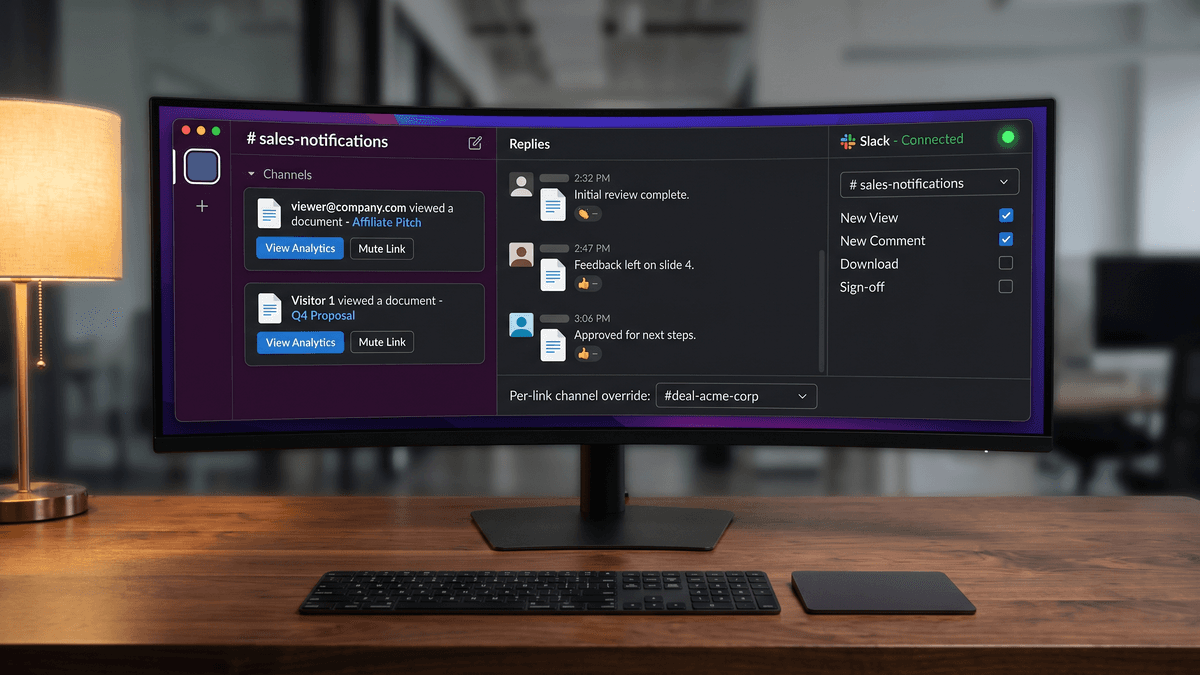
PaperLink can send a Slack message the moment someone opens a shared document, downloads a file, or signs an agreement. The integration is native - no Zapier, no webhooks to configure.
How Do I Connect My Slack Workspace?
Only OWNER and ADMIN roles can connect or configure the Slack integration. Once connected, it applies to all shared links in the team.
- Open Settings and go to Integrations.
- Click Add to Slack.
- Complete the standard Slack OAuth flow - this takes about 30 seconds.
- Choose a Default notification channel from the dropdown. This is where notifications appear unless you set a per-link override.
- Click Save.
After connecting, you can send a test notification to confirm the channel is working.
Which Events Trigger Slack Notifications?
PaperLink tracks eight types of engagement. Each can be toggled independently:
- Document viewed (first visit)
- Document viewed (returning visit)
- Document downloaded
- NDA or agreement signed
- Email opened
- File uploaded to a data room collection
- Link clicked inside the document
- High engagement alert
First visit and returning visit are separate toggles. If you are running cold outreach, you may want to disable returning-visit alerts to reduce noise while keeping first-visit alerts active.
How Are Notifications Grouped?
PaperLink groups activity by session rather than sending one message per event.
When the same visitor triggers multiple events within 15 minutes, PaperLink updates the original Slack message in place. Your channel shows one message per session, not a flood of individual events.
When the same visitor returns after more than 15 minutes, PaperLink posts a thread reply to the original notification. Every visit from that person lives in one thread, ordered by time.
How Do I See Who Is Reading My Document?
If a viewer entered their email (via an email gate or by logging in), their address appears in the notification.
For anonymous viewers, PaperLink assigns a stable sequential number - Visitor 1, Visitor 2, and so on. The numbering is per link. The same anonymous visitor keeps the same number across multiple visits, so you can track their engagement over time even without knowing who they are.
How Do I Route a Deal to Its Own Channel?
By default, all notifications go to the channel you set in Settings. For individual links, you can override this.
- Open a sharing link and go to Link Settings.
- Find the Send notifications to field.
- Select a channel from the list (private channels show a lock icon).
- Save the link.
Notifications for that link go to the chosen channel. All other links continue using the team default.
For a significant deal, create a dedicated channel - something like #deal-acme - and route that prospect's document link to it. Everyone on the deal sees every interaction as it happens.
How Do I Mute Notifications for a Specific Link?
To stop notifications for one link without disconnecting Slack:
- Open the link and go to Link Settings.
- Toggle Mute Slack notifications on.
Notifications for that link stop immediately. The toggle is per link - other links are not affected. Toggle it off to resume notifications.
How Do I Disconnect Slack?
- Open Settings and go to Integrations.
- Click Disconnect next to the Slack workspace name.
Disconnecting removes the integration for the entire team. Existing notification logs are preserved.
Related
- Connect Telegram for Document Notifications - get document notifications in Telegram DM or a team channel
- Send Email Notifications - get notified by email when viewers engage with your documents
- Real-Time Slack Alerts When Someone Views Your Document - full feature overview with use cases and comparison to DocSend and PandaDoc
- Manage Link Settings - password protection, email verification, download controls, and more
- Connect to the PaperLink Public API - automate workflows and sync data with external tools using API keys
- Connect HURMA to Match Employees with Clients - sync your HR employee list with PaperLink clients
这篇文章对您有帮助吗?
相关文章
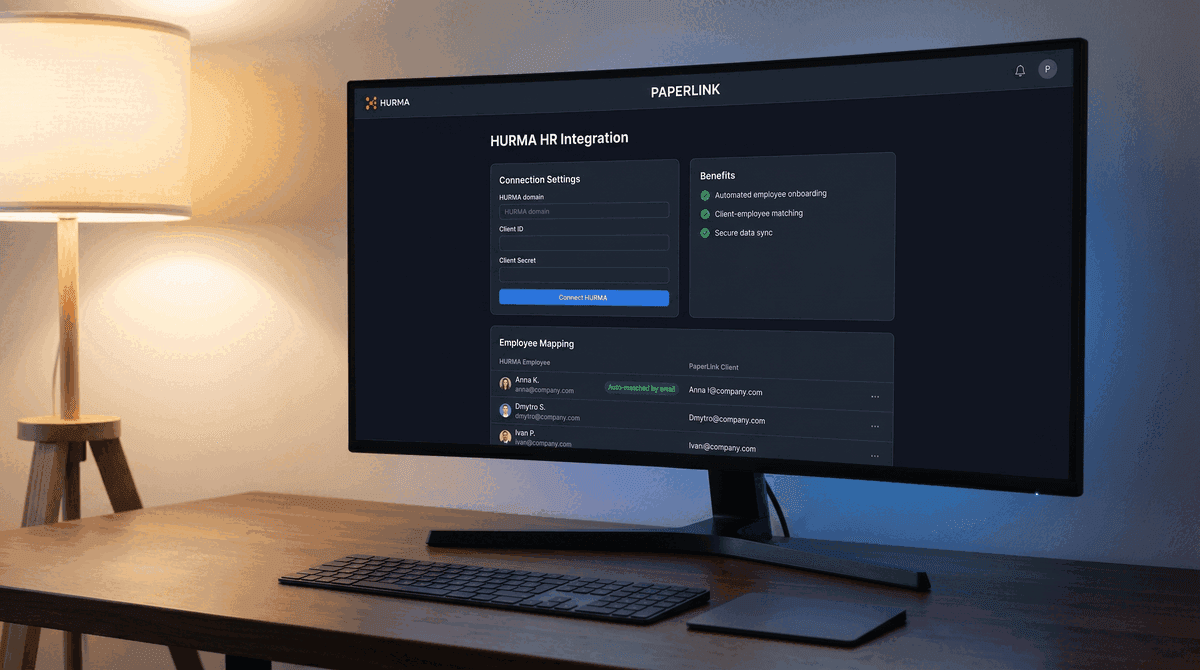
Connect HURMA to Match Employees with Clients
Connect your HURMA workspace to PaperLink to automatically match employees with clients. Set up OAuth credentials, map employees, and keep the list in sync.
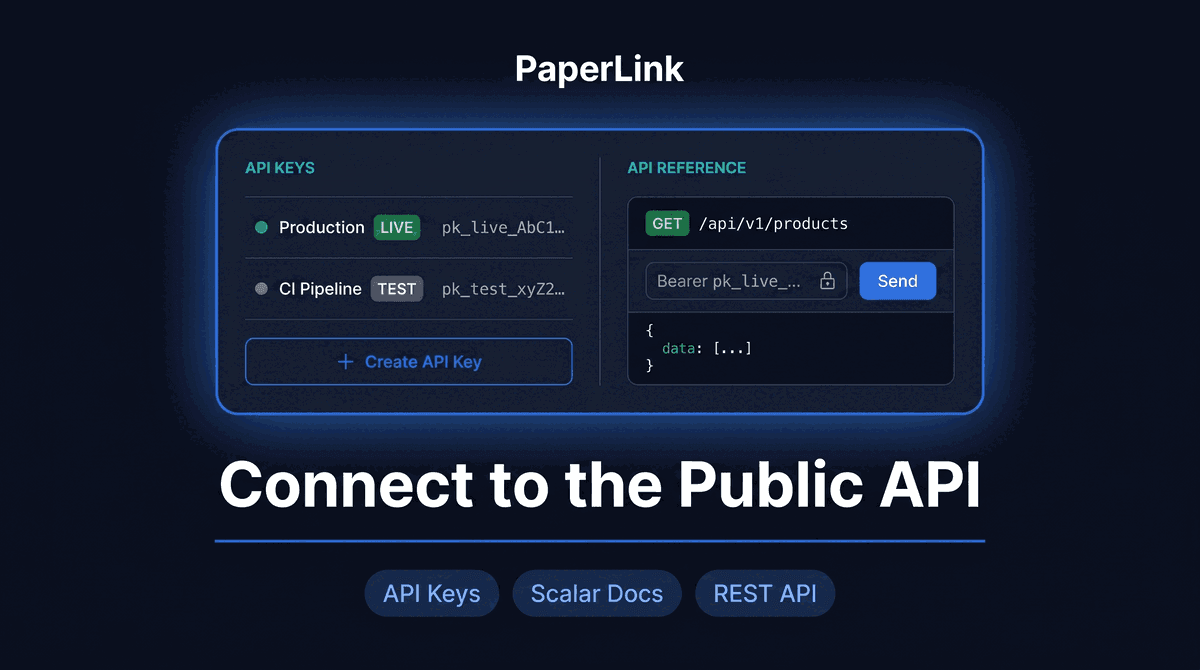
Connect to the PaperLink Public API
Generate an API key to connect PaperLink with your own tools and scripts. Learn how to create a key, choose mode and scope, and authenticate your first request.
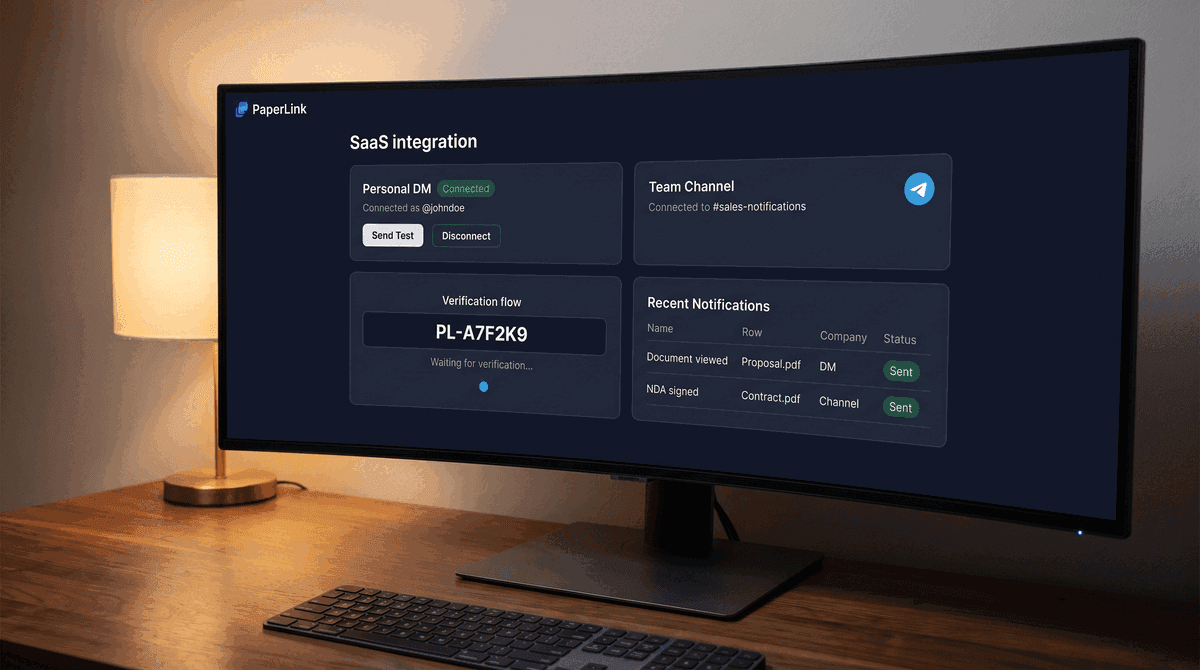
Connect Telegram for Document Notifications
Connect Telegram to get instant notifications when someone views, downloads, or signs your shared documents - in your DM or a team channel.
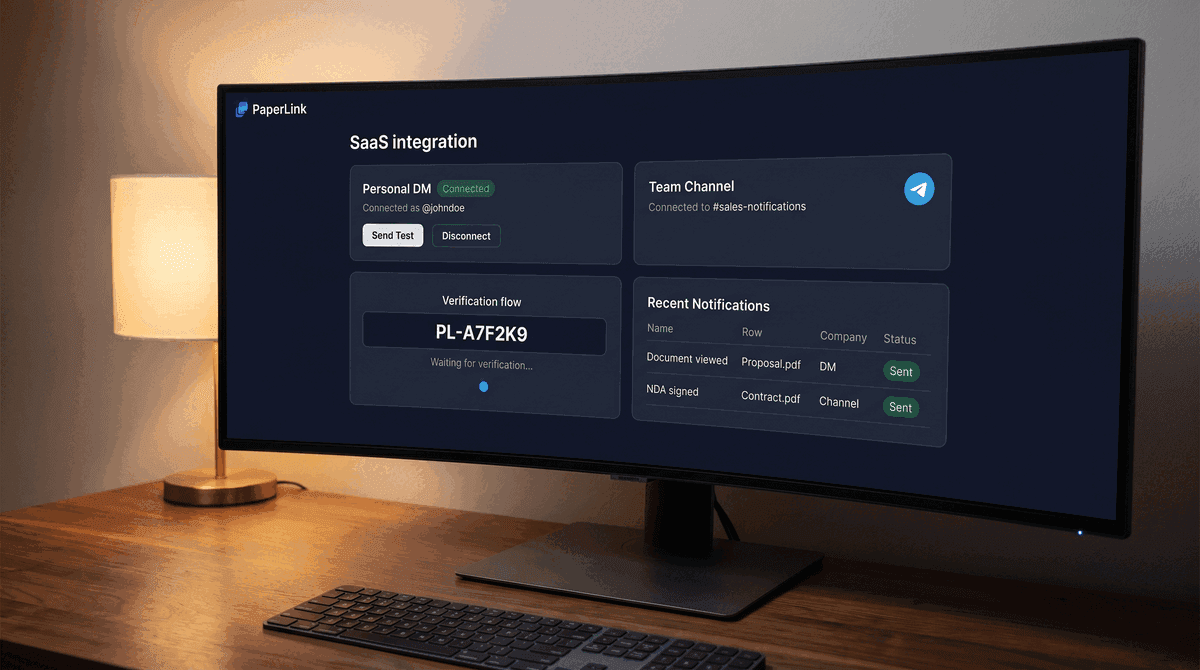
Telegram Notifications When Someone Views Your Document
Get a Telegram message the moment someone opens your shared document - in your personal DM and team channel simultaneously. Native bot, no Zapier needed.

7 Digify Alternatives for Document Sharing in 2026
The best Digify alternatives for document sharing and data rooms in 2026. Honest comparison across security, pricing, analytics, and eSignature features.
Digify vs PaperLink: Security & Pricing Compared
Digify vs PaperLink compared across security, analytics, data rooms, pricing, and invoicing. An honest look at where each platform wins.