You sent a proposal on Friday afternoon. It is Monday now. You have been checking PaperLink analytics periodically since Saturday, waiting for the first view. You have no idea whether the prospect even received it.
This is the friction Telegram notifications eliminate.
PaperLink now sends instant Telegram messages when your shared documents receive engagement - delivered to your personal DM from the PaperLink bot, and simultaneously to a team channel if you have one connected. No Zapier. No webhook configuration. No third-party automation that breaks when either service updates.
Who This Is Built For
Telegram is the dominant business messenger across Eastern Europe, the Middle East, and much of Southeast Asia. In many markets where PaperLink is growing - Ukraine, the CIS region, Singapore, Indonesia - Telegram is where business actually happens. Teams hold working meetings there, clients send requests there, and decisions get made there.
Slack works well for teams that already live in Slack. But a freelancer in Kyiv, a sales team in Singapore, or an agency in Istanbul is unlikely to have Slack open on their phone at 6 PM. They have Telegram.
Bringing document engagement notifications to Telegram means the person who shared the document gets the signal in the tool they actually check.
Two Connection Types, One Setup
The integration has two distinct targets, and they work independently.
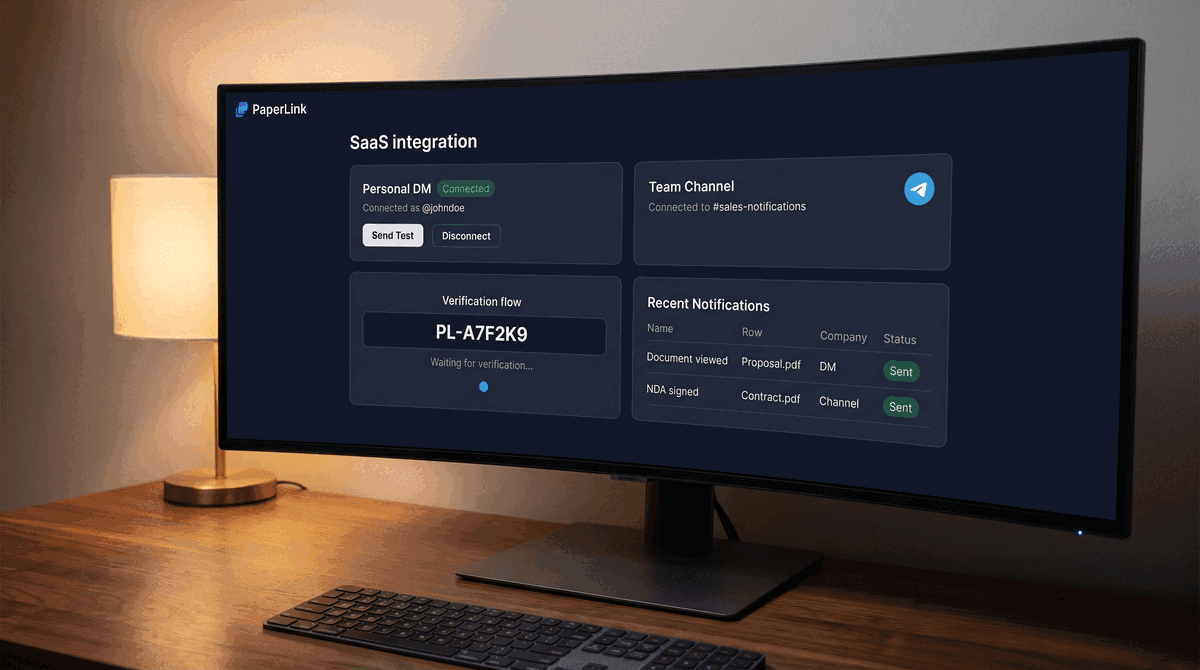
Personal DM connects your PaperLink account to your individual Telegram account. When any document you created receives engagement, the PaperLink bot sends you a direct message. This connection is user-level - connect once and receive notifications from all teams you belong to, without reconnecting for each team separately.
Team channel connects your team's shared Telegram channel or group to PaperLink. When documents from anyone on the team receive engagement, a message appears in the channel. This is the setup for a sales team that wants shared visibility into prospect activity.
Both can be active simultaneously. A manager gets a personal DM and the team channel gets the same notification at the same time.
OWNER and ADMIN roles can connect the team channel. Personal DM connection is available to OWNER, ADMIN, and MANAGER roles. MEMBER accounts see the integration status but cannot change settings.
Connecting Your Personal DM
- Open Settings and go to Notifications.
- Click Connect Telegram DM.
- Tap Open in Telegram - this opens a deep link to the PaperLink bot.
- In Telegram, tap Start.
- The bot confirms: "Connected to PaperLink. You'll receive document notifications here."
The connection link expires after 15 minutes. If it expires before you tap Start, generate a fresh one from the same settings page.
Connecting a Team Channel
Channel connection uses a verification code rather than OAuth. This is intentional - Telegram channels do not have a browser-based authorization flow.
- Open Team Settings and go to Integrations - Telegram.
- Click Connect Channel.
- Add @app_paperlink_bot to your Telegram channel as an admin.
- Post the verification code (format:
PL-A7F2K9) in the channel. - PaperLink detects the code automatically, confirms the connection, and sends a test message.
The bot needs admin status in your channel to receive the verification message. The most common reason setup fails is posting the code before adding the bot as admin. Add the bot first, then post the code.
For a significant deal, create a dedicated Telegram channel - something like "@deal-acme-2026" - and connect it as your team channel temporarily. Everyone working the deal sees every document interaction in real time, in one place.
What a Notification Looks Like
PaperLink

Document viewed
Proposal Q2 2026.pdf
by john@acme.com - Singapore
[Acme Corp] - just now

[ View analytics ]
The notification includes the document name, event type, viewer identity (email if known, "Anonymous viewer" if not), approximate location, and a timestamp. The View analytics button is a direct link to the analytics page for that document - one tap from Telegram to the full interaction history in PaperLink.
When you are a member of more than one team, the team label (e.g., [Acme Corp]) appears in each notification so you can distinguish which team's document received the engagement.
Session Deduplication
A prospect reading a long proposal will trigger multiple page-view events within a short window. Without deduplication, you would receive a separate Telegram message for each one.
PaperLink groups activity by session instead. Multiple events from the same viewer within 15 minutes produce a single notification, not one per event. The signal reaches you without the noise.
Eight Event Types
Telegram notifications cover the same eight engagement events as Slack notifications:
- Document viewed (first visit)
- Document viewed (returning visit)
- Document downloaded
- NDA or agreement signed
- Email opened
- File uploaded to a data room collection
- Link clicked inside the document
- High engagement alert
First visit and returning visit are tracked separately. A team doing high-volume outreach may want to know about first opens without being notified every time a prospect returns - the two event types can be configured independently.
Muting Individual Links
When a document generates more activity than you want to track - a widely shared reference guide, for example - mute notifications for that specific link without disconnecting the integration. Open the link in PaperLink, go to Link Settings, and toggle Mute notifications. The mute applies across all notification channels.
Health Monitoring
If the PaperLink bot is removed from a team channel, PaperLink detects this automatically within 10 minutes and marks the channel as disconnected. A red banner appears in Team Settings - Integrations - Telegram with a Reconnect button.
You do not need to monitor the integration manually. If notifications stop arriving, the settings page tells you why and how to fix it.
Telegram vs Slack: Which to Use
Both integrations are available and can be active simultaneously. The choice is not either/or.
| PaperLink + Telegram | PaperLink + Slack | |
|---|---|---|
| Best for | APAC, Eastern Europe, CIS markets | Teams already on Slack |
| Team channel | Yes - group or channel | Yes - any channel |
| Personal DM | Yes - from bot | Yes - direct message |
| Session threading | Single notification per session | Updates in place + thread replies |
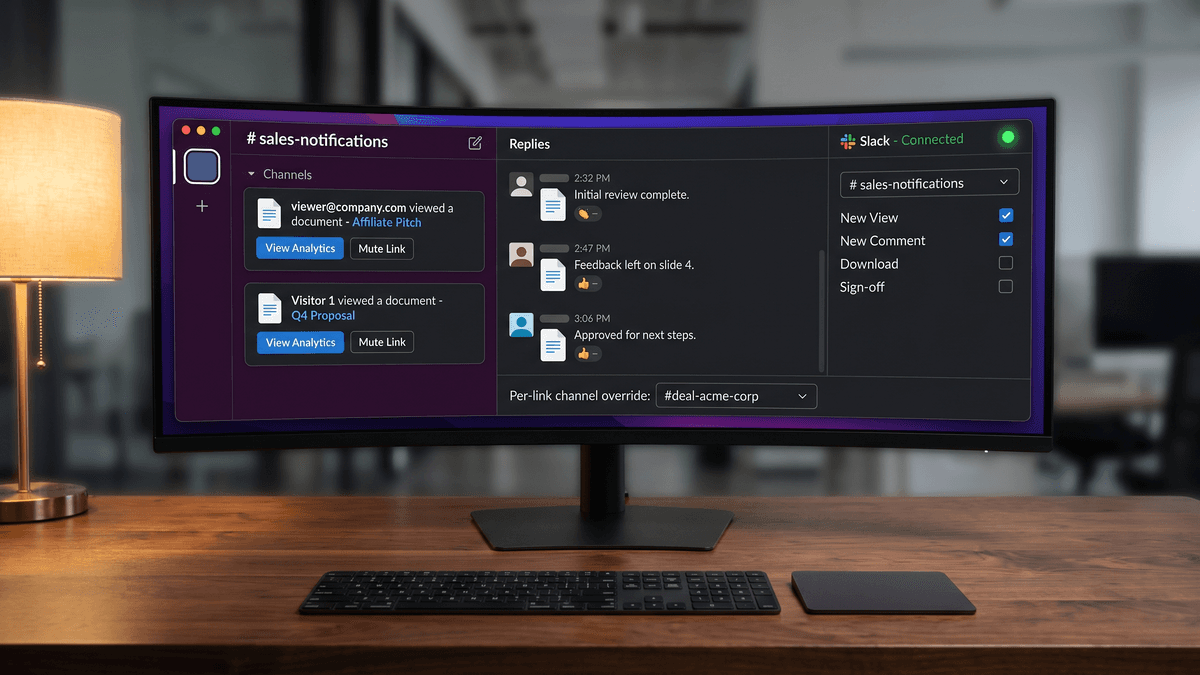
| Per-link channel override | Not in v1 | Yes |
| Setup time | Under 1 minute | Under 1 minute (OAuth) |
If your team uses Slack internally and your clients are primarily in North American or Western European markets, Slack is the faster setup and has slightly more configuration options at this point. If you or your team live in Telegram, or if you are working with clients in markets where Telegram is the default business messenger, start there.
Connect Telegram
Telegram notifications are available on all PaperLink plans. Connect your personal DM from Settings - Notifications, and your team channel from Team Settings - Integrations - Telegram.
The next time a prospect opens your proposal, you will know before they close the tab - wherever you are.
Related
- Connect Slack for Real-Time Notifications - Slack integration setup and configuration options
- Connect Telegram for Document Notifications - step-by-step Telegram setup guide
- Real-Time Slack Alerts When Someone Views Your Document - full overview of the Slack notification system
- Sign In with Telegram - authenticate with Telegram instead of a password
- Document Tracking - the view analytics that trigger these real-time notifications