
Create a Sharing Link
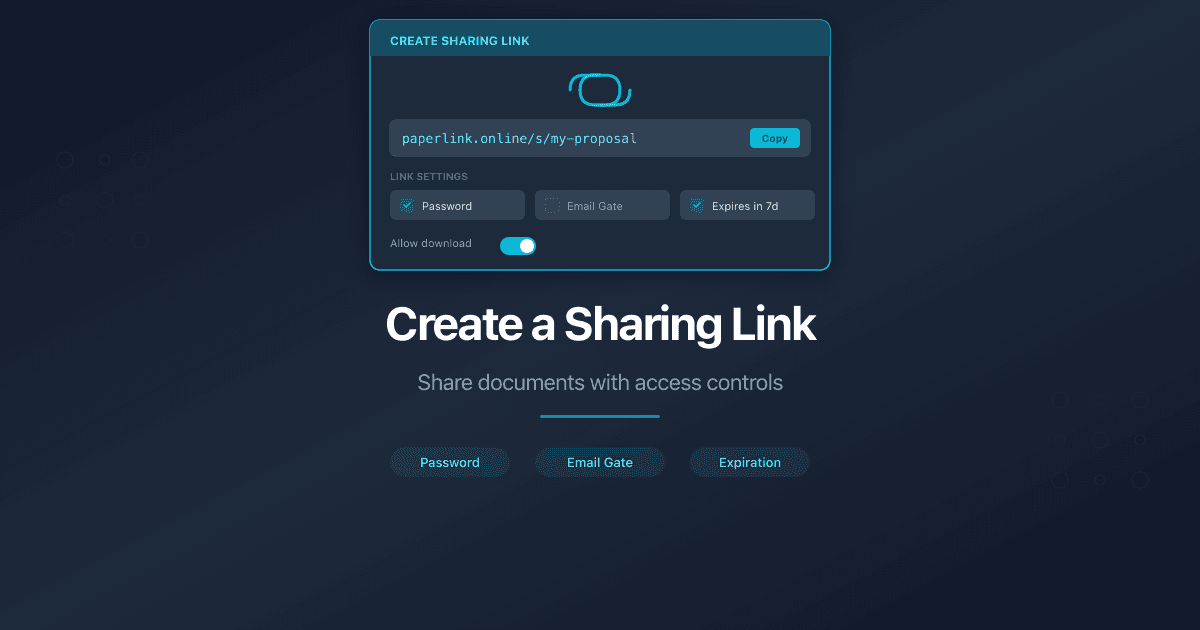
How Do I Create a Sharing Link?
PaperLink lets you create shareable links for your documents with access controls, viewer permissions, and custom settings.
Steps
- Open a document from Shared Documents in the sidebar.
- Click Create Link at the bottom of the document page.
- Fill in the link settings across four sections: Basic Info, Access Control, Viewer Permissions, and Link Settings.
- Click Create Link at the bottom of the form.
- Copy the generated link and share it with your recipient.
Form Sections
The Create Link form is organized into four collapsible sections.
Basic Info - name your link and add team notes.
- Link Name (optional) - type a name and press Enter to add it as a tag. This helps you identify the link later in your analytics dashboard. Add multiple names to create a separate link for each one.
- Internal Notes (optional) - notes visible only to your team, not to the link viewer.
Access Control - decide who can open the link.
- Require email to view - viewers enter their email before accessing the document. You can restrict access to specific email addresses by typing them into the field below.
- Require login to view - only registered PaperLink users can view the document.
- Password Protection (optional) - set a password that viewers must enter to access the document.
Viewer Permissions - control what viewers can do.
- Allow PDF download - let viewers download the original file.
- Require NDA/Agreement - viewers must accept an agreement before accessing the document.
Link Settings - customize expiration, messages, and URL.
- Expiration Date (optional) - the link stops working after this date.
- Welcome Message (optional) - a message viewers see before accessing the document.
- Custom URL - set a custom URL slug for the link instead of the auto-generated one.
Add multiple names in the Link Name field to create a separate link for each recipient. Each link tracks views independently, so you know exactly who opened it.
What Happens Next
After creating a link, PaperLink shows the shareable URL with a copy button. Send this URL to your recipient through email, Slack, or any messaging tool.
The recipient opens the link in their browser and sees the document viewer. If you set any access controls (email, password, NDA), they complete those steps first.
You can track who viewed the document, how long they spent on each page, and whether they downloaded the file from the document's analytics tab.
Related
- Manage Link Settings - overview of all link settings with detailed explanations
- Upload Documents - add files to your library before creating links
- Password-Protect Your Shared Document Links - how password protection works in detail
- Email Verification for Shared Documents - require email before viewing
- Download Permission Control for Shared Documents - control who can download
- Custom URL Slugs for Shared Document Links - branded URLs for your links
- Require an Agreement Before Viewing - NDA or custom agreement gate for shared links
- Set Link Expiration - auto-revoke access after a deadline
- Understand Viewer Analytics - what each metric means in the analytics dashboard
- Set Up a Data Room - share an entire folder with access controls
- Collect Documents with Document Requests - attach a document checklist to folder links
- Add a Custom Domain - share documents from your own domain
- Install the Browser Extension - create links directly from Gmail, Notion, or any webpage
War dieser Artikel hilfreich?
Brauchen Sie mehr Hilfe?
Durchsuchen Sie unser Hilfezentrum oder kontaktieren Sie unser Team für persönliche Unterstützung.
Verwandte Artikel
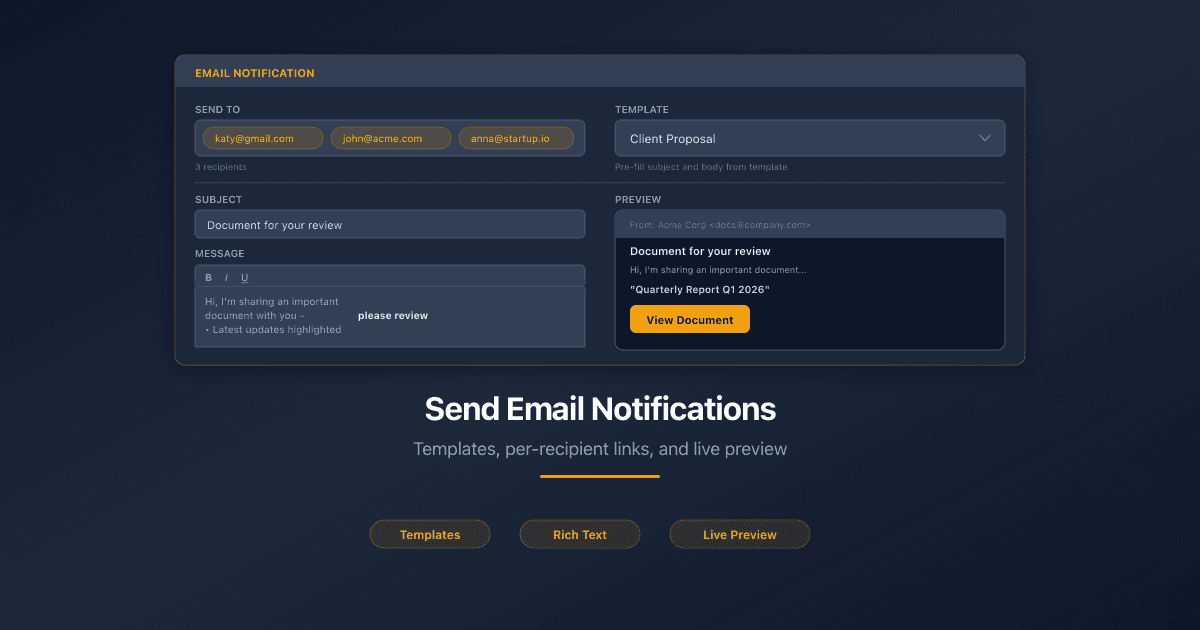
Send Email Notifications When Sharing Documents
Send document sharing notifications by email with templates, per-recipient tracking, and live preview. Requires SMTP setup.
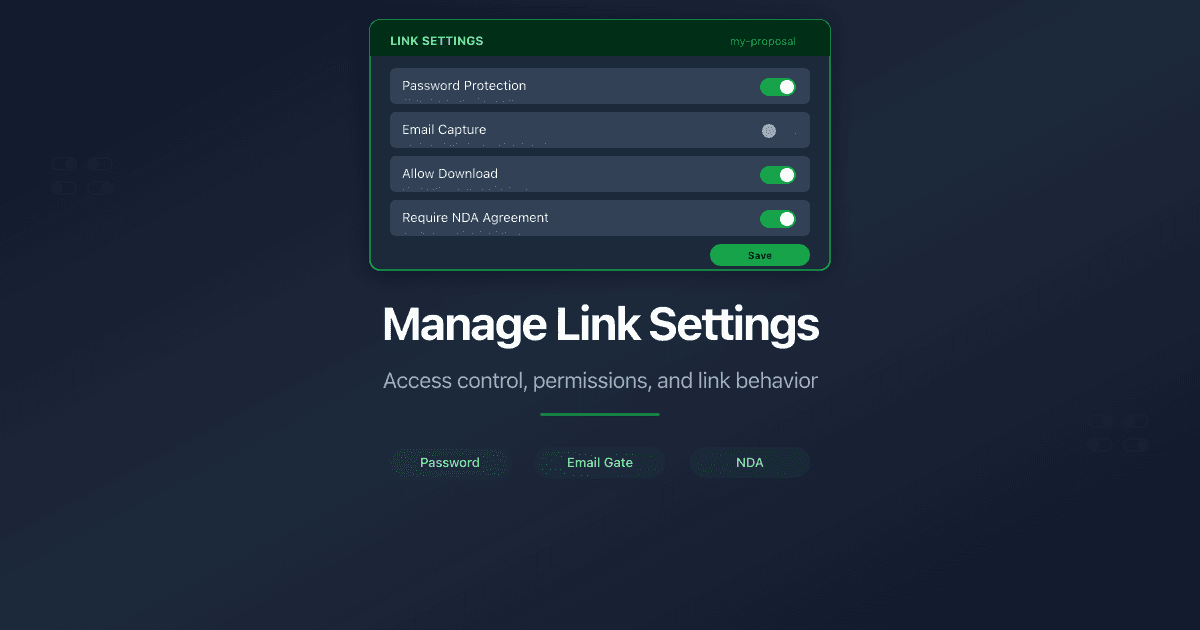
Manage Link Settings
All sharing link settings in PaperLink: access control, viewer permissions, expiration, custom URLs. Edit any time after creation.
Secure Document Sharing for Due Diligence
What secure document sharing for due diligence requires: access controls, audit trails, NDA gates, and compliance. A checklist for M&A, legal, KYC, and corporate services.
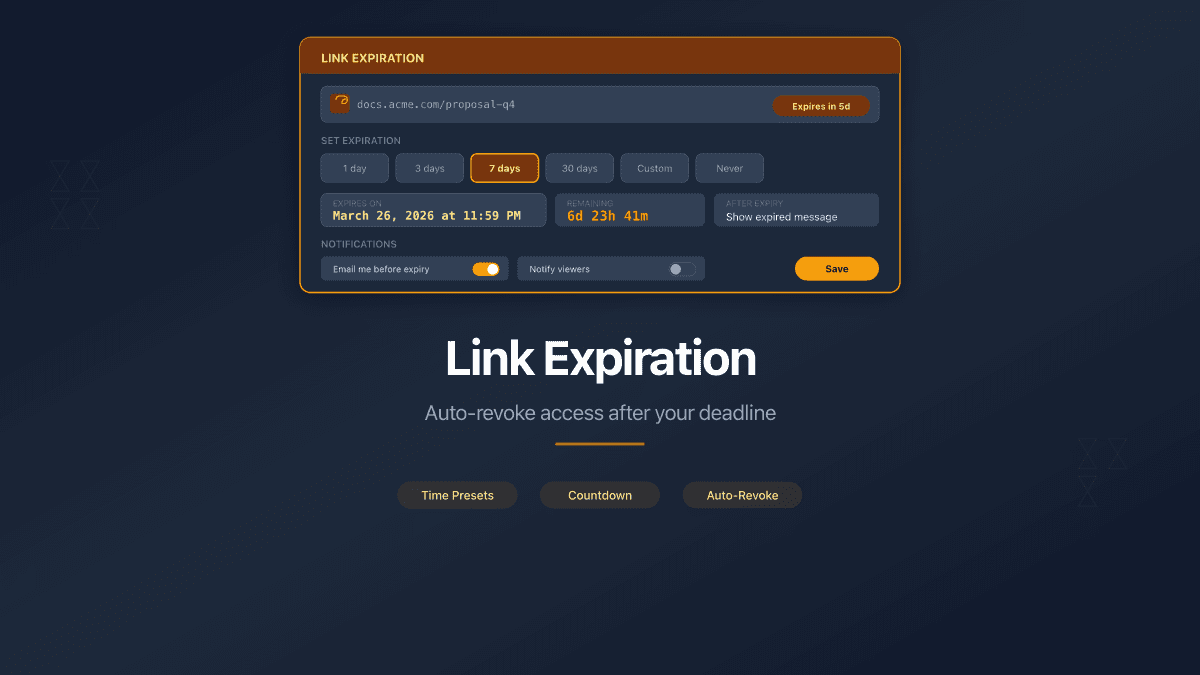
Set Expiration Dates on Shared Document Links
Set expiration dates on shared document links to automatically revoke access after a deadline. PaperLink expires links on all plans with page-level analytics.
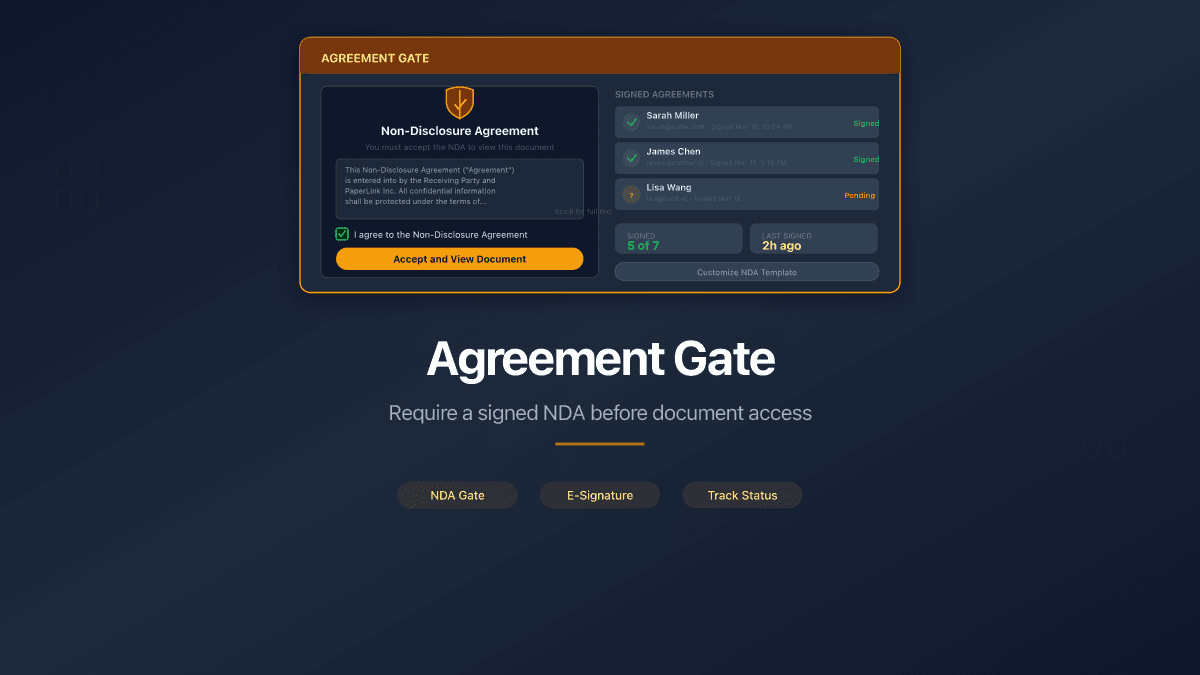
Require a Signed Agreement Before Document Access
PaperLink lets you require viewers to sign an NDA or custom agreement before accessing shared documents - with audit trail, IP logging, and downloadable proof.