
Get AI Insight for Shared Documents
How Do I Get AI Insight for Shared Documents?
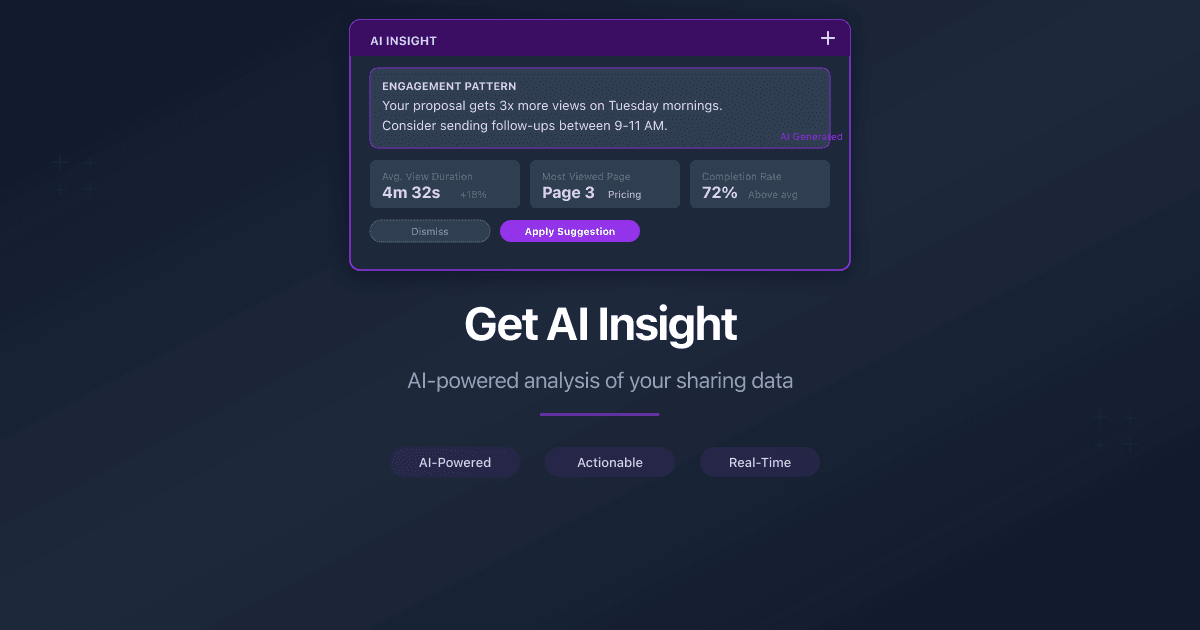
PaperLink can analyze your sharing analytics with AI and generate a written summary of what the data means. Instead of interpreting page-by-page engagement, viewer patterns, and return visits yourself, AI Insight does it for you in seconds.
AI Insight works on both individual documents and entire folders.
How to Generate an AI Insight
- Open a document or folder from Shared Documents in the sidebar.
- If the document has at least one sharing link with viewing data, the Get AI Insight button appears near the top of the detail page.
- Click Get AI Insight.
- Wait a few seconds while the AI analyzes your sharing data. A loading indicator shows "Analyzing your sharing data..."
- The insight appears as a text summary in a card labeled AI Insight.
What the AI Analyzes
The AI examines the same data you see in your viewer analytics:
- Page engagement - which pages held attention and which were skipped
- Viewer behavior - return visits, multi-stakeholder viewing sequences, time-of-day patterns
- Comparative performance - how this document or folder performs relative to viewing benchmarks
The output is a concise, readable summary with specific observations and recommendations. For example, the AI might note that your pricing page receives unusually high dwell time, or that multiple viewers from the same organization accessed the document within a short window.
Folder-Level Insights
When you click Get AI Insight on a folder, the AI aggregates engagement data across all documents inside that folder. This gives you a portfolio view - which documents in the folder attract the most engagement, and how the collection performs as a whole.
Daily Limit
Each user gets 3 AI Insight requests per rolling 24-hour window. The remaining uses are shown below the button. When the limit is reached, the message "Daily limit reached. Resets in 24 hours." appears.
The limit resets automatically. No action is needed.
The daily limit is per user, not per team. Each team member has their own 3 requests per day.
Hiding and Refreshing
After an insight is generated:
- Click the X button on the insight card to hide it. The insight is dismissed from the current view.
- To generate a fresh insight with updated data, click Get AI Insight again (this uses one of your daily requests).
Accuracy
Every AI Insight includes a disclaimer: "AI-generated insight. May contain inaccuracies - please verify key numbers." The raw analytics data remains visible on the same page, so you can cross-check any numbers the AI references.
Related
- Understand Viewer Analytics - learn what each metric means in the analytics dashboard
- Create a Sharing Link - set up links that feed data into analytics and AI Insight
- AI Insights for Document Sharing Analytics - product announcement with examples
War dieser Artikel hilfreich?
Brauchen Sie mehr Hilfe?
Durchsuchen Sie unser Hilfezentrum oder kontaktieren Sie unser Team für persönliche Unterstützung.
Verwandte Artikel
Understand Viewer Analytics
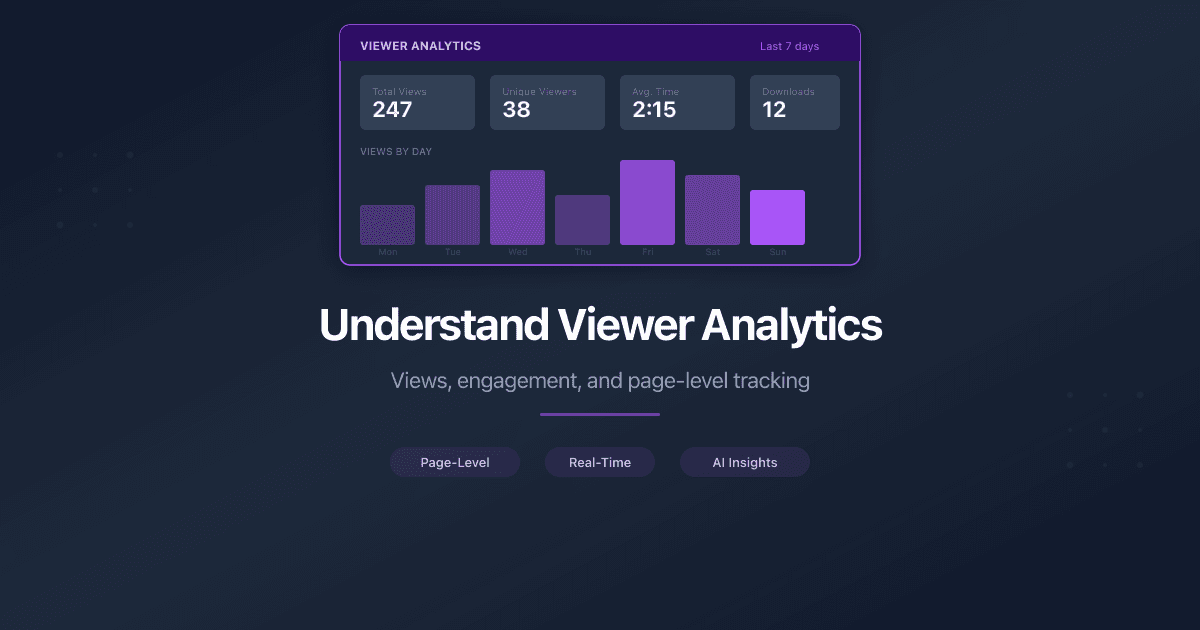
Learn what each metric means in PaperLink's viewer analytics dashboard - views, unique visitors, time spent, pages viewed, country, device, and downloads.
The End of "Did You Get My Email?"
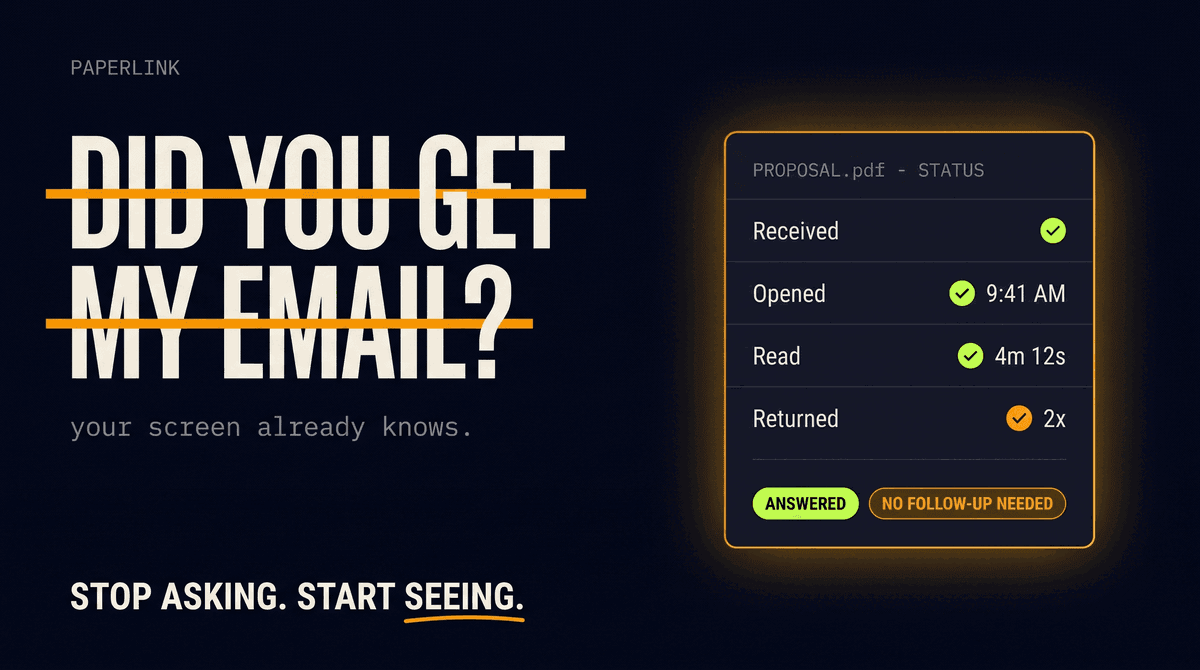
Asking whether someone received your document is a relic of working blind. As shared documents carry their own analytics, that question is quietly disappearing from business.
Why Email Attachments Are Dying in B2B Sales
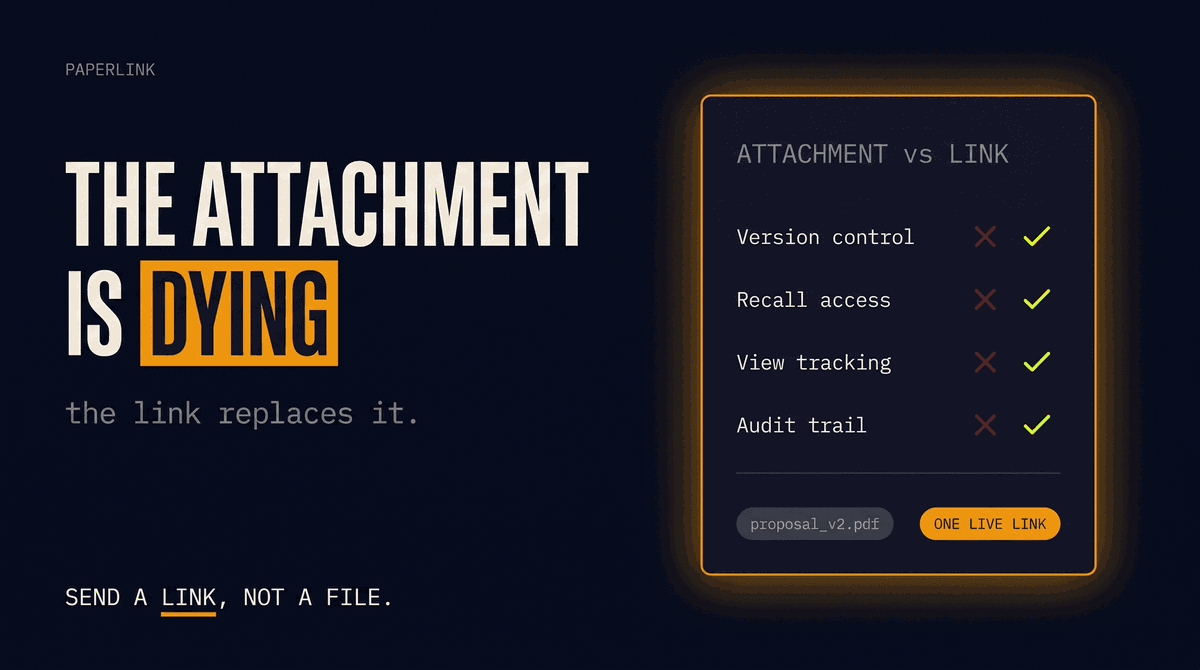
The PDF attachment is a broken format for B2B sales: no access control, no version control, no recall. Why sales teams are replacing attachments with tracked links.
7 Digify Alternatives for Document Sharing in 2026
The best Digify alternatives for document sharing and data rooms in 2026. Honest comparison across security, pricing, analytics, and eSignature features.