
Connect Telegram for Document Notifications
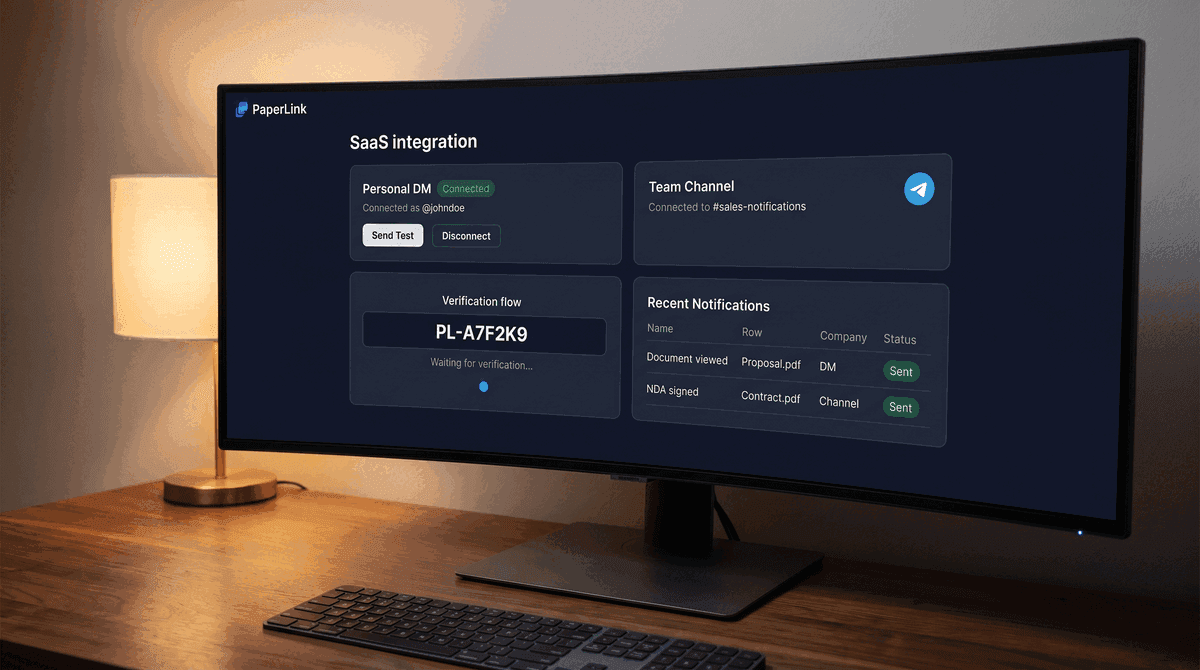
PaperLink sends a Telegram message the moment someone opens a shared document, downloads a file, or signs an agreement. You can receive notifications as a personal DM and simultaneously in a team channel.
Who Can Connect Telegram?
- Personal DM: OWNER, ADMIN, and MANAGER roles can connect their personal Telegram account.
- Team channel: Only OWNER and ADMIN can connect or disconnect a team channel.
- MEMBER role sees the integration status but cannot connect or change settings.
How Do I Connect My Personal Telegram DM?
Personal DM is linked to your PaperLink user account, not a specific team. Once connected, you receive notifications from all teams you belong to - no need to connect again for each team.
- Open Settings and go to Notifications.
- Find the Personal DM section under Telegram.
- Click Connect Telegram DM.
- A unique link opens - tap Open in Telegram.
- In Telegram, tap Start.
- The bot confirms: "Connected to PaperLink! You'll receive document notifications here."
- PaperLink shows Connected as @yourusername.
After connecting, click Send test DM to confirm the bot can reach you.
The connection link expires after 15 minutes. If you see "This link has expired", click Connect Telegram DM again to generate a fresh link.
How Do I Connect a Team Telegram Channel?
- Open Team Settings and go to Integrations > Telegram.
- Click Connect Channel.
- PaperLink generates a verification code like
PL-A7F2K9and shows two steps:- Step 1: Add @app_paperlink_bot to your Telegram channel as an admin.
- Step 2: Post the verification code in the channel.
- In Telegram, add @app_paperlink_bot to your channel and give it admin permissions.
- Post the verification code in the channel (type it as a regular message).
- PaperLink detects the code automatically and connects.
- The bot sends a test message to confirm delivery is working.
The verification code expires after 15 minutes. If the timer runs out before you post the code, click Try again to generate a new one. The most common reason for timeout is forgetting to add @app_paperlink_bot as an admin before posting the code.
Which Events Trigger Telegram Notifications?
PaperLink sends Telegram notifications for the same eight engagement events as Slack:
- Document viewed (first visit)
- Document viewed (returning visit)
- Document downloaded
- NDA or agreement signed
- Email opened
- File uploaded to a data room collection
- Link clicked inside the document
- High engagement alert
Each notification includes the document name, event type, viewer email (or "Anonymous viewer"), and an inline View analytics button that opens the document analytics page directly from Telegram.
How Are Notifications Grouped?
PaperLink deduplicates notifications by session. Multiple events from the same viewer within 15 minutes produce a single notification - not one message per page view. This keeps your Telegram clean during long reading sessions.
What Does a Telegram Notification Look Like?
PaperLink

Document viewed
Proposal Q2 2026.pdf
by john@acme.com - New York, US
[Acme Inc] - just now

[ View analytics ]
The team label (e.g., [Acme Inc]) appears only when you are a member of two or more teams that have Telegram connected. The View analytics button is a direct link to the analytics page for that document.
How Do I Mute Notifications for a Specific Link?
Telegram respects the same mute setting as other notification channels. To stop Telegram notifications for one link:
- Open the link and go to Link Settings.
- Toggle Mute notifications on.
The mute applies across all notification channels. Unmute to resume.
How Do I Send a Test Notification?
Personal DM:
- Go to Settings > Notifications > Telegram > Personal DM.
- Click Send test DM.
Team channel:
- Go to Team Settings > Integrations > Telegram.
- Click Send test notification.
Both send a sample message with "Test Document" and "viewed by Test Viewer" so you can verify delivery without waiting for a real document view.
How Do I Disconnect Telegram?
Personal DM:
- Go to Settings > Notifications > Telegram > Personal DM.
- Click Disconnect DM and confirm.
Team channel:
- Go to Team Settings > Integrations > Telegram.
- Click Disconnect Channel and confirm.
Disconnecting stops all Telegram delivery. Existing notification history is preserved. You can reconnect at any time.
Why Is My Channel Showing "Disconnected"?
If @app_paperlink_bot is removed from the channel, PaperLink detects this automatically within 10 minutes and marks the channel as Disconnected. A red banner appears in Team Settings > Integrations > Telegram:
"Telegram channel disconnected. Bot was removed from the channel. Re-add @app_paperlink_bot and reconnect."
To restore delivery:
- Re-add @app_paperlink_bot to the channel as an admin.
- Click Reconnect Channel and complete the verification flow.
The banner clears automatically after the next successful health check.
Why Did I Stop Receiving Personal DMs?
If you blocked @app_paperlink_bot in Telegram, PaperLink detects the block on the next notification attempt and marks your DM as Disconnected. Your settings show a yellow warning:
"Your Telegram connection needs renewal. You may have blocked the bot."
To restore:
- Unblock @app_paperlink_bot in Telegram.
- Go to Settings > Notifications > Telegram.
- Click Reconnect Telegram.
Is the Same Telegram Account Connected to Two PaperLink Accounts?
Each Telegram account can only be connected to one PaperLink user account. If you try to connect a Telegram account that is already linked to another PaperLink user, you will see:
"This Telegram account is already connected to another PaperLink account."
Use a different Telegram account, or disconnect the existing link from the other PaperLink account first.
Related
- Connect Slack for Real-Time Notifications - get document notifications in a Slack channel
- Send Email Notifications - notify recipients by email when you share a document
- Manage Link Settings - password protection, download controls, expiration, and mute
- Real-Time Slack Alerts When Someone Views Your Document - full overview of PaperLink's notification system
- Sign In with Telegram - authenticate with Telegram instead of a password
Σας φάνηκε χρήσιμο αυτό το άρθρο;
Χρειάζεστε περισσότερη βοήθεια;
Περιηγηθείτε στο κέντρο βοήθειας ή επικοινωνήστε με την ομάδα μας για εξατομικευμένη υποστήριξη.
Σχετικά άρθρα
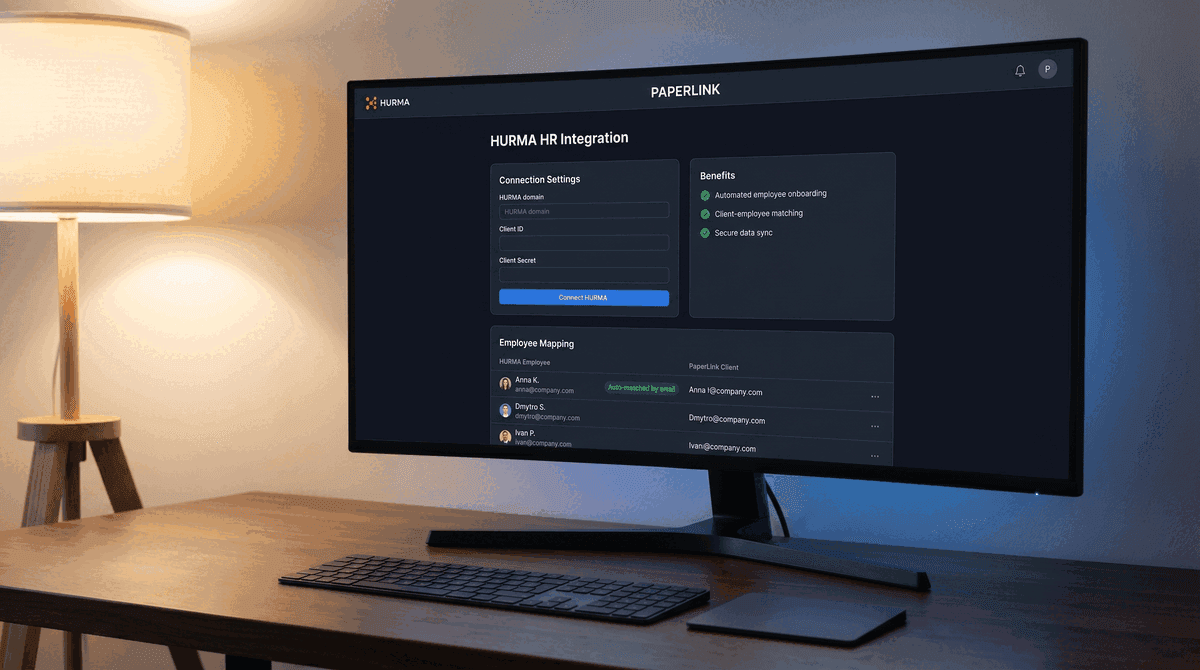
Connect HURMA to Match Employees with Clients
Connect your HURMA workspace to PaperLink to automatically match employees with clients. Set up OAuth credentials, map employees, and keep the list in sync.
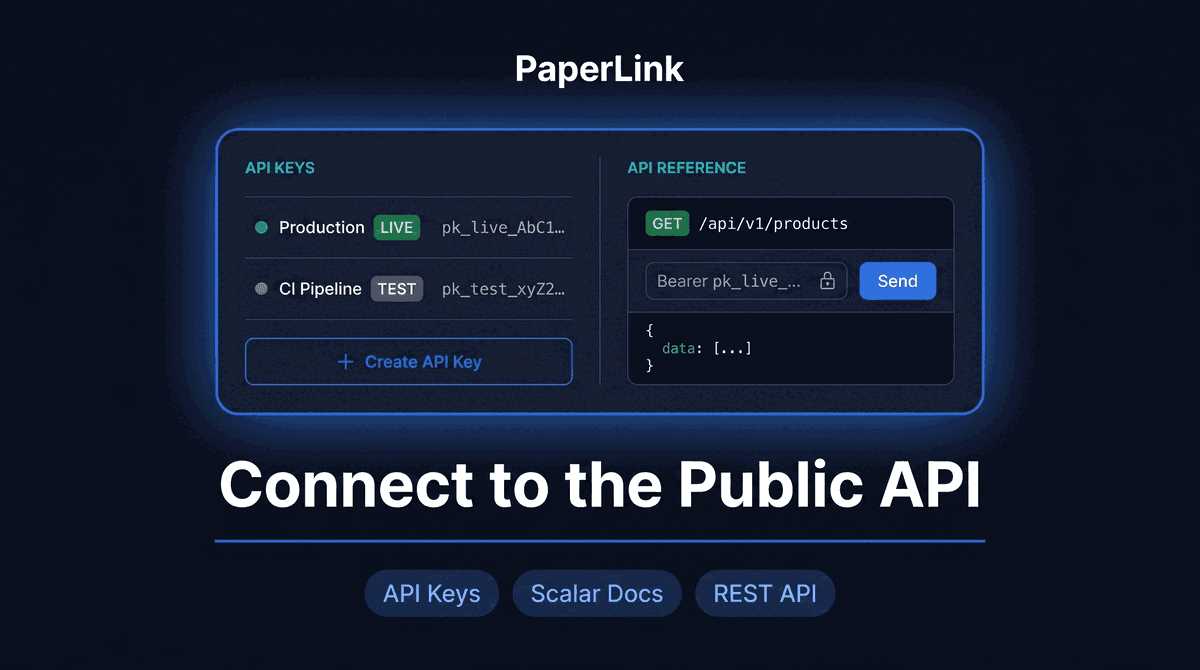
Connect to the PaperLink Public API
Generate an API key to connect PaperLink with your own tools and scripts. Learn how to create a key, choose mode and scope, and authenticate your first request.
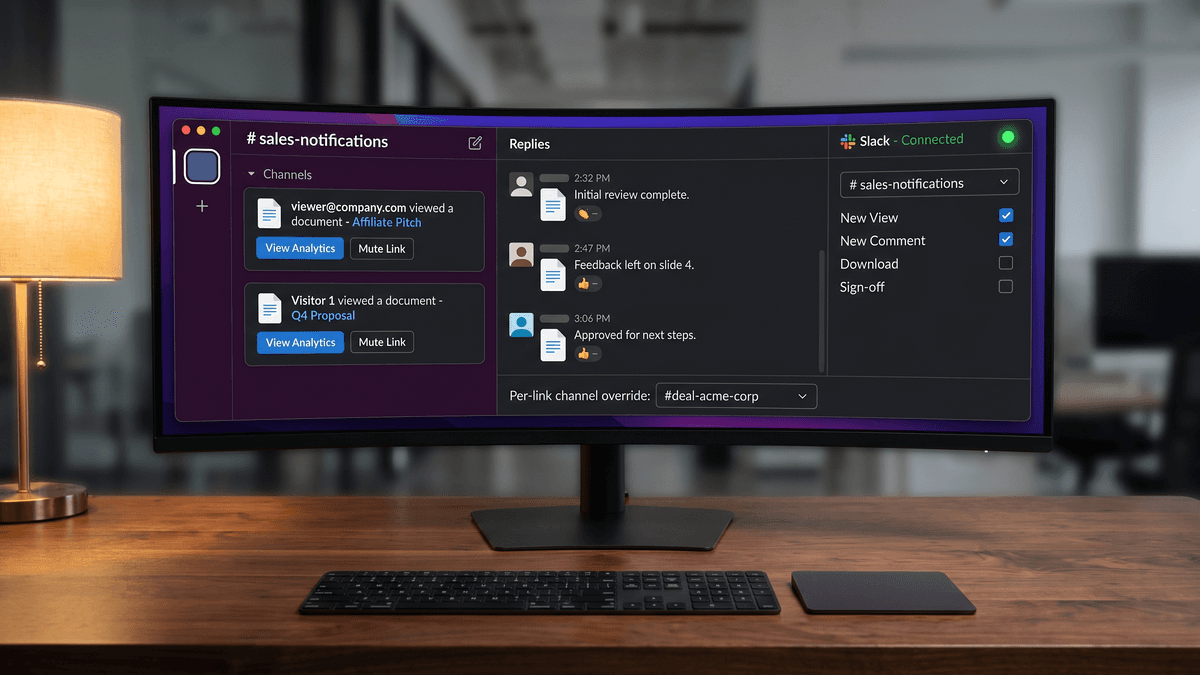
Connect Slack for Real-Time Notifications
Connect your Slack workspace to get instant notifications when someone views, downloads, or signs your shared documents. No Zapier needed.
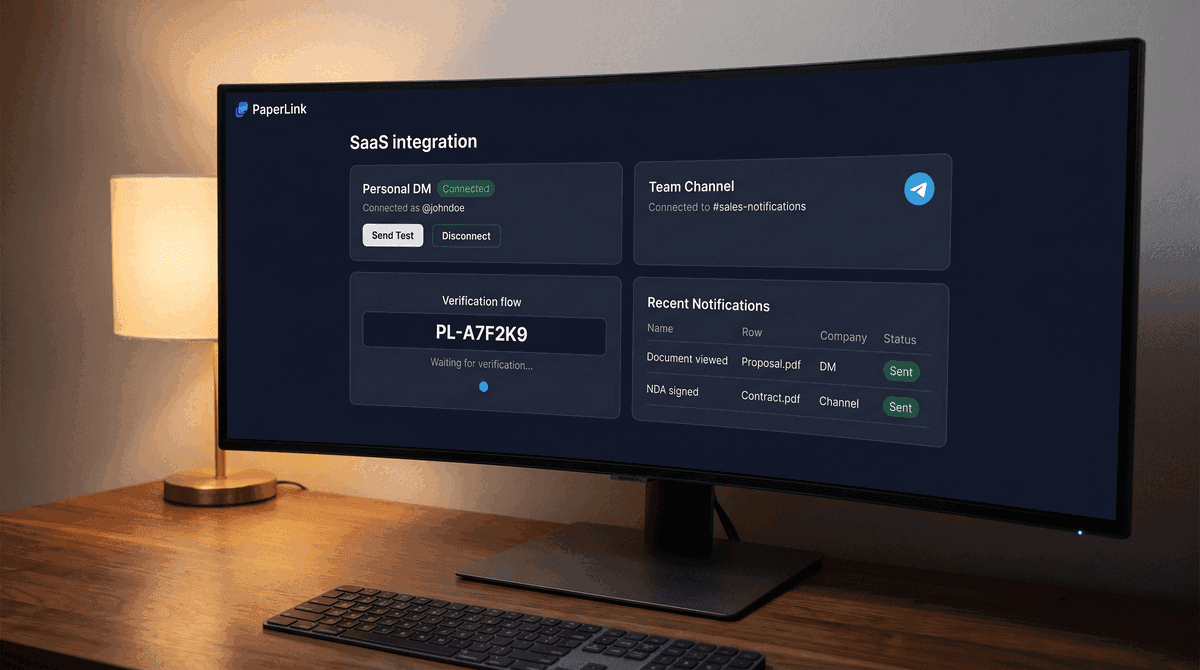
Telegram Notifications When Someone Views Your Document
Get a Telegram message the moment someone opens your shared document - in your personal DM and team channel simultaneously. Native bot, no Zapier needed.
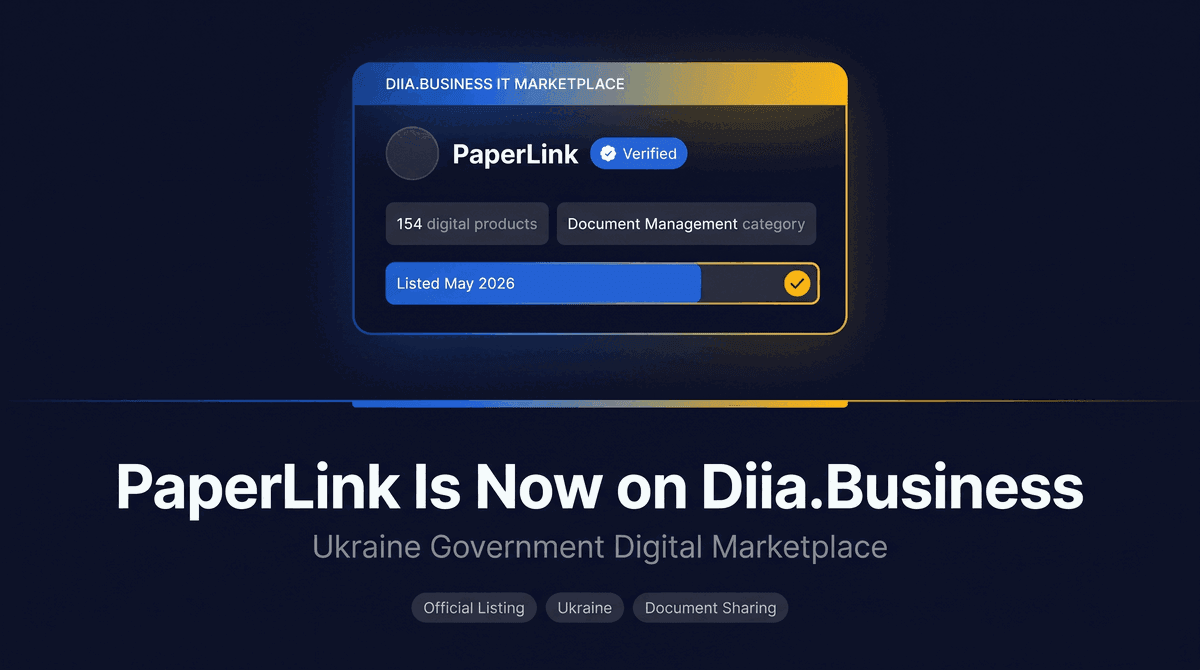
PaperLink Is Now on Diia.Business IT Marketplace
PaperLink is now listed on the official Diia.Business Digital Solutions Marketplace - Ukraine's government-backed catalog of verified tools for entrepreneurs.
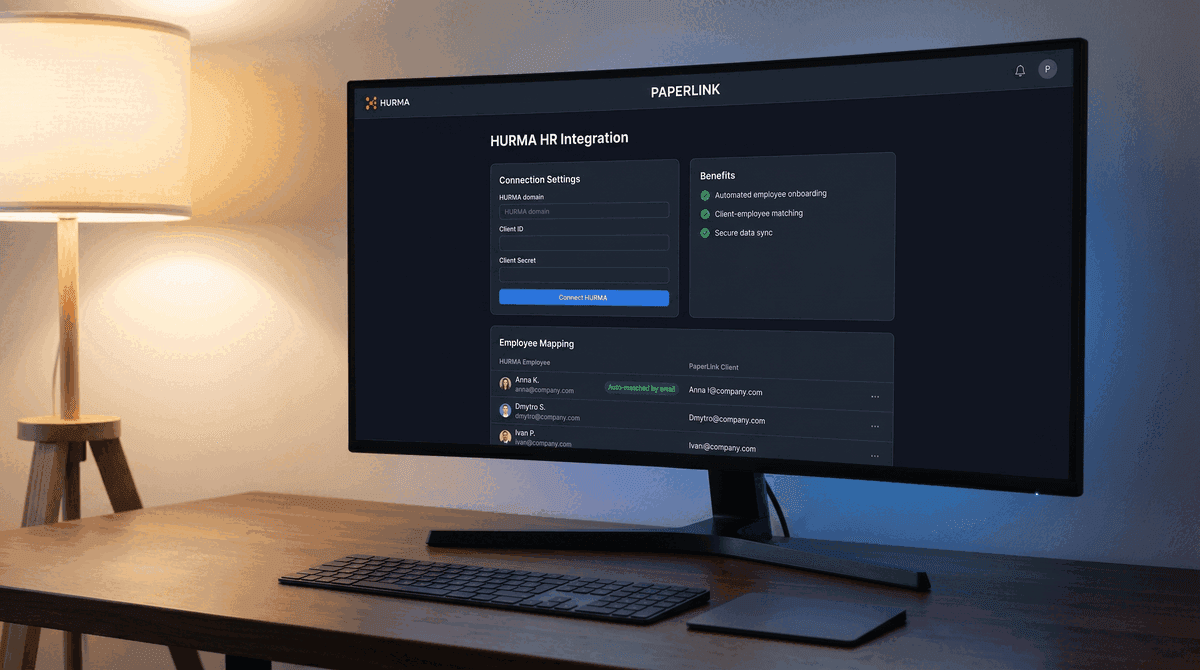
PaperLink Now Connects to HURMA
PaperLink connects to HURMA via OAuth. Match employees to clients automatically, keep the list in sync, and skip manual data entry when creating documents.