Every company that uses HURMA for HR already has the data PaperLink needs: employee names, email addresses, and who works with which client. Until now, that data lived in HURMA and stayed there. Creating an invoice or a document in PaperLink meant typing the same information a second time.
PaperLink now connects to HURMA directly.
What This Solves
HURMA tracks your team. PaperLink handles documents and invoicing. When the two systems do not talk to each other, someone on your team bridges the gap manually - copying names, checking emails, making sure the client in the document matches the employee in HR.
The HURMA integration removes that step. Connect once, map your employees to PaperLink clients, and from that point the data flows without manual input.
The integration is available to team OWNER and ADMIN roles. HURMA HRM PRO tariff is required on the HURMA side - it provides API access that the integration depends on.
How the Connection Works
HURMA uses OAuth 2.0 for API access. Each HURMA account creates its own API client in the HURMA admin panel - you control the credentials and can revoke access at any time.
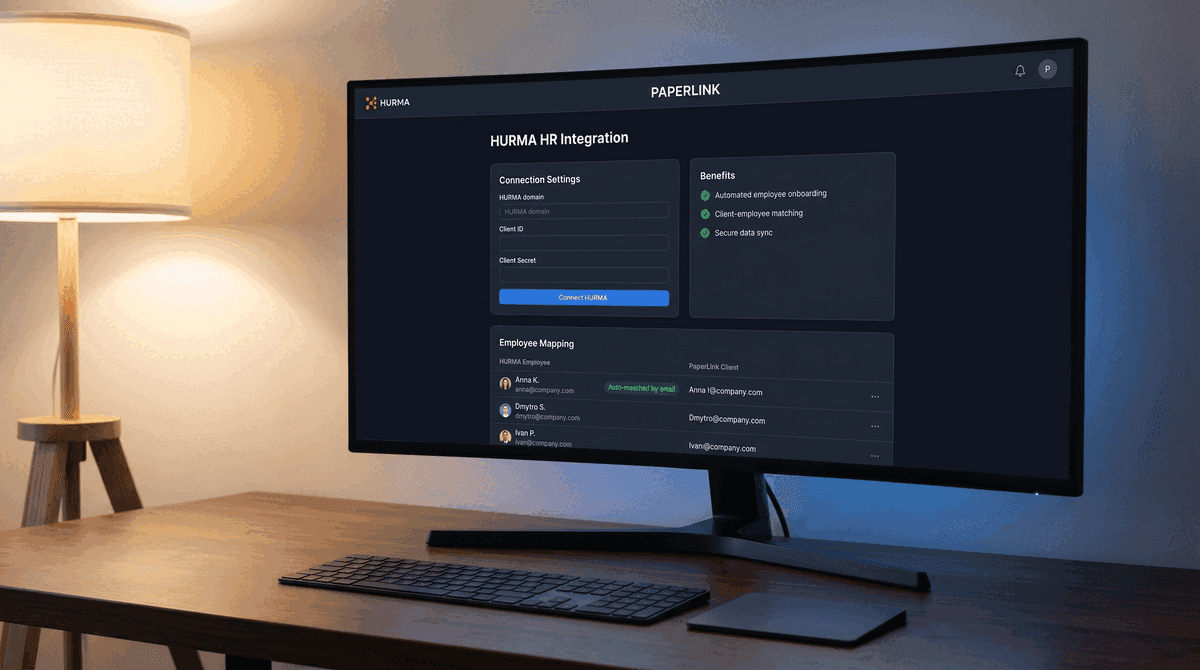
The setup has three fields: your HURMA domain (for example yourcompany.hurma.work), the Client ID, and the Client Secret generated by HURMA. After you enter these in Settings - Integrations - HURMA and click Connect HURMA, PaperLink redirects you to the HURMA authorization page. You approve access there, and HURMA sends you back to PaperLink with everything connected.
No API keys to rotate manually. No webhooks to configure. The OAuth flow handles authentication, and token refresh happens automatically in the background.
Employee Mapping
After connecting, PaperLink fetches your active employee list from HURMA and opens the mapping table. Each row shows a HURMA employee - name, email address, and their HURMA identifier - alongside a PaperLink client column.
PaperLink checks whether any employee email matches an existing client in your team. When it finds a match, the mapping is pre-filled and marked Auto-matched by email. For most teams with existing client records, a significant portion of the list maps itself on the first sync.
For employees without a match, you have two options from the same table: select an existing PaperLink client from the dropdown, or create a new client inline. The inline client form pre-fills name and email from the HURMA employee record - you confirm or edit, then save. No need to leave the page.
You do not need to map every employee before saving. Save a partial mapping and return later. Unmapped employees are skipped when auto-filling documents - they do not cause errors or block anything.
Keeping the List Current
Teams change. New hires join. People leave.
When new employees appear in HURMA, click Sync Employees on the HURMA integration page. PaperLink fetches the updated active employee list and adds new entries as Unmapped - existing mappings are not touched.
Employees who are no longer active in HURMA are marked Inactive in the mapping table. Their mapping record is preserved but excluded from document auto-fill. If a former employee's engagement needs to be tracked, the client they were mapped to remains in PaperLink and works normally.
Disconnecting and Reconnecting
Clicking Disconnect HURMA removes the OAuth tokens but keeps all employee mappings intact. If you reconnect later - same HURMA account or a different one - the existing mappings are already there. For most team structures, a reconnect does not require remapping dozens of employees from scratch.
If the HURMA session expires after a long period of inactivity, the integration page shows Reconnection Required with a Reconnect HURMA button. The OAuth flow runs again, mappings are preserved, and the connection restores to its previous state.
Who This Affects Most
The integration is most useful for three types of teams:
Agencies and consulting firms that bill clients for time spent by specific employees. When each HURMA employee maps to a PaperLink client, creating a monthly invoice involves fewer manual lookups.
IT companies with project-based billing where different employees work with different clients across the same period. The mapping table keeps those relationships explicit rather than relying on memory or spreadsheets.
HR teams managing document distribution - offer letters, policy acknowledgements, onboarding packages - that need to address the right person at the right company. Mapped employees give PaperLink the context to fill those documents correctly.
Getting Started
Open Settings - Integrations in your PaperLink workspace and find the HURMA card. The setup guide covers every step: creating the API client in HURMA, filling the connection form, and working through the employee mapping table.
Related
- Connect HURMA to Match Employees with Clients - step-by-step setup guide
- Connect Slack for Real-Time Notifications - get notified in Slack when someone engages with your documents
- PaperLink Now Has a Public REST API - connect PaperLink to your own tools programmatically