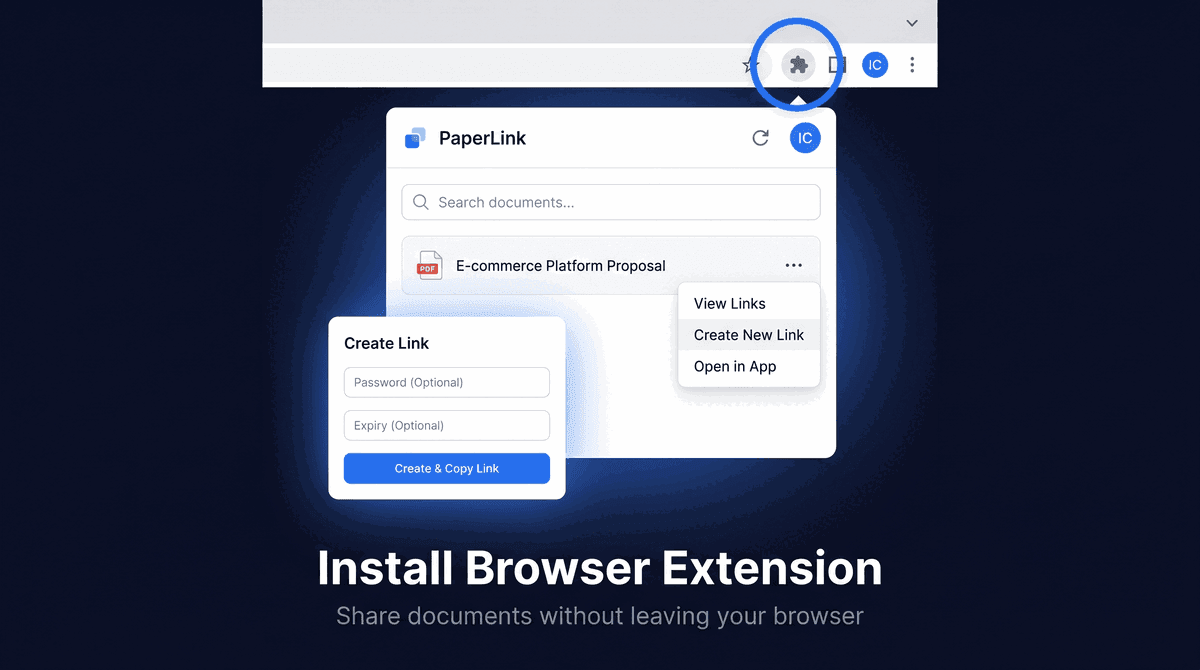
Install the PaperLink Browser Extension
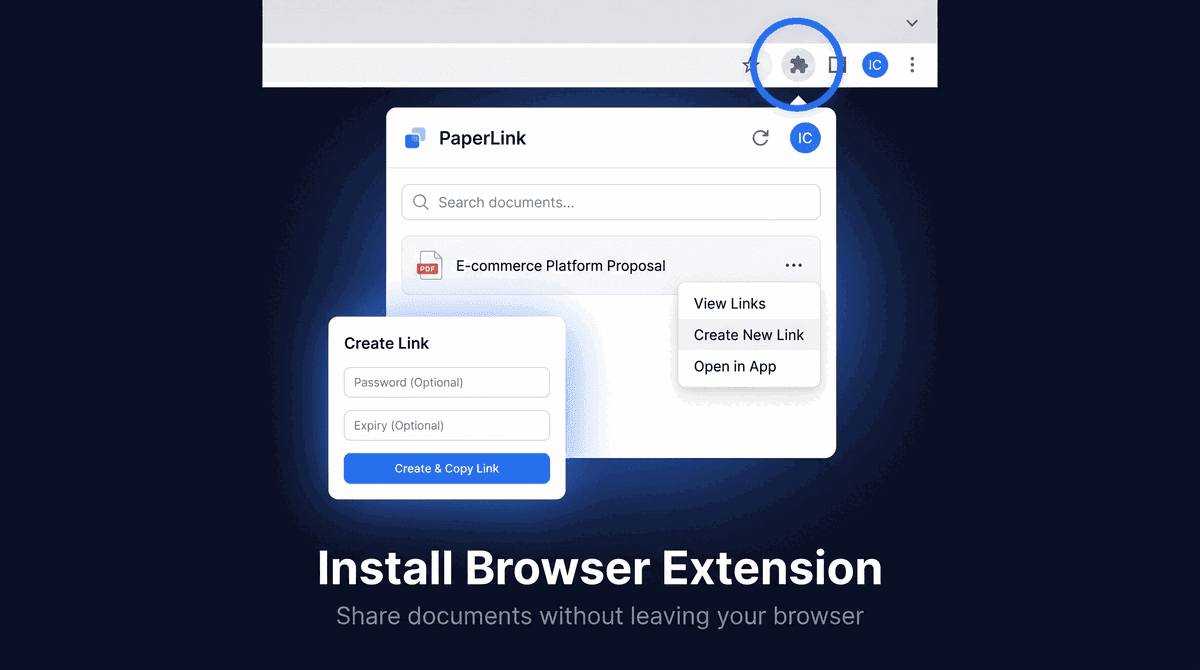
How Do I Install the PaperLink Browser Extension?
The PaperLink Chrome extension lets you create shareable links for your documents and insert them directly into any text field on any webpage - without switching tabs.
Install from the Chrome Web Store
- Open the PaperLink extension on the Chrome Web Store.
- Click Add to Chrome.
- Click Add extension in the confirmation dialog.
- The PaperLink icon appears in your Chrome toolbar.
Pin the extension to your toolbar for quick access. Click the puzzle icon in Chrome, then click the pin icon next to PaperLink.
Sign In
- Click the PaperLink icon in the toolbar.
- Click Sign in with PaperLink.
- A PaperLink window opens asking you to Connect Browser Extension.
- Select the team you want to connect.
- Review the requested access:
- View your documents and files
- Create shareable links
- Click Approve.
The extension closes the authorization window and loads your documents.
How Do I Share a Document from the Extension?
Find Your Document
The extension shows your most recently uploaded documents. Use Search documents... to filter by name.
Click any document row to open its links. Click the three-dot menu (...) on the right to see all available actions:
- View Links - see existing links for this document
- Create New Link - create a new shareable link
- Open in App - open the document in PaperLink
Create a Link
- Click the ... menu on a document, then click Create New Link.
- Optionally enter a Password (optional) - viewers must enter it before accessing the document.
- Optionally set an Expires date - the link stops working after this date.
- For more options (email verification, NDA, custom URL), click Advanced settings (open in app).
- Click Create & Copy Link - the link is copied to your clipboard.
Insert a Link Directly into a Text Field
Create & Insert in Page pastes the link directly into whatever text field you have focused - an email, a Slack message, a Notion page, a Google Doc.
- Click inside the text field where you want to insert the link (Gmail compose, Slack message box, etc.).
- Open the PaperLink extension.
- Click ... on a document, then Create New Link.
- Click Create & Insert in Page.
The link appears at the cursor position in the text field.
If Create & Insert in Page is grayed out, click inside a text field on the page first, then return to the extension.
How Do I View and Reuse Existing Links?
- Click ... on a document, then View Links.
- Each link card shows the link name, status (Active or Expired), view count, expiry, and creation date.
- Click Copy to copy the link URL to your clipboard.
- Click Insert to paste the URL into a focused text field on the page.
A lock icon next to the link name means the link is password-protected.
How Do I Switch Teams in the Extension?
Click your avatar in the top-right corner to open the account menu. It shows your name, email, and the current extension version. To switch teams, sign out and sign back in - you can select a different team during the authorization step.
Team members with the Member role can view documents in the extension but cannot create or manage links. Contact your team admin to get link creation access.
Related
- Create a Sharing Link - full link creation options in the web app
- Manage Link Settings - all link settings explained
- Understand Viewer Analytics - track views after sharing
- Invite a Team Member - add people to your team
这篇文章对您有帮助吗?