
Require an Agreement Before Viewing
How Do I Require an Agreement Before Viewing?
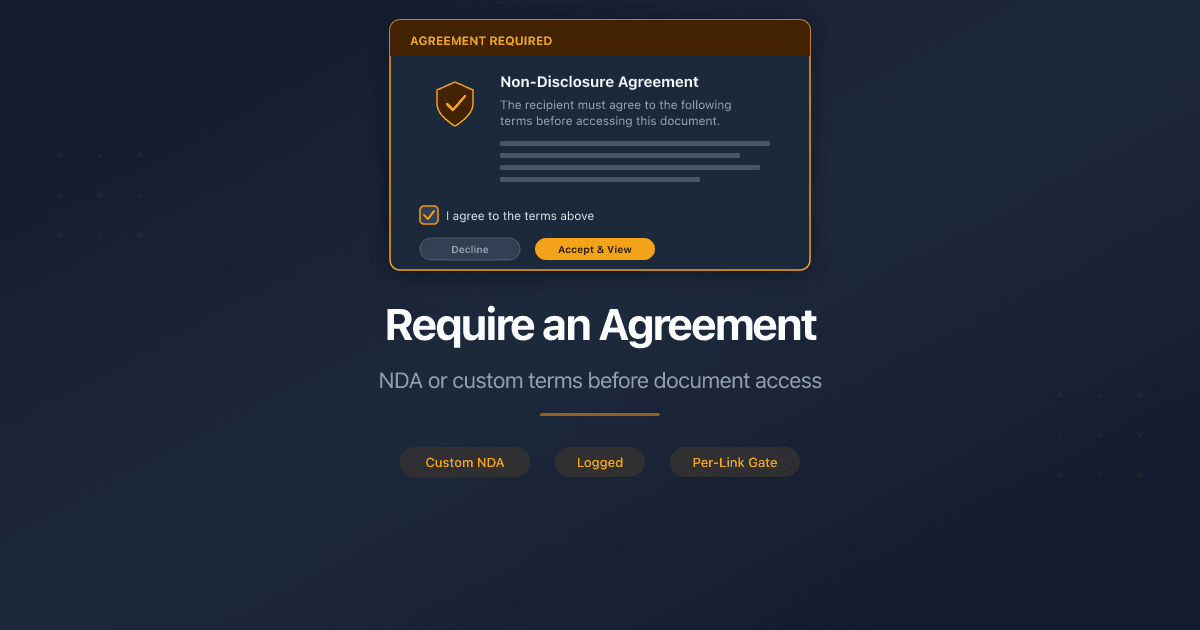
PaperLink lets you add a custom agreement to any sharing link. Viewers must read and sign the agreement before they can see the document.
Every signature is recorded with the signer's name, email, IP address, and timestamp. Both you and the signer can download a PDF proof of the signed agreement.
Enable the Agreement
- Open a document and click Create Link (or edit an existing link).
- Expand the Viewer Permissions section.
- Toggle Require NDA/Agreement on.
- In the Agreement Title field, type a title for your agreement (optional - defaults to "Non-Disclosure Agreement"). Maximum 150 characters.
- In the Agreement Text field, write or paste your agreement terms. This field supports basic formatting: bold, italic, underline, and lists. Maximum 5,000 characters.
- Click Create Link to save.
The agreement text field is required when the toggle is on. PaperLink shows an error if you try to create a link with the agreement enabled but no text entered.
What the Viewer Sees
When a viewer opens the link, they see an Agreement Required screen with your agreement title and full text.
If the viewer is not logged in (simple mode):
- They read the agreement text.
- They enter their name in the Your Name field.
- They enter their email in the Your Email field.
- They check I have read and agree to the terms above.
- They click Sign & Continue.
- The document loads.
If the viewer is logged in to PaperLink (verified mode):
Their name and email are filled automatically from their account. They only need to check the agreement box and click Sign & Continue. Verified signatures include a note: "You are signed in. Your verified identity will be recorded."
If your link also has a password or email verification, those checks happen first. The agreement is the final step before document access.
After Signing
The viewer sees the document with a green NDA Signed banner at the top. The banner shows the signature date and a Download Agreement button that generates a PDF proof of their signature.
If the same viewer returns to the link later, PaperLink recognizes their email and skips the agreement screen. The signed banner still appears, confirming their existing signature.
Check Who Signed
Open the document and go to the link's analytics. Each viewer session shows whether the agreement was signed, along with:
- Signer name and email
- Whether the identity was verified (logged in) or self-reported
- IP address at the time of signing
- Signature timestamp (UTC)
Combining with Other Controls
The agreement gate works alongside all other sharing controls on the same link:
- Password - viewer enters password first, then signs the agreement
- Email verification - email captured first, then agreement signed
- Download permission - agreement must be signed before any download
- Expiration date - agreement gate is active until the link expires
- Custom URL - the agreement gate appears behind your branded link
Related
- Create a Sharing Link - set up a link with access controls
- Require a Signed Agreement Before Document Access - why agreement gates matter for confidential documents
- Password-Protect Your Shared Document Links - add a password to any shared link
这篇文章对您有帮助吗?
相关文章
Set Link Expiration
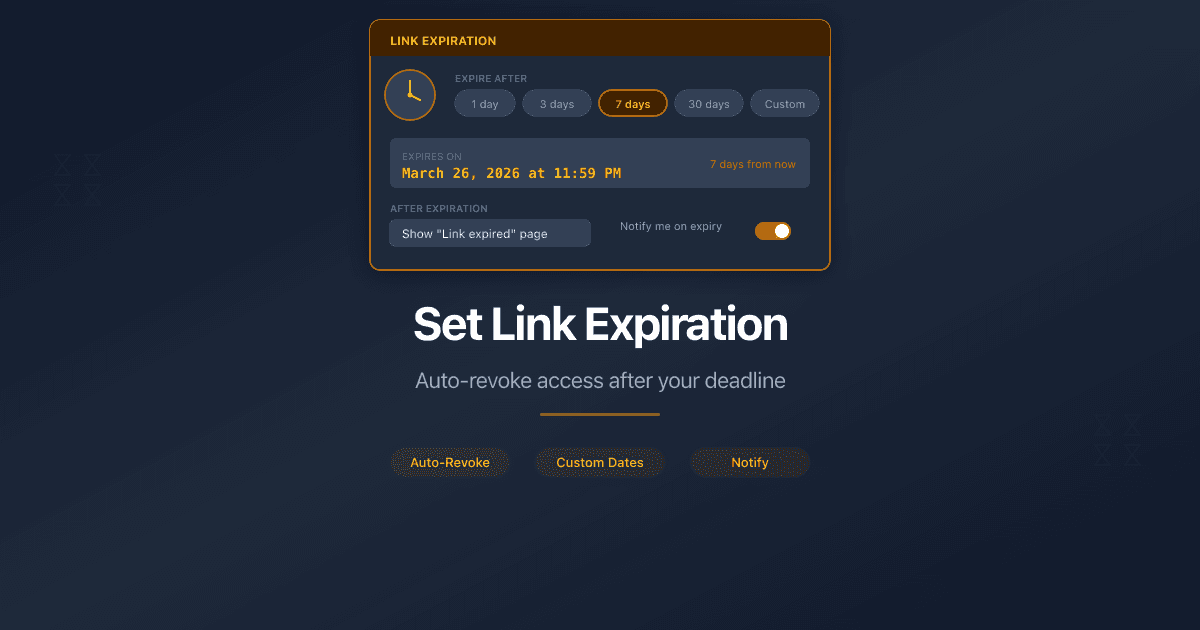
Set an expiration date on a sharing link so it stops working after your deadline. Available on all PaperLink plans.
How PaperLink Protects Your Documents
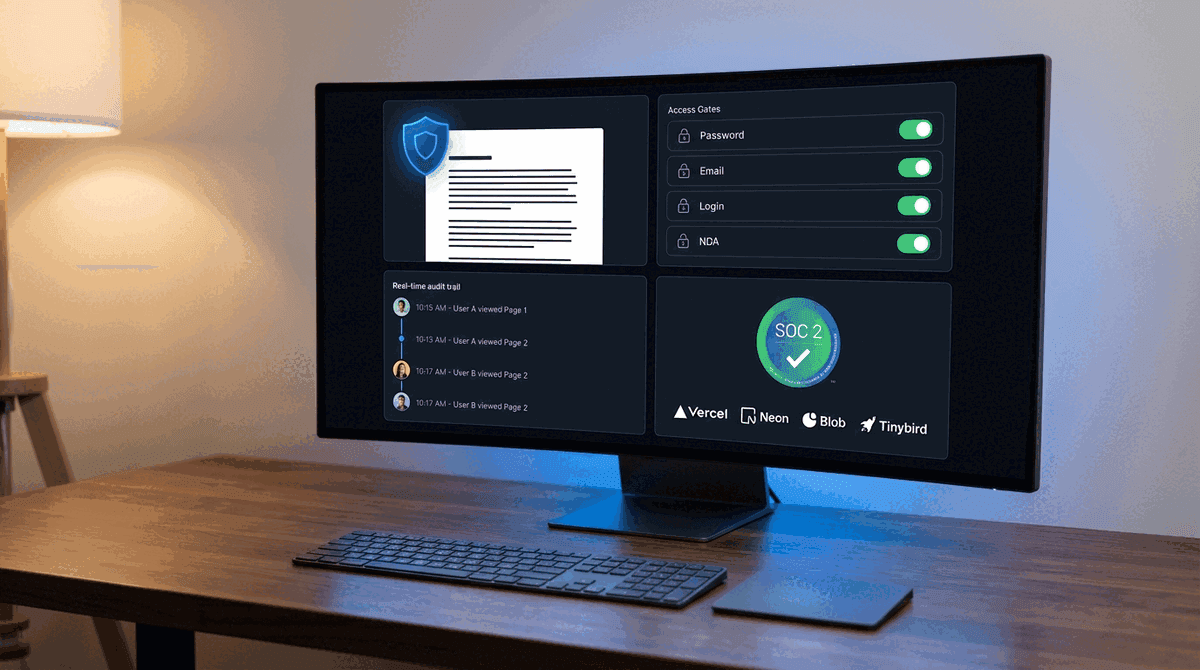
A transparent look at PaperLink's security architecture - encryption, access gates, audit trails, and the infrastructure certifications that protect your shared documents.
SOC 2 Policy Acknowledgement: What Auditors Check and What They Miss
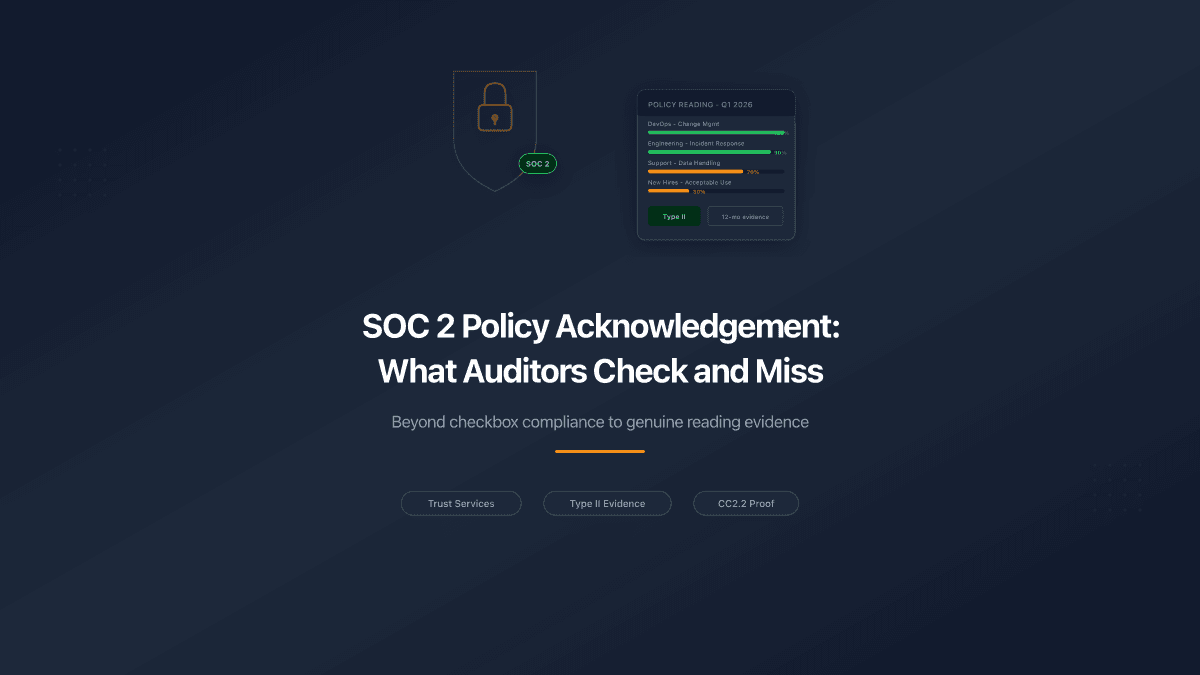
SOC 2 Type II auditors want proof your team read security policies - not just that policies exist. Here's what evidence satisfies CC2.2 and what falls short.
Secure Document Sharing for Due Diligence
What secure document sharing for due diligence requires: access controls, audit trails, NDA gates, and compliance. A checklist for M&A, legal, KYC, and corporate services.