The Two-Window Shuffle Is Over
You're composing an email to a client. You need to attach a proposal. So you switch to the PaperLink tab, find the document, create a link, copy it, switch back to Gmail, paste it. Six steps, two context switches, and a broken flow.
That's the problem the PaperLink Chrome extension solves. Install it once, and your entire document library lives in your browser toolbar - ready to create shareable links in one click, wherever you're working.
What the Extension Does
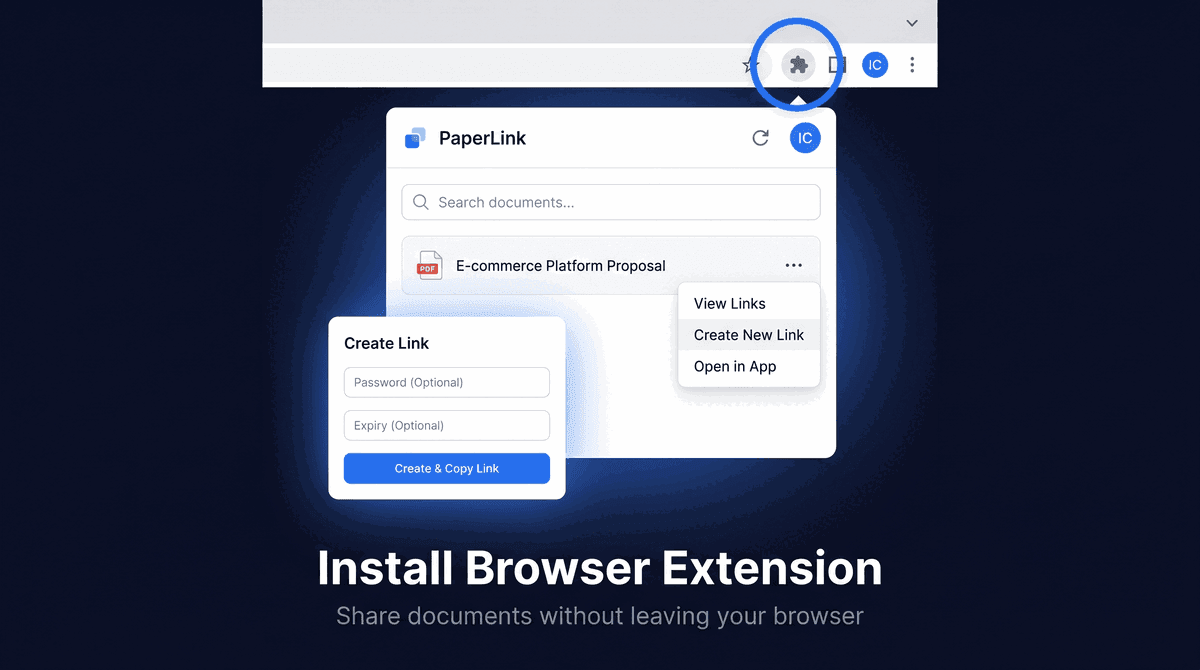
The PaperLink Chrome extension is a full document sharing interface inside a browser popup. You can:
- Browse your most recently uploaded documents
- Search by name
- Create a new shareable link with password protection and expiration date
- Copy the link to your clipboard
- Insert the link directly into a focused text field on the current page
That last capability - Create & Insert in Page - is the one that changes the workflow. You click inside a Gmail compose window, open the extension, find your document, and the link appears at your cursor. No clipboard, no switching tabs, no pasting.
Install in Three Steps
- Open the PaperLink extension on the Chrome Web Store.
- Click Add to Chrome, then Add extension.
- Click the PaperLink icon in your toolbar and sign in with your PaperLink account.
The extension uses OAuth - no separate password, no new account. Your PaperLink credentials connect it in one click.
Pin the extension to your toolbar so it's always one click away. Click the puzzle icon in Chrome, then click the pin icon next to PaperLink.
Create a Link with Access Controls
Creating a link from the extension supports the same security options as the web app:
| Option | What it does |
|---|---|
| Password | Viewer must enter it before accessing the document |
| Expiration date | Link stops working after a set date |
| Advanced settings | Full link controls - email verification, NDA gate, custom URL |
For quick sharing, the basic link takes five seconds to create. For sensitive documents - a contract, a financial report, a signed NDA - click Advanced settings (open in app) to get the full control panel.
Works Anywhere You Type
Insert a link works in any editable text field the browser renders. Tested workflows:
- Gmail compose - type your email, insert the link at the cursor, send
- Slack message box - no need to open another tab for the link
- Notion pages - embed a document link inline while you're writing
- Google Docs - add a shareable link without breaking your editing flow
- LinkedIn messages - share a portfolio or proposal directly in DM
If the Create & Insert in Page button is grayed out, click inside the target text field first - the browser needs to know where to paste.
Reuse Links You Already Created
Not every share needs a new link. Click ... on any document, then View Links to see all existing links:
- Current status (Active or Expired)
- View count - how many times the link has been opened
- Expiration date
- Password protection indicator
Click Copy to grab the URL, or Insert to paste it directly into the page. Useful when you're re-sending something to a client and want them to use the same tracked link.
Team Access and Permissions
The extension connects to one team at a time. During sign-in, you select which team to connect. To switch teams, sign out from the extension and sign in again.
Team members with the Member role can view documents in the extension but cannot create or manage links. Contact your team admin to get link creation access.
Why We Built This
The extension came from a pattern we saw in how people use PaperLink. Most users share documents through email. The web app is where documents are managed, but the actual sharing happens somewhere else - a compose window, a chat message, a collaborative doc.
Bridging those two contexts was the goal. The extension doesn't replace the web app - it puts the one action that happens outside the app (inserting a link into a message) exactly where it's needed.
Get Started
Install the extension from the Chrome Web Store. If you don't have a PaperLink account yet, sign up free - documents you upload are available in the extension immediately after connecting.
Full installation and usage guide: Install the PaperLink Browser Extension.