
Connect HURMA to Match Employees with Clients
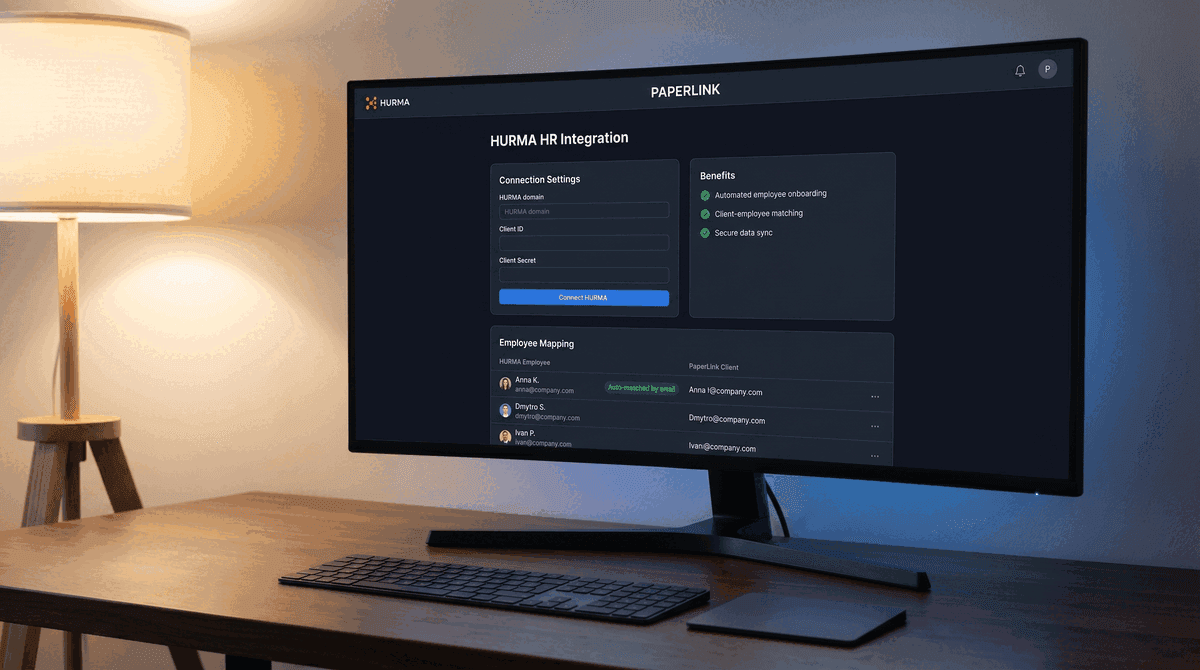
HURMA is a Ukrainian HR system. When connected, PaperLink fetches your active employee list and matches each employee to a client in your team. Mapped employees speed up document creation - name, email, and contact details fill in automatically.
Only team OWNER and ADMIN roles can connect or manage the HURMA integration. MANAGER and MEMBER roles do not see this section.
What Do I Need Before Connecting HURMA?
PaperLink connects to your HURMA workspace via OAuth 2.0. Each HURMA account must create its own API client - there is no shared app to install.
- Open your HURMA admin panel and go to Settings > API > Add API client.
- Set a title (for example,
PaperLink). - Set Authorization type to Authorization code.
- Enter the redirect URL:
https://app.paperlink.online/api/hurma/callback - Under scopes, enable at least Employees: Read.
- Save. HURMA generates a Client ID and a Client Secret - copy both.
API access requires the HURMA HRM PRO tariff. If your account is on a lower plan, the connection will return an error asking you to upgrade.
How Do I Connect My HURMA Workspace?
- Go to Settings in the left sidebar and click Integrations.
- Find the HURMA card and click Connect HURMA.
- On the connection form, fill in three fields:
- HURMA domain - your workspace URL, for example
yourcompany.hurma.work - Client ID - the integer ID from the HURMA API client you created
- Client Secret - the secret string from the same API client
- HURMA domain - your workspace URL, for example
- Click Connect HURMA.
PaperLink redirects you to the HURMA authorization page. Log in and approve access. After approval, HURMA sends you back to PaperLink automatically.
On return, PaperLink fetches your active employee list and opens the employee mapping table.
How Do I Map Employees to Clients?
The mapping table shows every active employee from HURMA. For each employee, you choose which PaperLink client they correspond to.
PaperLink tries to match automatically: if an employee's email matches a client email in your team, the mapping is pre-filled and marked Auto-matched by email.
For employees without a match, you have two options:
- Select an existing client from the dropdown in the PaperLink Client column.
- Create a new client inline - the form pre-fills name and email from the HURMA employee record.
When you are done, click Save Mappings. The counter at the top shows how many employees are mapped and how many are still unmapped.
You do not need to map everyone at once. Save a partial mapping and come back to finish later. Unmapped employees are simply skipped when auto-filling documents.
How Do I Keep the Employee List Current?
When new employees join your HURMA account, click Sync Employees on the connected HURMA page. PaperLink fetches the latest active list and adds new employees as Unmapped - existing mappings are not changed.
Employees who left your company are not deleted from the mapping table. They appear as Inactive and are excluded from document auto-fill.
How Do I Disconnect HURMA?
- Open Settings > Integrations and go to the HURMA page.
- Click Disconnect HURMA and confirm.
Disconnecting removes the OAuth tokens. Your employee mappings are preserved - if you reconnect later, you do not need to remap everyone from scratch.
How Do I Reconnect or Switch Accounts?
If your HURMA session expires, the page shows Reconnection Required with a Reconnect HURMA button. Click it and complete the OAuth flow again. Existing mappings are preserved.
To switch to a different HURMA workspace, click Connect HURMA from the integrations page and enter the new credentials. The old tokens are replaced and a fresh employee sync runs.
Related
- PaperLink Now Connects to HURMA - feature overview with use cases and how the integration works
- Connect Slack for Real-Time Notifications - get notified in Slack when someone views or downloads your documents
- Connect to the PaperLink Public API - automate workflows with external tools using REST API keys
- Invite a Team Member - manage who has OWNER and ADMIN access on your team
¿Te resultó útil este artículo?
¿Necesitas más ayuda?
Explora nuestro centro de ayuda o contacta a nuestro equipo para asistencia personalizada.
Artículos relacionados
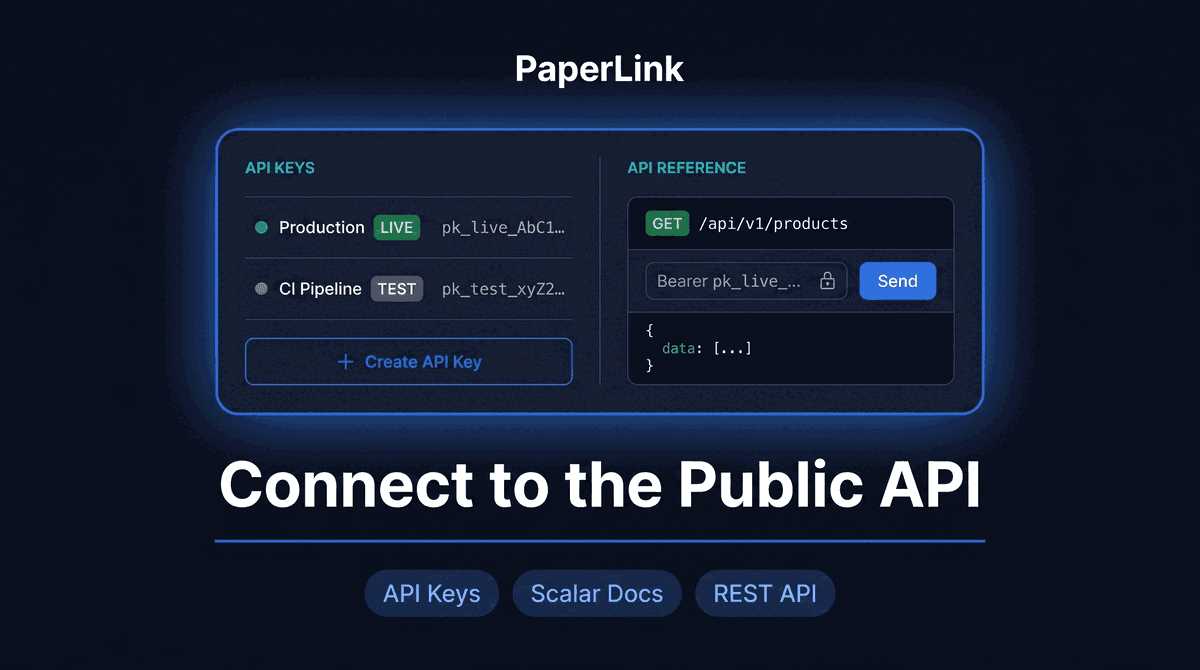
Connect to the PaperLink Public API
Generate an API key to connect PaperLink with your own tools and scripts. Learn how to create a key, choose mode and scope, and authenticate your first request.
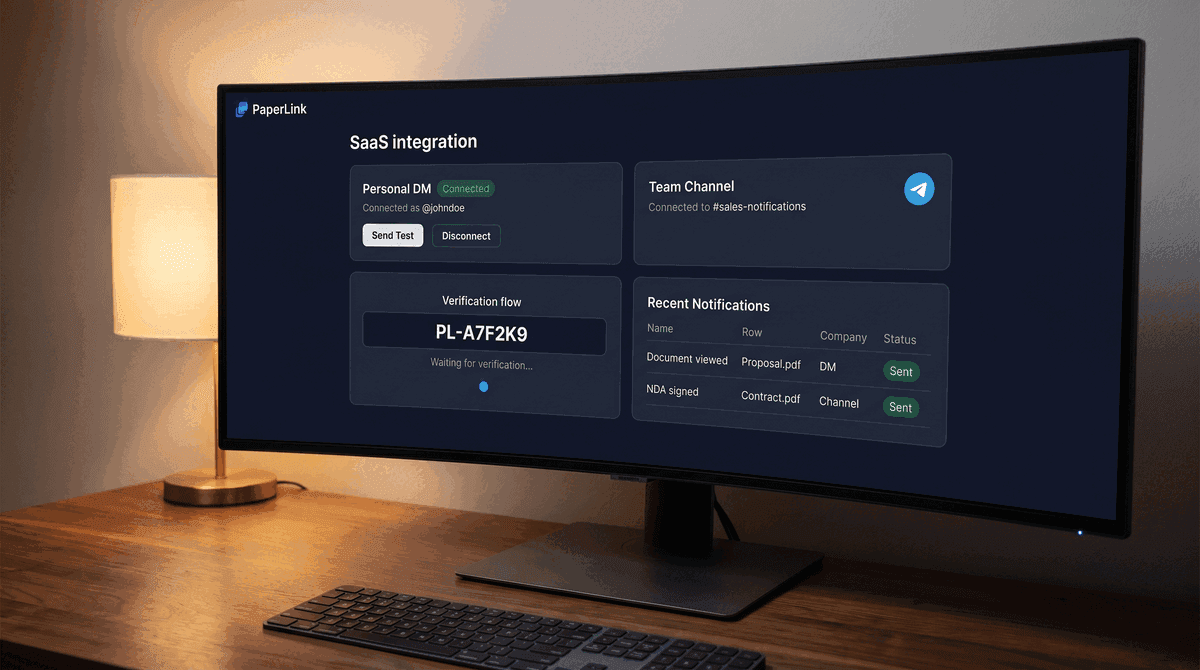
Connect Telegram for Document Notifications
Connect Telegram to get instant notifications when someone views, downloads, or signs your shared documents - in your DM or a team channel.
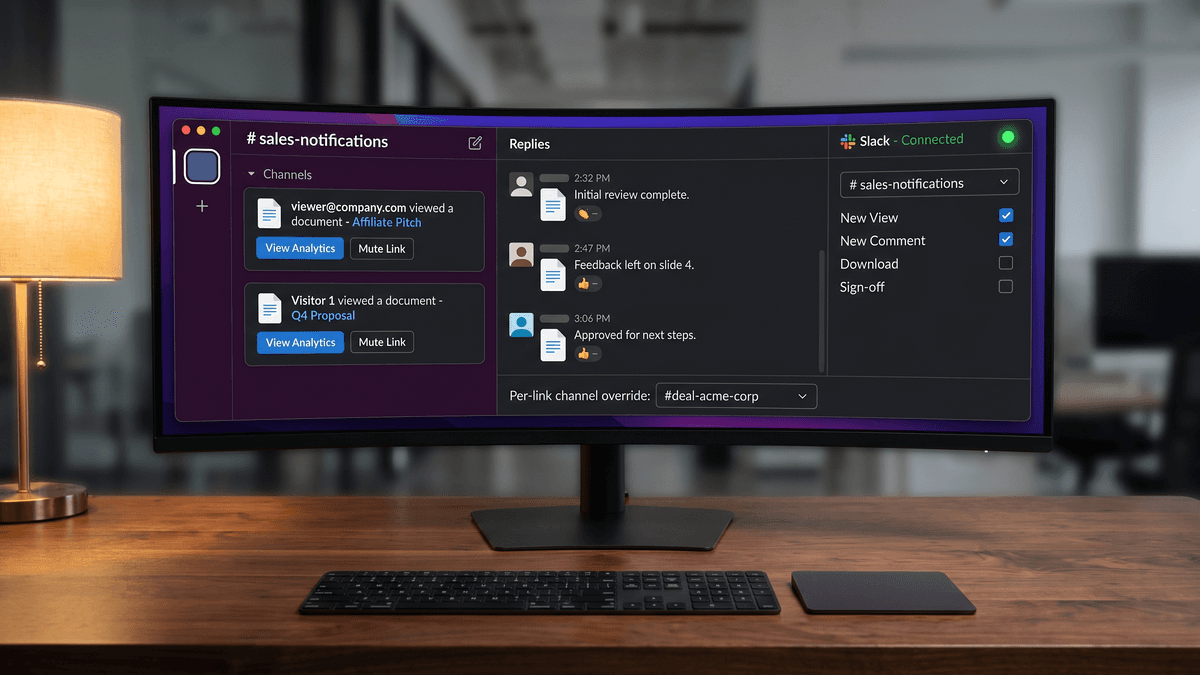
Connect Slack for Real-Time Notifications
Connect your Slack workspace to get instant notifications when someone views, downloads, or signs your shared documents. No Zapier needed.
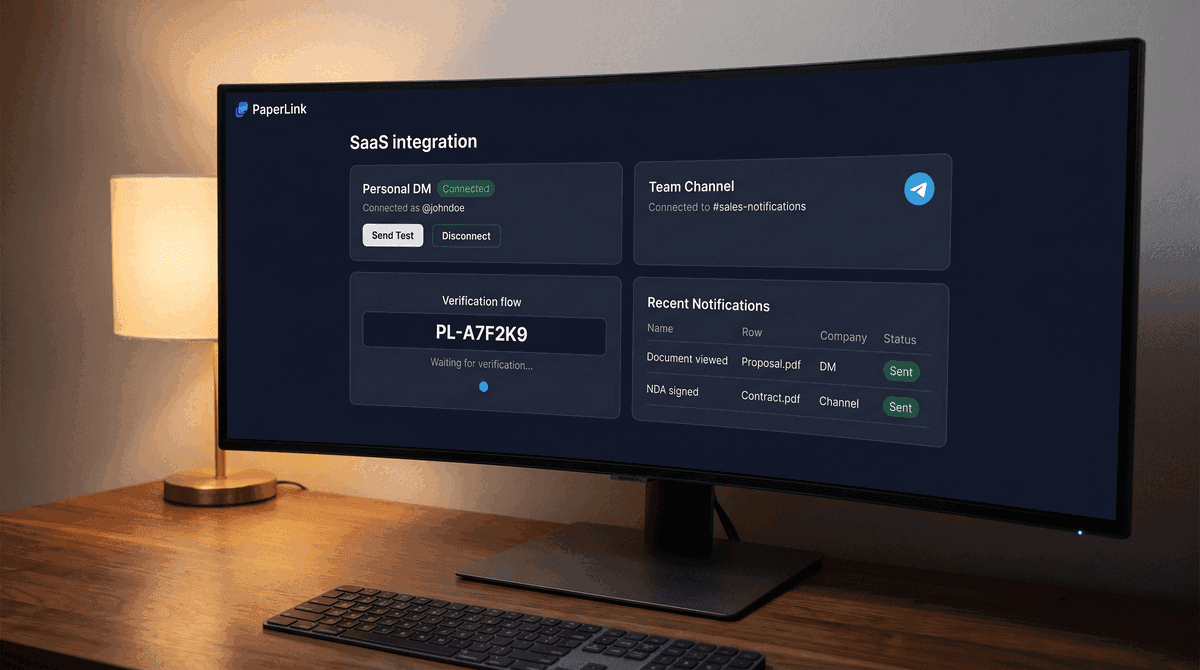
Telegram Notifications When Someone Views Your Document
Get a Telegram message the moment someone opens your shared document - in your personal DM and team channel simultaneously. Native bot, no Zapier needed.
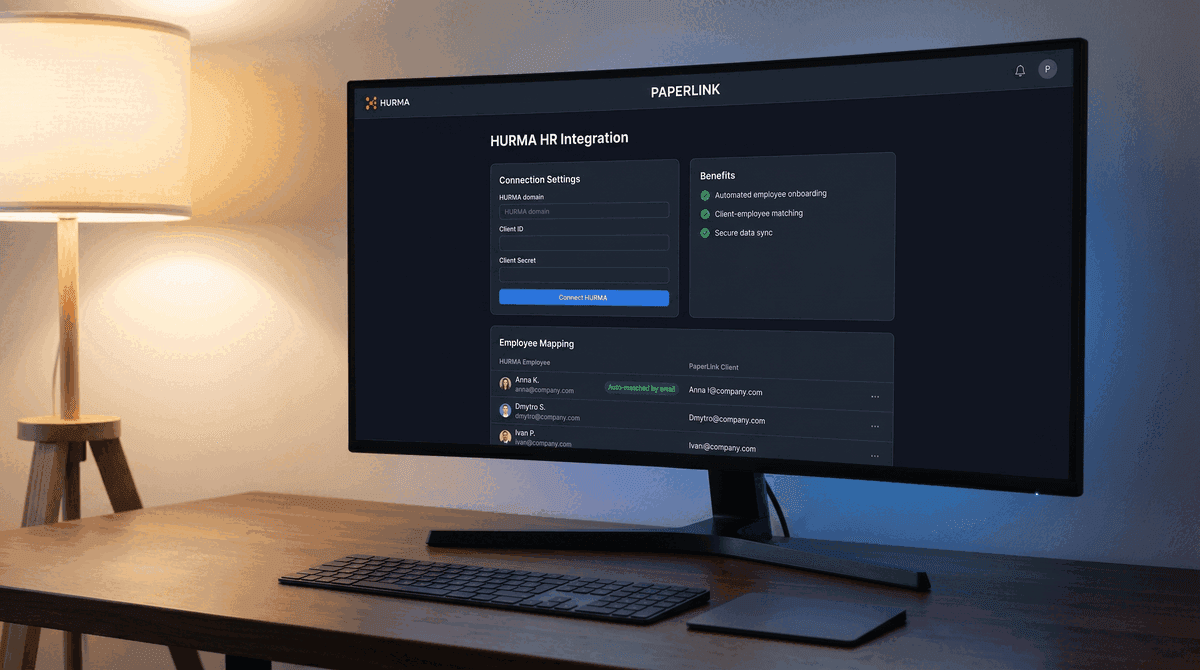
PaperLink Now Connects to HURMA
PaperLink connects to HURMA via OAuth. Match employees to clients automatically, keep the list in sync, and skip manual data entry when creating documents.
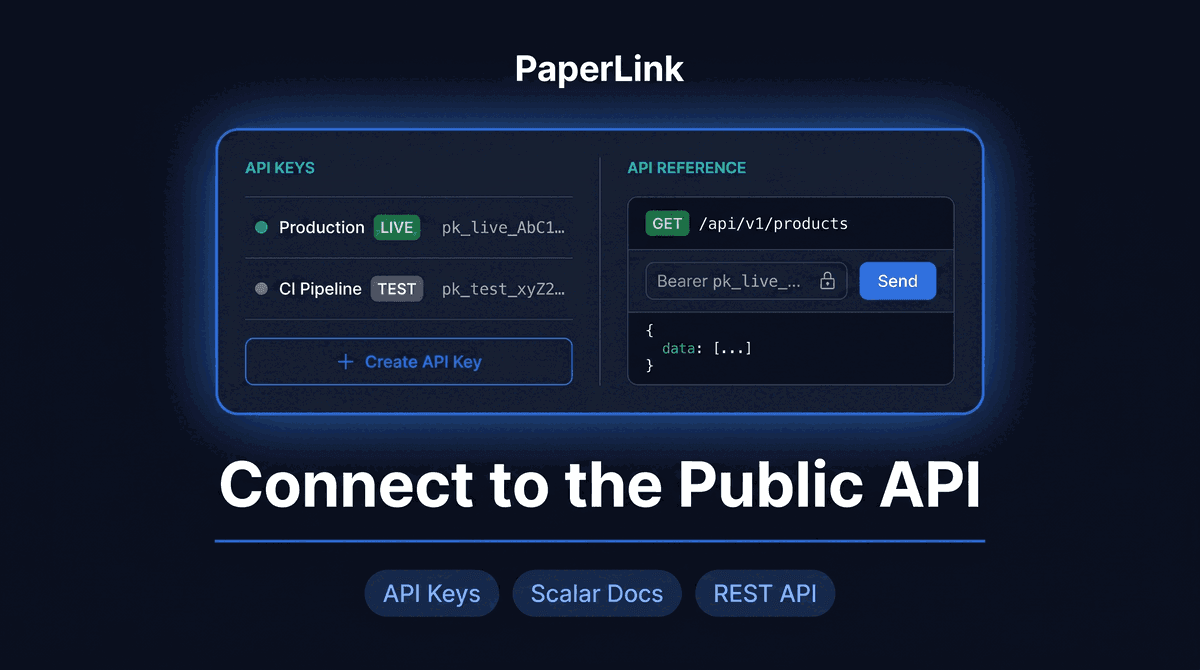
PaperLink Now Has a Public REST API
PaperLink now offers a versioned public REST API with API key authentication, test mode, and interactive API documentation. Connect your tools programmatically.