
Manage Company Categories
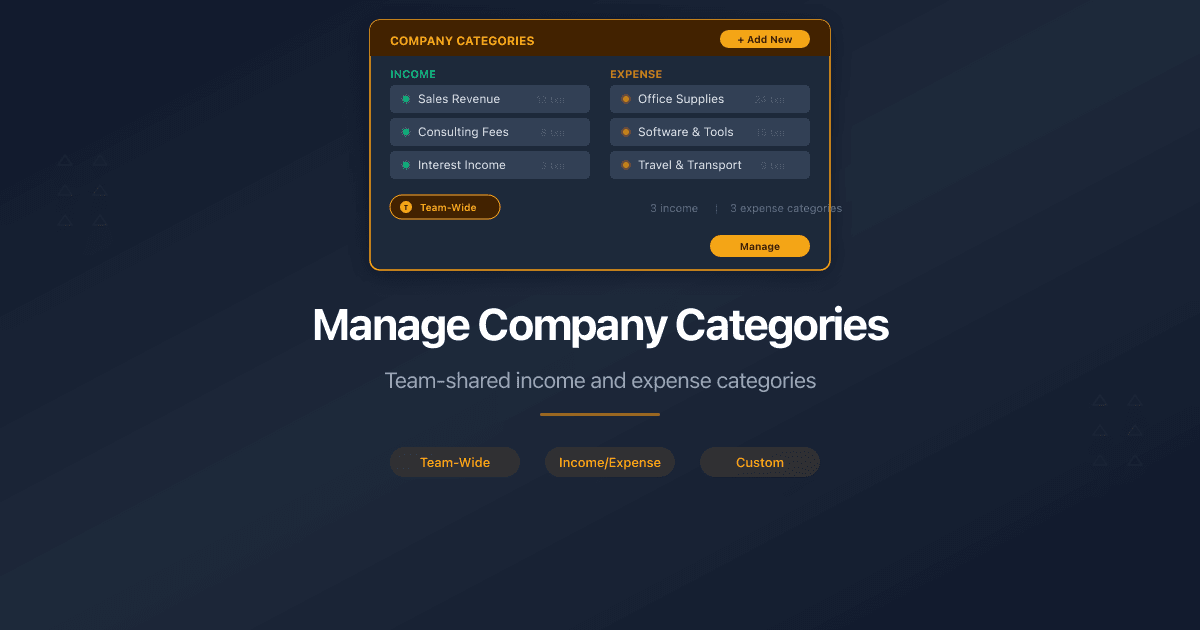
Each team in PaperLink has its own set of income and expense categories, separate from your personal categories. Company categories are shared across all team members and used for company transactions.
How Do I Open Company Categories?
- Click Settings in the sidebar.
- Open the Team section.
- Click the Accounting tab.
- Select your company from the dropdown at the top.
- Click the Categories tab.
What Is the Difference Between Company and Personal Categories?
Company and personal accounting each have their own independent category tree:
- Company categories belong to the team. All team members see and use the same set. Changes affect everyone in the team.
- Personal categories belong to you. Only you see and use them.
Some category names may overlap (both lists come with the same defaults), but they are separate trees. Editing a company category does not affect your personal one.
What Are Default Categories and Uncategorized?
Company categories work the same way as personal categories:
- Default categories are created when you start using team accounting. They cover common business expense and income scenarios. You can rename, rearrange, archive, or delete any of them.
- Uncategorized is a system category that cannot be renamed, archived, or deleted. It appears at the top of both Income and Expense tabs with a lock icon.
How Do I Add, Edit, Archive, or Delete a Category?
The category management works identically to personal categories. You can add categories up to three levels deep, edit names and parent assignments, archive to hide without deleting, and delete categories that have no transactions.
For step-by-step instructions, see Manage Transaction Categories.
Deleting a company category affects all team members. Make sure no one is using it before removing.
How Do I Restore Default Categories?
If you accidentally delete default company categories, go to the Settings tab in team accounting and click Restore Default Expense Categories or Restore Default Income Categories.
Related
- Manage Transaction Categories - personal categories with full step-by-step instructions
- Add a Company Financial Account - create business bank and cash accounts
- Manage Company Currencies - set up currencies for company accounts
Чи була ця стаття корисною?
Потрібна допомога?
Перегляньте наш довідковий центр або зверніться до нашої команди за персональною допомогою.
Пов'язані статті
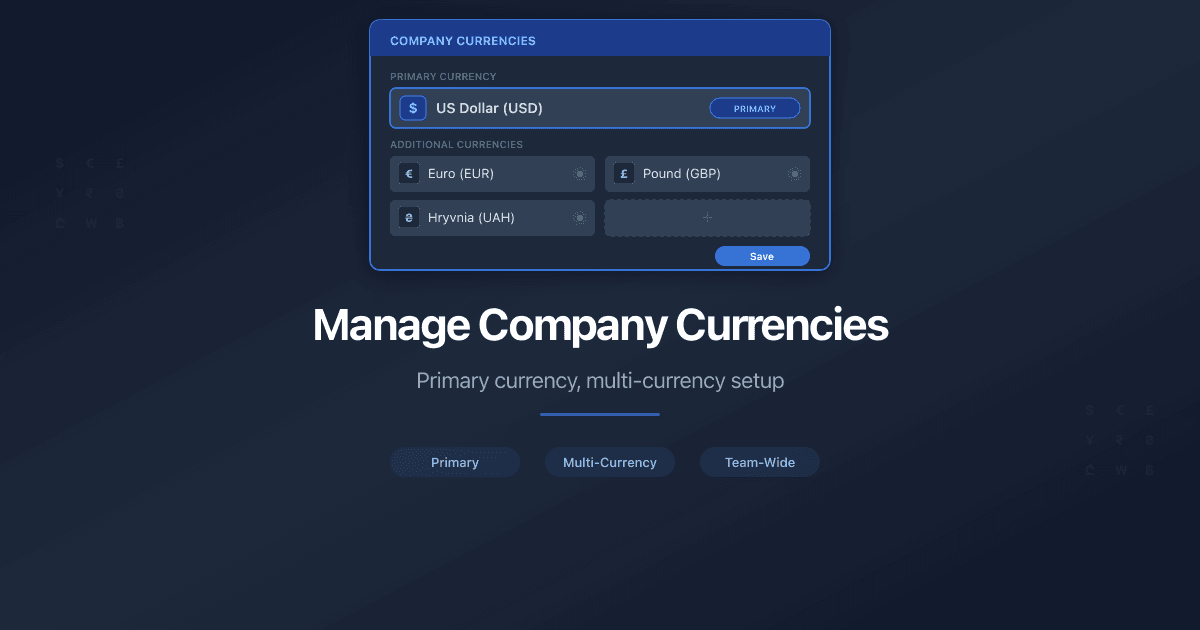
Manage Company Currencies
How to set up currencies for a company in PaperLink. Primary currency, add foreign currencies, auto and manual exchange rates.
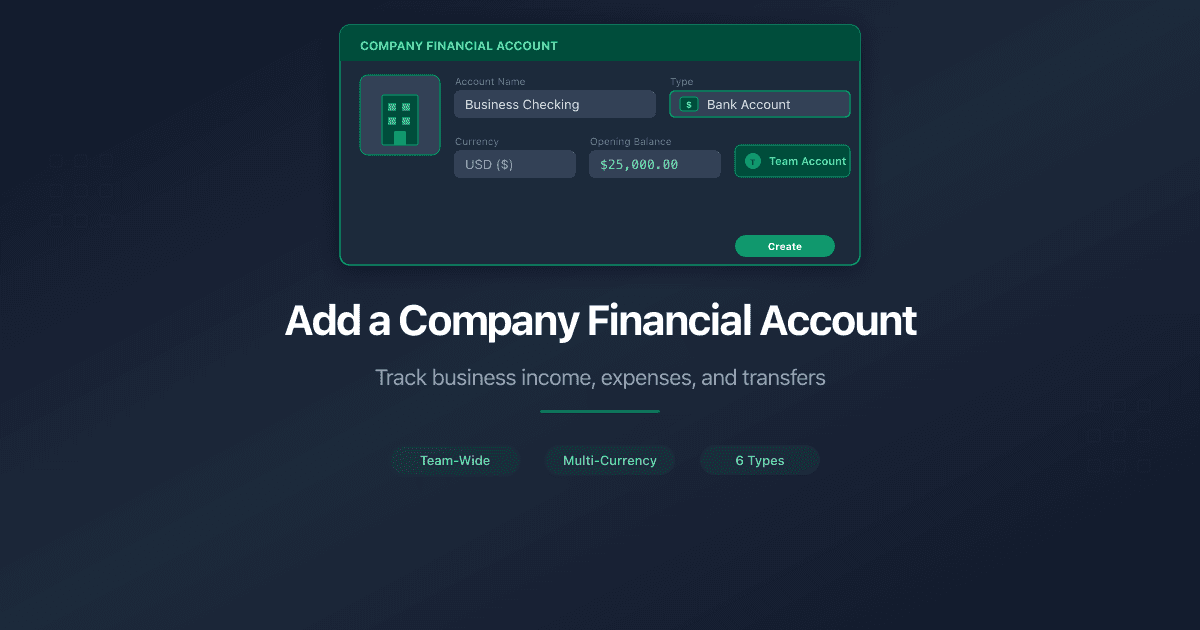
Add a Company Financial Account
How to add a company financial account in PaperLink. Track business income, pay taxes, and transfer funds between company and personal accounts.
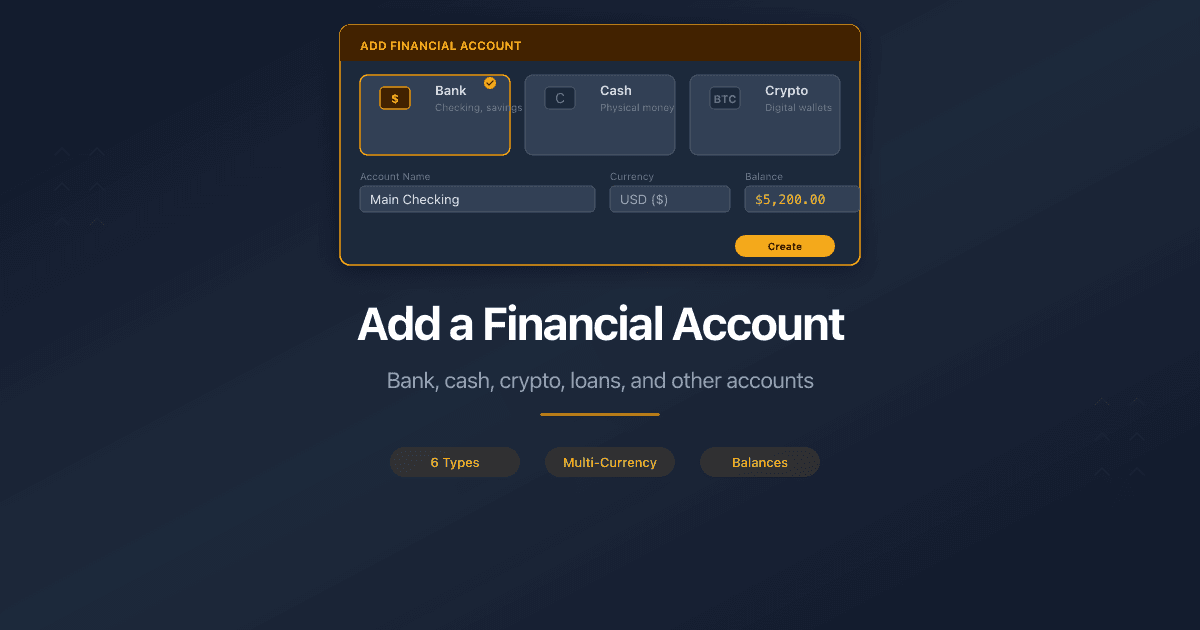
Add a Financial Account
How to add a financial account in PaperLink personal accounting. Account types, currency, initial balance, and default account settings.

Why Your Engagement Letters Need Tracking
Engagement letters start every consulting relationship. Track when clients open them, which pages they read, and whether they reviewed your fee schedule before signing.
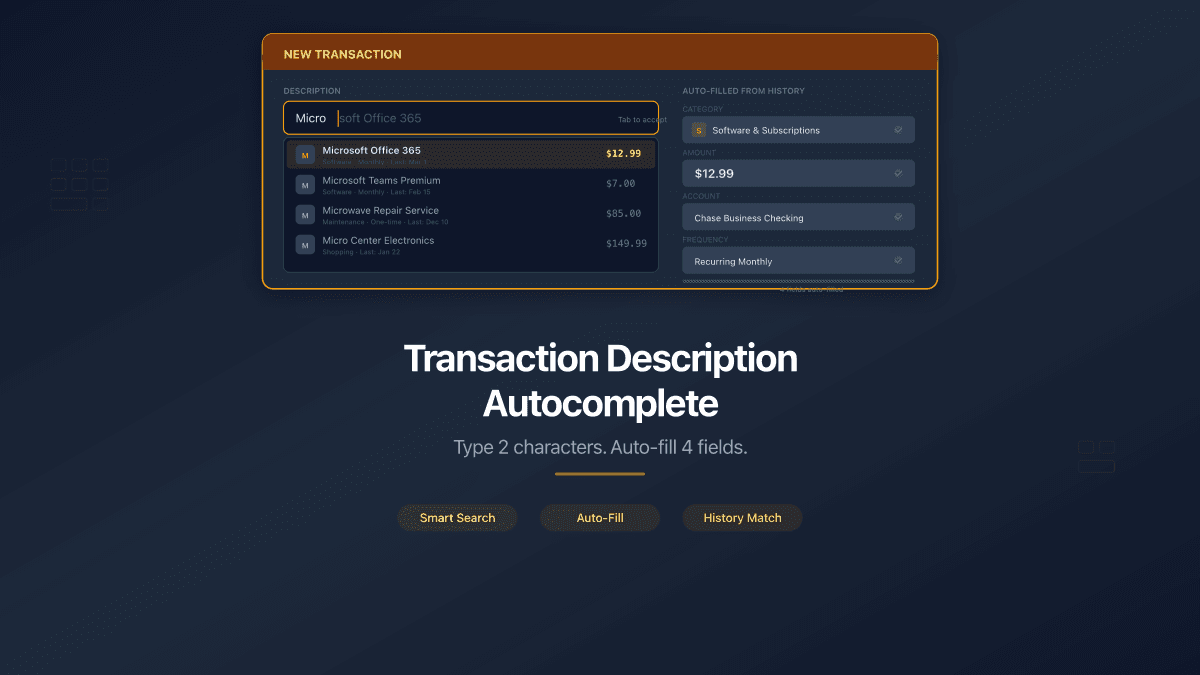
Transaction Description Autocomplete
PaperLink now auto-fills transaction forms from your history. Type 2 characters, pick a suggestion, and the description, account, amount, and category fill in automatically.