
Add a Company Financial Account

Company financial accounts track money that belongs to your business. If you run a sole proprietorship, freelance business, or any company registered in PaperLink, you add its bank accounts, cash registers, and payment accounts here.
A typical workflow: your company receives a payment into a company bank account, you pay taxes and business expenses from it, then transfer the remaining profit to your personal account.
How Do I Open Company Accounts?
- Click Settings in the sidebar.
- Open the Team section.
- Click the Accounting tab.
- Select your company from the dropdown at the top.
You need the Admin or Owner role in the team to create and manage company financial accounts.
How Do I Add an Account?
- Click Add Account.
- Fill in the form fields (see below).
- Click Save.
Form Fields
Account Name (required) - a descriptive name, up to 100 characters. Example: "Business Checking EUR".
Account Type (required) - select one:
| Type | Use for |
|---|---|
| Bank | Business checking and savings accounts |
| Cash | Physical cash register |
| PayPal | Business PayPal account |
| E-Wallet | Business digital wallets |
| Crypto | Company crypto wallets |
| Investment | Business investment accounts |
| Loan | Business loans, credit lines |
| Other | Anything that does not fit the types above |
Company (required) - select which company owns this account. The currency defaults to the company's base currency.
Currency (required) - the currency this account uses. Pre-filled from the selected company but can be changed. Cannot be changed after creation.
Initial Balance - the starting balance. Defaults to 0. Use negative values for loans.
Include in Balance - toggle on (default) to include this account in the company's total balance overview.
Set as Default - toggle on to make this the default account for the selected company. Only one account per company can be the default.
How Do Transfers Between Company and Personal Accounts Work?
You can create transfer transactions to move money between company and personal accounts. This is how you record withdrawals from a business account to your personal one (or vice versa).
To make your personal accounts visible in team accounting for transfers, enable Share with teams in your personal account settings. See Add a Financial Account for details.
How Do I Edit, Archive, or Delete an Account?
Click any account card to open the edit form. You can change the name, type, and toggle settings.
The initial balance field is locked once the account has transactions. The currency cannot be changed after creation.
To archive, open the account and click Archive Account. To delete, click Delete Account - only possible if the account has no transactions.
Related
- Manage Company Categories - income and expense categories for company accounting
- Manage Company Currencies - set up currencies and exchange rates for a company
- Add a Financial Account - personal financial accounts
- Set Up Your Company - create a company before adding company accounts
- Use Description Autocomplete - auto-fill account and amount from past transactions
Was this article helpful?
Need more help?
Browse our help center or reach out to our team for personalized assistance.
Related Articles
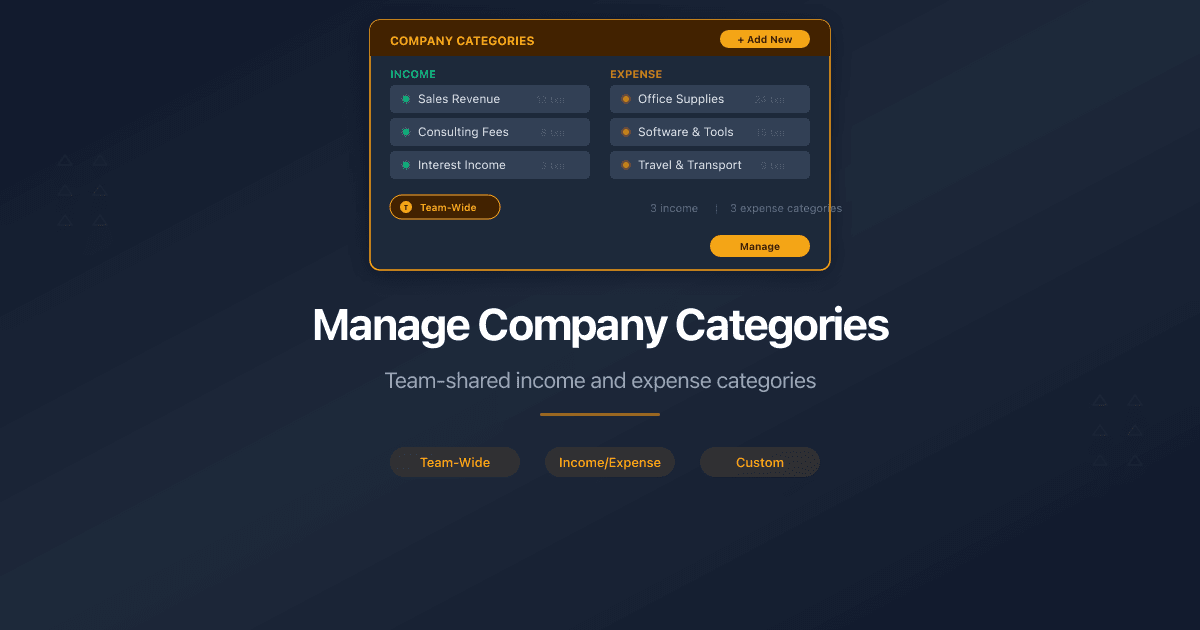
Manage Company Categories
How to manage income and expense categories for company accounting in PaperLink. Default categories, Uncategorized, and team-shared category trees.

Manage Company Currencies
How to set up currencies for a company in PaperLink. Primary currency, add foreign currencies, auto and manual exchange rates.

Add a Financial Account
How to add a financial account in PaperLink personal accounting. Account types, currency, initial balance, and default account settings.

Why Your Engagement Letters Need Tracking
Engagement letters start every consulting relationship. Track when clients open them, which pages they read, and whether they reviewed your fee schedule before signing.
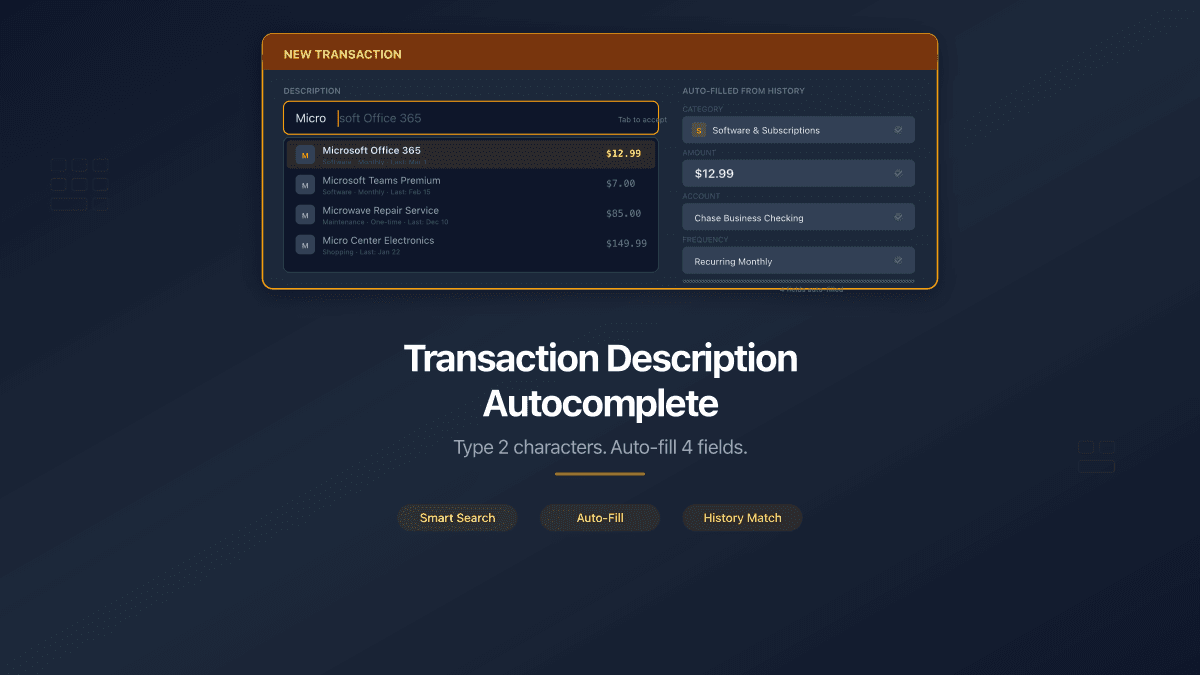
Transaction Description Autocomplete
PaperLink now auto-fills transaction forms from your history. Type 2 characters, pick a suggestion, and the description, account, amount, and category fill in automatically.