
Rename Your Team and Update the Logo
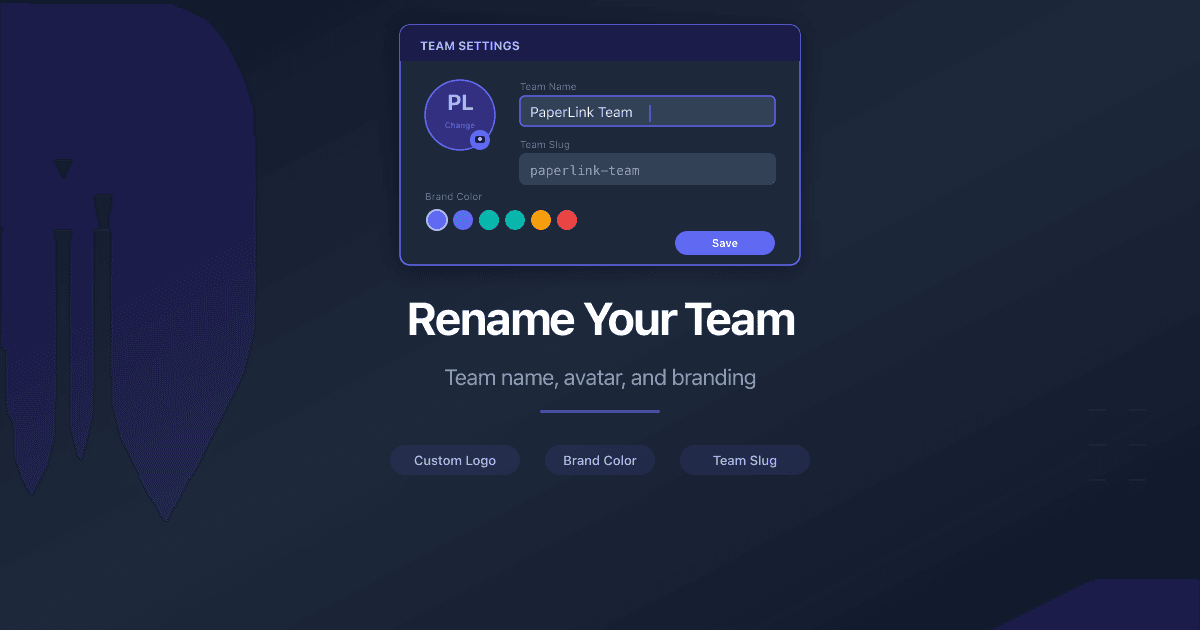
Your team name and logo appear across PaperLink - in the sidebar, on invoices, and in notifications. You can update both from the team settings page.
How Do I Change the Team Name?
- Click Settings in the sidebar.
- Open the Team tab.
- Under General Settings, edit the Team Name field.
- Click Save.
The name must be between 2 and 50 characters. Leading and trailing spaces are trimmed automatically.
How Do I Upload a Team Logo?
- Go to Settings > Team.
- Click the team avatar at the top of the page.
- Select an image file from your device.
The logo updates immediately after upload.
Accepted formats: JPG, PNG, GIF, WebP Maximum size: 5 MB
To remove the logo, click Remove Logo next to the avatar.
Who Can Rename the Team?
Only Owners and Admins can change the team name and logo. Other team members can view the settings page but cannot edit it.
Related
- Invite a Team Member - add people to your team and assign roles
Was this article helpful?
Need more help?
Browse our help center or reach out to our team for personalized assistance.
Related Articles

Invite a Team Member
How to invite people to your PaperLink team. Assign roles, control permissions, and collaborate on invoices, documents, and client management.
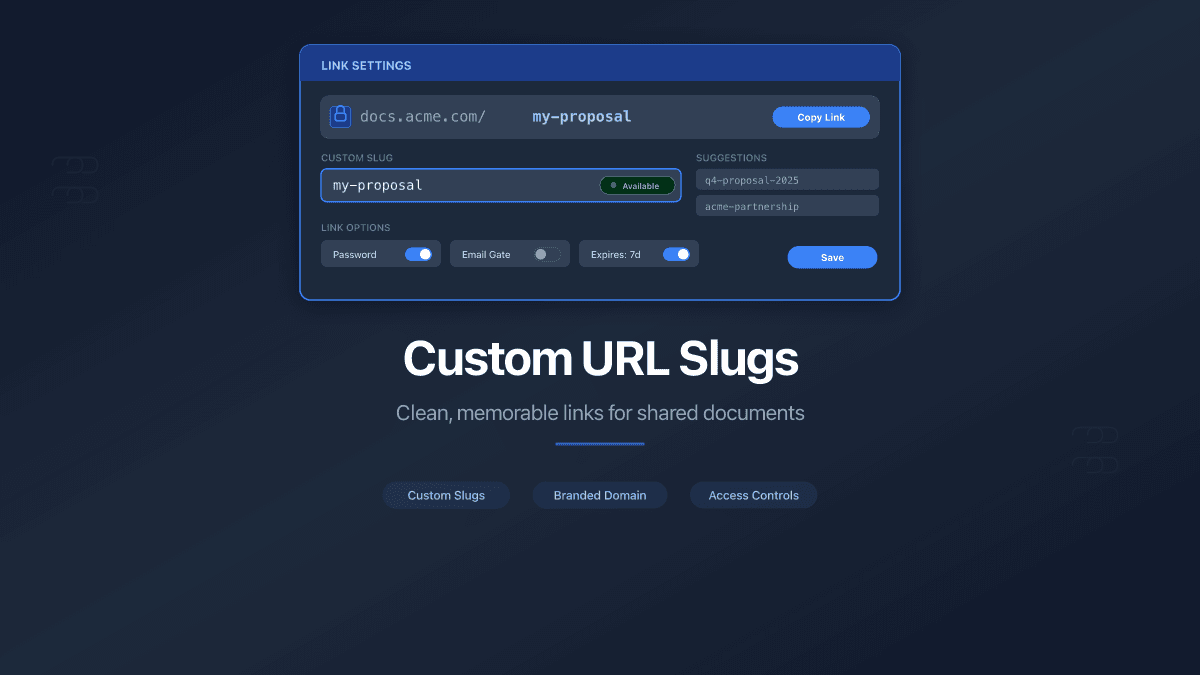
Custom URL Slugs for Shared Links
Replace auto-generated link IDs with clean, memorable URLs. Set custom slugs on shared documents and folders - on our domain or yours.