
Send Email Notifications When Sharing Documents
How Do I Send Email Notifications When Sharing?
PaperLink sends email notifications to recipients when you share a document. Instead of copying a link and emailing it manually, enter recipient emails directly on the link creation page.
Email notifications require SMTP to be configured first. See Set Up Corporate Email for setup instructions.
Steps
- Open a document or folder and click Create Link (or the + button on the links page).
- Switch to the Email tab in the link creation form.
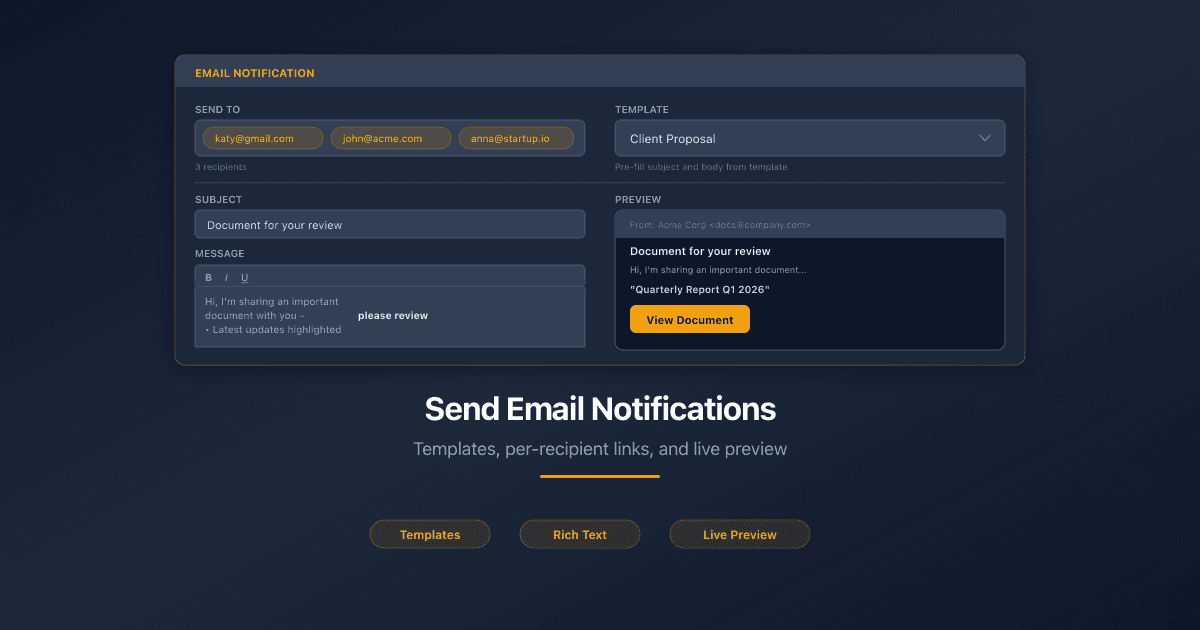
- Enter recipient email addresses in the Send to field. Press Enter or comma after each address. You can add up to 100 recipients.
- (Optional) Select a Template from the dropdown to pre-fill the subject and message body. You can edit the filled content before sending.
- (Optional) Enter a custom Email subject line. If left empty, PaperLink uses a default subject.
- (Optional) Write a Personal message using the rich text editor (bold, italic, underline, lists).
- If the link has a password, toggle Include password in email to send it alongside the link.
- Click Create Link.
PaperLink creates the link and sends an email to each recipient with the document link and your message.
Using Email Templates
If your team has created email templates in Settings > Branded Domains > Email, you can select one from the Template dropdown. The template fills in the subject and message body automatically. Edit the content as needed - your changes apply only to this notification and do not modify the original template.
Create templates for common scenarios - client proposals, contract reviews, NDA documents - so team members send consistent, professional emails every time.
Live Preview
A preview panel below the message body shows exactly how your email looks to recipients. It displays the sender name, subject line, formatted message, document name, and the View Document button. Use Send Test Email to receive the email at your own address before sharing.
What Recipients See
Recipients receive an email from your corporate email address (configured in SMTP settings). The email contains:
- Your custom subject line (or the default)
- Your personal message (with formatting preserved)
- The document name in quotes
- A View Document button linking to the shared document
- Password (if you toggled "Include password in email")
Related
- Set Up Corporate Email - configure SMTP and email templates
- Create a Sharing Link - link creation basics
- Manage Link Settings - passwords, expiration, email verification
- Connect Slack for Real-Time Notifications - get Slack alerts instead of (or alongside) email notifications
Was this article helpful?
Need more help?
Browse our help center or reach out to our team for personalized assistance.
Related Articles
Manage Link Settings
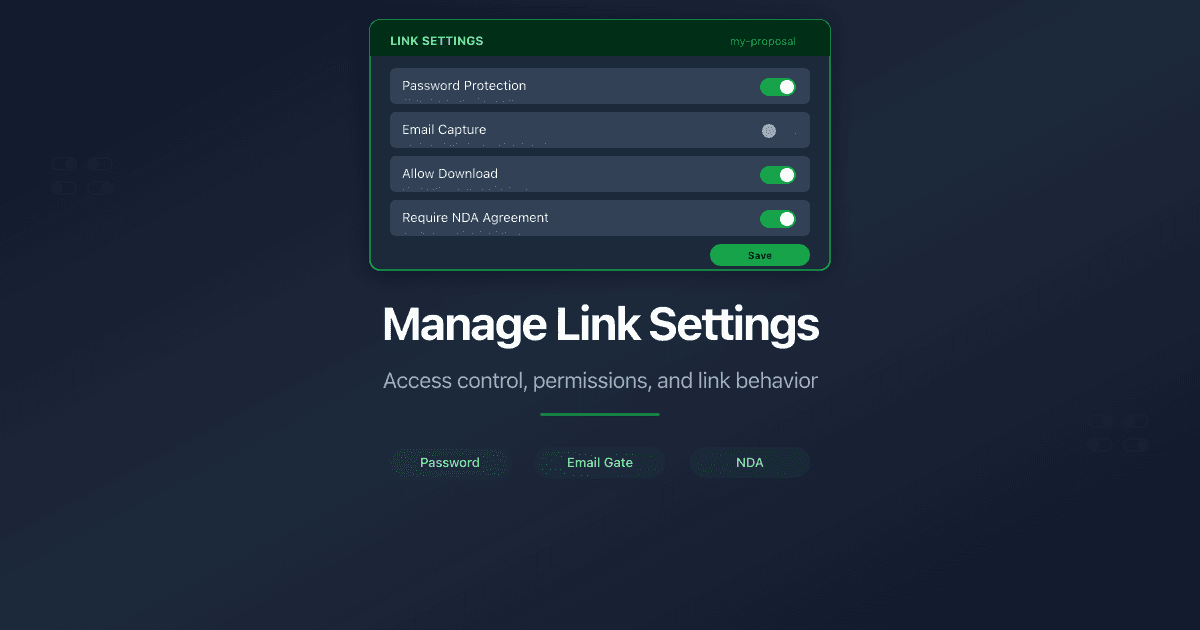
All sharing link settings in PaperLink: access control, viewer permissions, expiration, custom URLs. Edit any time after creation.
Create a Sharing Link
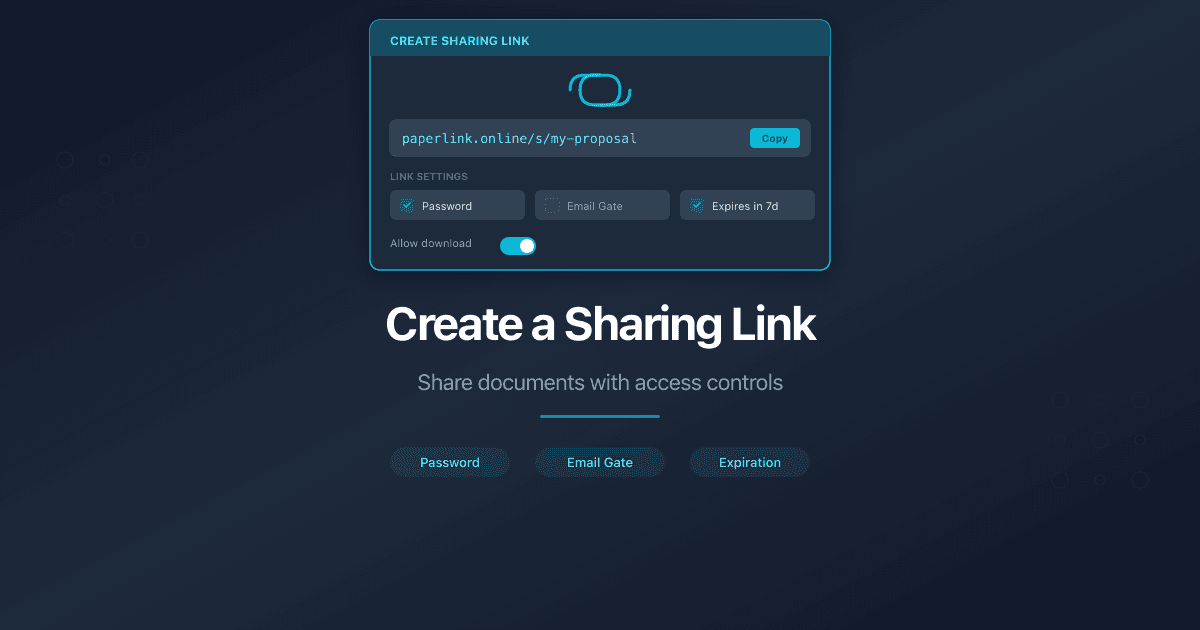
Learn how to create a sharing link for a document in PaperLink. Set access controls, name your link, and share it with clients.