The Output Is Good. The Delivery Is Not.
You spent 30 minutes refining a strategy document in Claude. The analysis is sharp, the recommendations are specific, the formatting is clean. Now you need to share it with your client.
Your options: copy-paste into Google Docs and fight with formatting for 20 minutes. Screenshot the conversation and email a series of images. Export to PDF using a browser extension that includes the chat interface, the AI's avatar, and your prompts alongside the actual content. Or send a public Claude artifact link - with no analytics, no access controls, and no way to know whether your client read past the first paragraph.
AI tools produce excellent content. But they produce it in formats designed for the person writing, not the person reading. ChatGPT outputs conversational threads. Claude generates Markdown artifacts. Gemini produces inline responses. None of these are what a client, investor, or partner expects to receive.
The gap between AI-generated content and a professional, shareable document is where most people waste time - or give up and send something that looks unfinished.
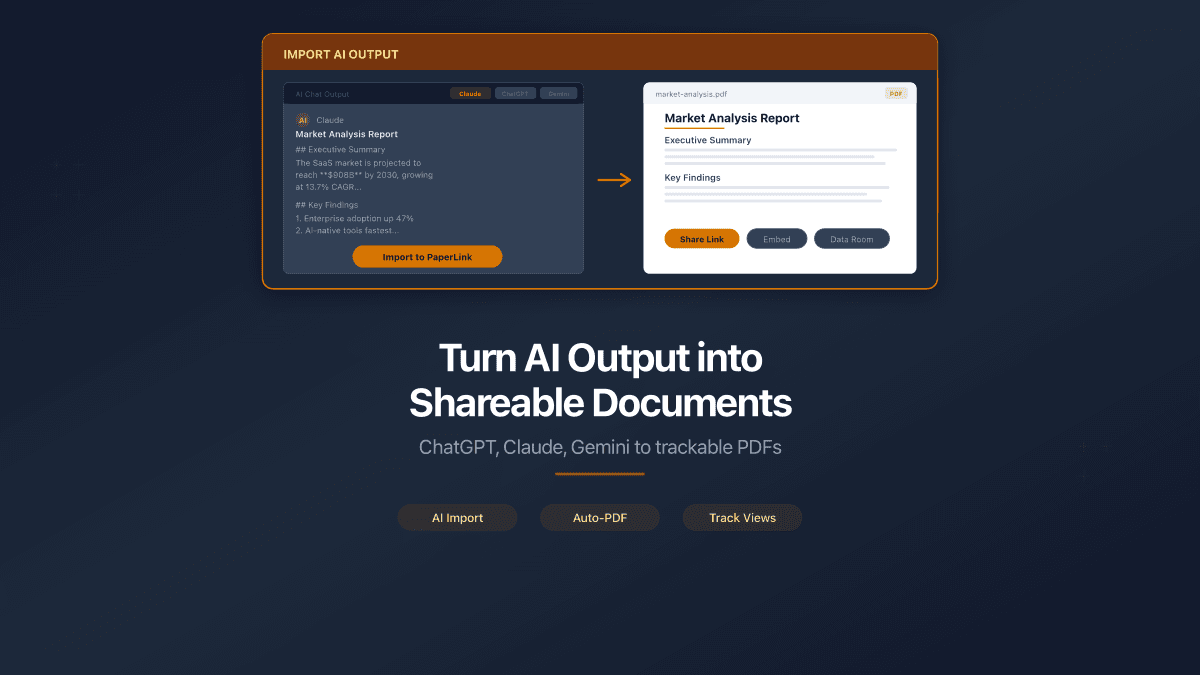
PaperLink converts Markdown content from any AI tool into a formatted PDF that can be shared through a secure link with viewer analytics, access controls, and page-level engagement tracking.
How People Currently Share AI Output (And Why Each Method Falls Short)
Print to PDF
Press Ctrl+P in the browser, select "Save as PDF." The fastest method, and the ugliest. The PDF includes the chat interface, navigation elements, avatars, timestamps, and your prompts mixed with the AI's responses. It looks like a screenshot of a web page, because that is what it is.
Works for: personal archiving. Does not work for: anything you send to another person.
Copy-Paste to Google Docs or Word
Copy the text, paste into a document editor, fix the formatting, export to PDF. This produces a clean result, but the formatting step takes longer than the writing step. Markdown elements - headers, bullet lists, code blocks, tables - lose their structure during paste. You spend 15-20 minutes rebuilding what the AI already formatted correctly.
Works for: one-off documents where formatting matters. Does not work for: frequent use or anything with complex Markdown structure.
Browser Extensions (ChatGPT Exporter, Claude Exporter)
Chrome extensions that add an export button to the AI chat interface. They produce cleaner PDFs than Print-to-PDF, sometimes preserving Markdown formatting. Most have limitations - Claude Exporter offers 3 free PDF exports per day before requiring a subscription.
Works for: quick exports when the conversation itself is the deliverable. Does not work for: extracting specific content from a conversation, or sharing with controls.
Public Sharing Links (Claude Artifacts)
Claude lets you publish artifacts as public URLs. Anyone with the link can view and interact with the content. No analytics, no access controls, no expiration. The link is permanent and public - fine for a code snippet shared with a colleague, not appropriate for a client-facing strategy document or confidential analysis.
Works for: public content you do not need to control or track. Does not work for: professional deliverables shared with clients, investors, or partners.
The Common Problem
All four methods treat the conversion as the end of the process. You get a file or a link. What happens next - who views it, what they focus on, whether they downloaded it, when to revoke access - is invisible.
Three Ways to Share AI Content Through PaperLink
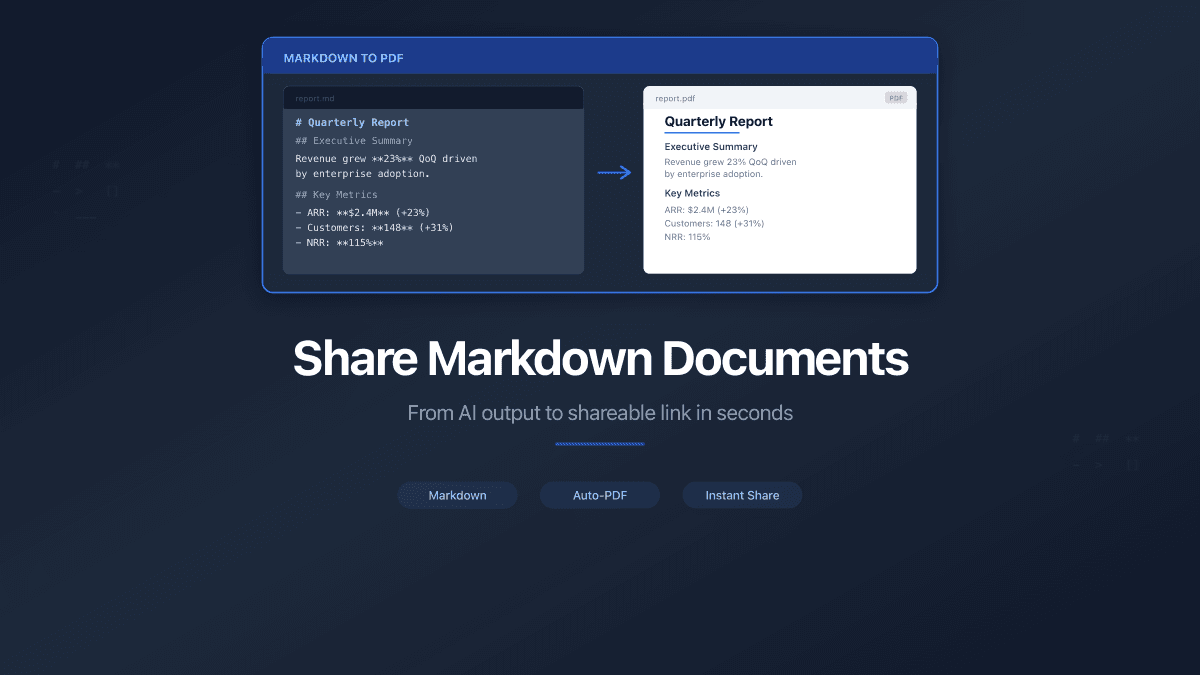
PaperLink accepts Markdown content and converts it to a formatted PDF with a table of contents, proper typography, and page structure. The PDF lives on PaperLink's infrastructure and is shared through a secure link with analytics.
Method 1: Upload a Markdown File
If your AI tool exports to Markdown (.md) or you save the output to a text file:
- Open Shared Documents in PaperLink.
- Click Add Document and select Upload File.
- Drag and drop your
.mdfile. - PaperLink converts it to a formatted PDF with headers, lists, tables, and code blocks preserved.
This works for any Markdown file - from ChatGPT, Claude, Gemini, Copilot, or a text editor. The conversion handles standard Markdown syntax including headings, bold/italic text, ordered and unordered lists, tables, code blocks, and links.
For details, see How to Share Markdown Documents Professionally.
Method 2: Paste a Claude Artifact URL
Claude artifacts have a public URL. Instead of sharing that URL directly (no analytics, no controls), import it into PaperLink:
- Open Shared Documents and click Add Document.
- Select Import from URL.
- Paste the Claude artifact URL.
- PaperLink fetches the content, converts to PDF, and adds it to your document library.
The original artifact stays on Claude's servers. PaperLink creates an independent copy as a formatted PDF that you control - with access settings, expiration, and analytics.
For the full import workflow, see Import from URL or Pasted Text. For Claude-specific details, see Import Claude Artifacts as Trackable Shared Documents.
Method 3: Paste Text Directly
For content from any AI tool - ChatGPT, Gemini, Copilot, or any other:
- Copy the AI's response (the text you want to share, not the full conversation).
- In PaperLink, click Add Document and select Import from URL or Text.
- Switch to the Paste Text tab.
- Paste the Markdown content.
- PaperLink converts it to a formatted PDF.
This is the most universal method. It works regardless of which AI tool produced the content. Copy the output, paste, share.
When copying from ChatGPT or Gemini, use the copy button on individual responses rather than selecting text manually. The copy button preserves Markdown formatting - headers, lists, code blocks - that manual selection often strips.
What Happens After Import
Every document in PaperLink - whether uploaded, imported from URL, or pasted - gets the same capabilities:
Formatted PDF viewer. Recipients view the document in a browser-based reader with proper page layout, typography, and a table of contents generated from Markdown headings. No downloads required, no software to install.
Sharing link with controls. Create a link with password protection, email verification, agreement gates, download control, and expiration dates. Each link has independent settings.
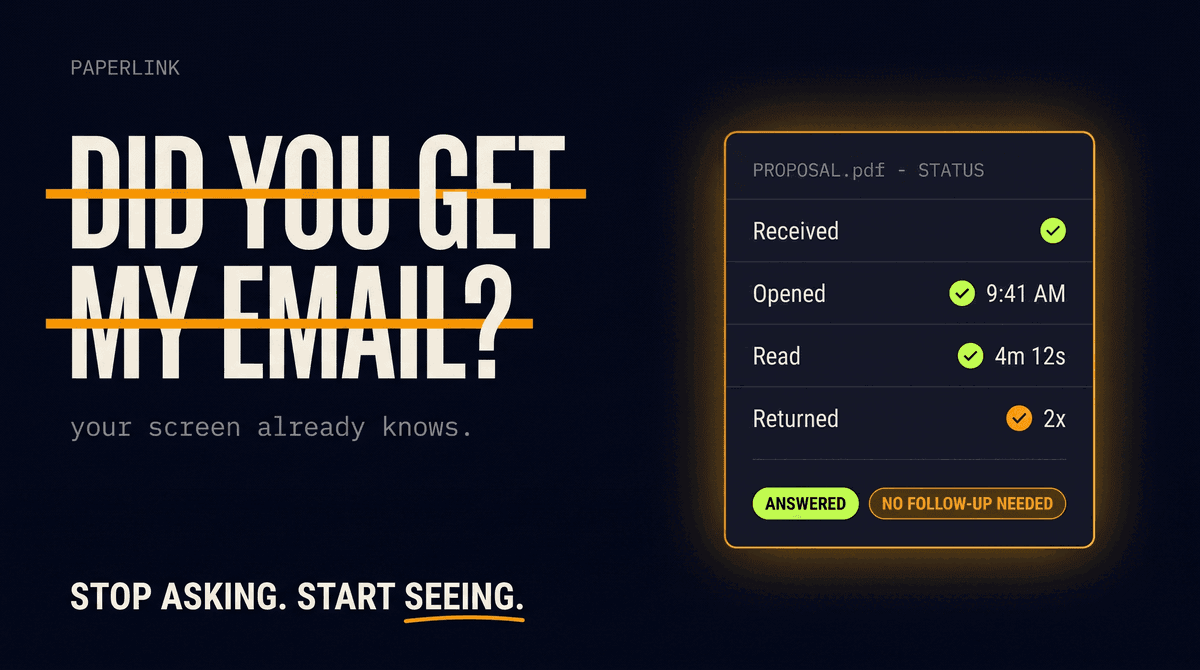
Page-level analytics. See who opened the document, which pages they read, how long they spent on each page, whether they downloaded the file, and what device they used. For a strategy document shared with a client, this tells you whether they read the recommendations or stopped at the executive summary. See how viewer analytics work.
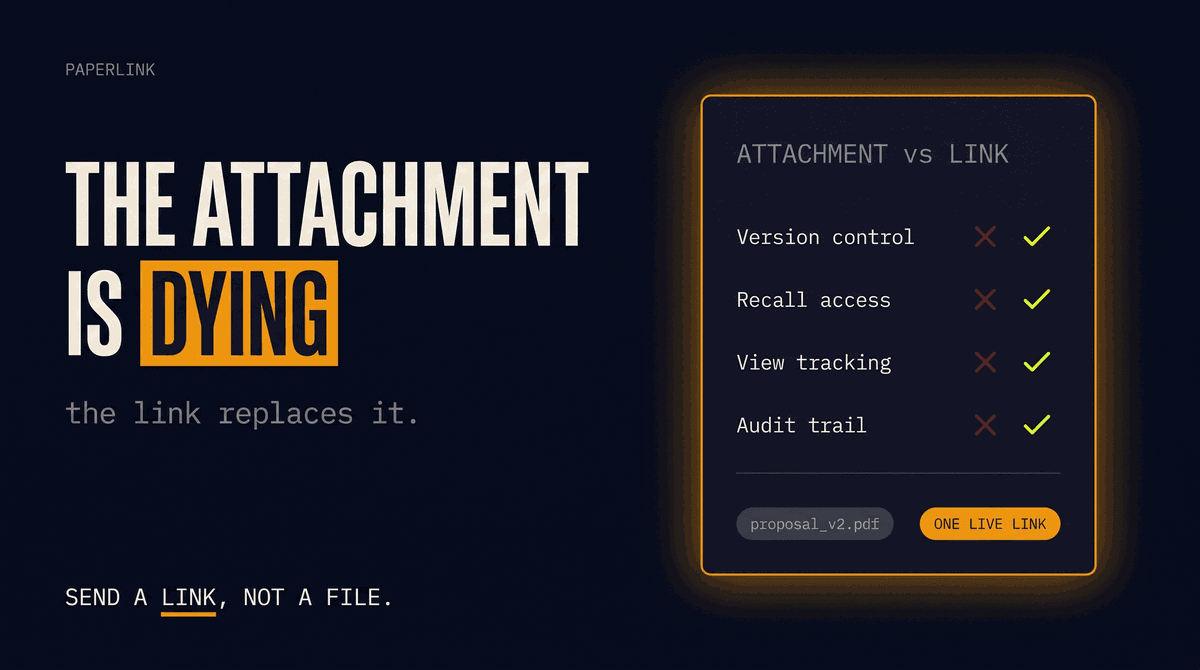
| What you get | Screenshot/PDF email | Public artifact link | PaperLink |
|---|---|---|---|
| Professional formatting | No | Depends | Yes |
| Access controls | No | No | Per-link |
| Viewer analytics | No | No | Page-level |
| Link expiration | No | No | Per-link |
| Download control | N/A | No | Per-link |
| Revoke access | No | No | Yes |
When This Matters Most
Consulting deliverables. You used Claude to draft a market analysis for a client. The content is the value - the fact that AI assisted does not diminish it. Import into PaperLink, share with a branded link, and track whether the client reviewed the competitive section you flagged as urgent.
Sales proposals. Your team uses ChatGPT to draft proposals customized for each prospect. Paste the output into PaperLink, add password protection, and set a 14-day expiration that matches your follow-up timeline. Analytics show whether the prospect focused on pricing or product capabilities.
Internal reports. A weekly ops summary generated by AI, shared with the leadership team through an email-verified link. Each recipient's engagement is tracked independently - you know who read the full report and who skipped to the KPI page.
Investment materials. An AI-assisted financial model summary shared with potential investors through a data room. Email verification identifies each viewer. Agreement gates capture NDA acceptance before access. Per-document analytics show which sections attracted the most attention.
From AI Chat to Client-Ready in Under a Minute
AI tools generate content faster than ever. The gap is no longer creating the document - it is delivering it professionally with visibility into what happens after you click send.
PaperLink closes that gap. Paste, import, or upload your AI output. Share it through a tracked link with the same controls you would use for any professional document. Know what your recipient read, when, and for how long.
Import your first AI-generated document. For Markdown-specific formatting details, see How to Share Markdown Documents. For Claude artifact imports, see Import Claude Artifacts.