
Set Up Your Referral Program
How Do I Set Up the Referral Program?
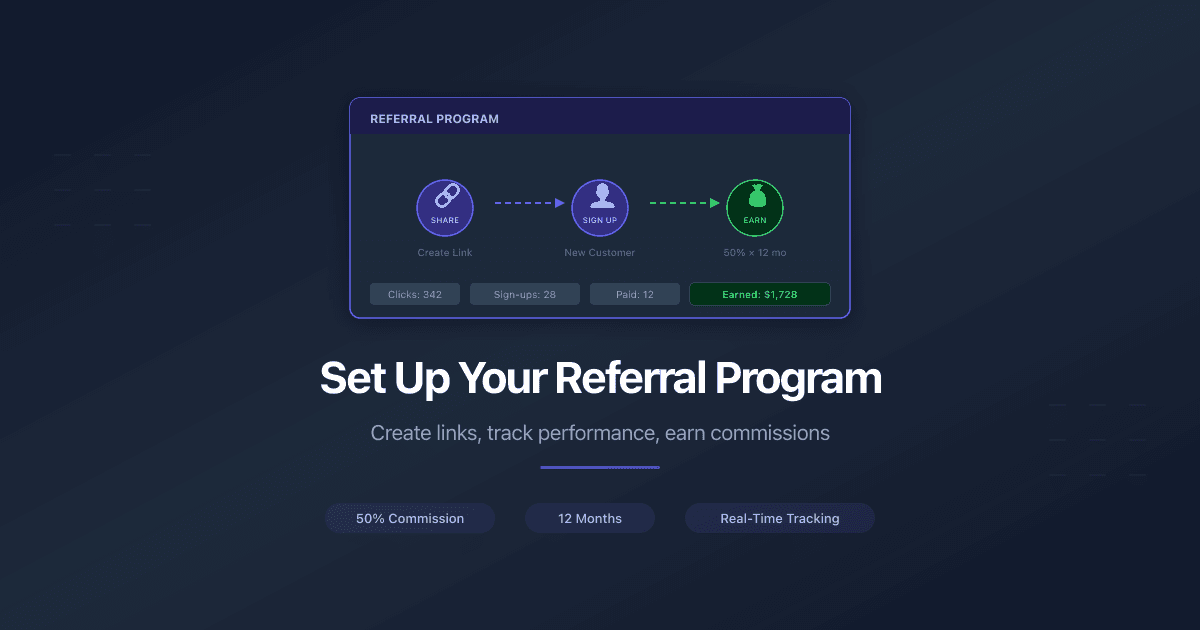
PaperLink's referral program lets you earn 50% of every payment made by customers you refer - for up to 12 months per customer. Create unique referral links, share them anywhere, and track your earnings in real time.
Who Can Access
Team members with Owner, Admin, or Manager roles can create and manage referral links. The Member role can see the Referral Program tab in navigation but cannot access the page.
Create a Referral Link
- Open Settings in the sidebar.
- Click Referral Program under the Team section.
- In the Create New Link form, fill in:
- Link name - a friendly label like "Twitter bio" or "Newsletter March"
- Custom slug - the unique part of your URL (lowercase letters, numbers, hyphens, 3-50 characters). For example,
my-blogcreatespaperlink.online/?ref=my-blog
- (Optional) Expand Advanced (UTM Parameters) to add campaign tracking:
- Source - where the traffic comes from (twitter, youtube, newsletter)
- Medium - channel type (social, video, email)
- Campaign - campaign name (spring-2026, product-launch)
- Content - differentiate links in the same campaign (header-link, bio-link)
- Term - keyword for paid search campaigns
- Check the Preview to see the full generated URL with all parameters.
- Click Create Link.
Your new link appears immediately in the Team Links table below. Click the link URL to copy it to your clipboard - a green "Copied!" confirmation appears.
Each UTM field has an info icon with examples. UTM parameters are optional but useful when you promote through multiple channels and want to compare performance.
Track Your Performance
The Referral Program page shows two levels of statistics:
Summary cards at the top show totals across all your team's links:
- Clicks - how many times your links were visited
- Sign-ups - visitors who created a PaperLink account through your links
- Paid - sign-ups who became paying customers
- Earned - total commission earned (50% of each payment)
- Paid Out - amount already paid to your team
- Pending - earned minus paid out
Team Links table shows per-link breakdown: name, full URL (with UTM parameters), who created it, clicks, sign-ups, paid conversions, and earned amount.
Summary stats reflect your team's all-time totals and are not affected by pagination or filters. The table data refreshes automatically when you change pages, apply filters, or create a new link.
Filter and Paginate
If multiple team members create referral links, use the Created by filter to view links from a specific person. On desktop, the filter appears in a sidebar to the left of the table. On mobile, tap the filter icon above the table.
The table shows 10 links per page by default. Change the page size to 25 or 50 using the dropdown in the table footer. Page and filter state are stored in the URL, so you can bookmark or share a filtered view.
Commission, Tracking & Payouts
For full details on commission rates, cookie window, tracking attribution, payout methods, and minimum payout amounts, see the Affiliate Program terms.
Slugs and Reserved Words
Your custom slug must be:
- 3 to 50 characters long
- Lowercase letters, numbers, and hyphens only
- Globally unique (no two teams can use the same slug)
The following slugs are reserved: admin, app, api, help, blog, pricing, affiliate, ref, null, undefined, settings, dashboard, login, signup, auth, view, docs, mcp.
Related
- PaperLink Affiliate Program - blog post with program overview and commission examples
- Affiliate Program - marketing page with program details, FAQ, and terms
- Invite a Team Member - add team members who can create referral links
Was this article helpful?
Need more help?
Browse our help center or reach out to our team for personalized assistance.