Document Collection Just Got a Feedback Loop
PaperLink's document request feature lets you send a checklist of required documents through a shared link. Clients or counterparties upload files directly - no email attachments, no shared drives, no confusion about which version is current.
One piece was missing. When a submitted document was wrong - outdated financials, unsigned contract, incomplete form - you had no way to signal that within the platform. The workaround was email: "Hi, the Q3 report you uploaded is actually Q2. Could you re-upload?" That side conversation broke the self-service flow the feature was designed to create.
Now you can reject individual items directly from the dashboard.
How It Works
Open any folder with active document requests. In the Links & Analytics tab, expand a request to see all checklist items with their statuses.
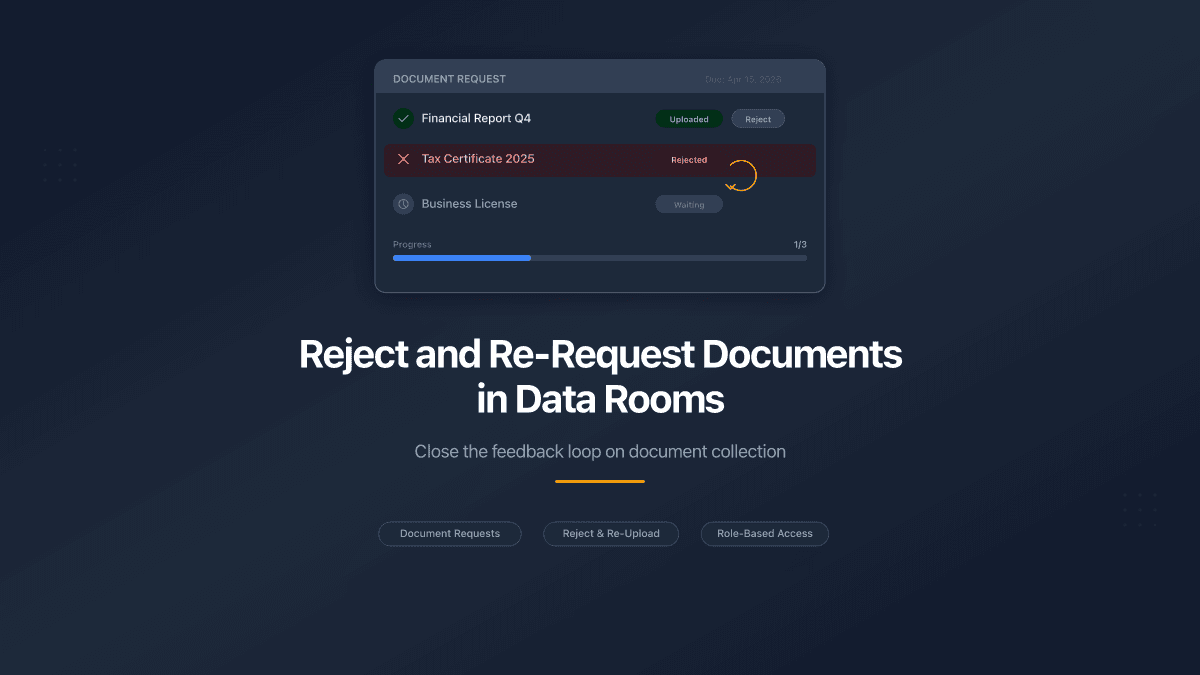
For any item marked Uploaded, you'll see a Reject button. Click it, confirm in the dialog, and three things happen:
- The item status changes from Uploaded to Rejected
- The uploaded file is permanently deleted from storage
- The progress bar updates to reflect the new count
The recipient sees the change on their next visit to the shared link. The item shows a red Rejected badge with a message: "Your document was not accepted. Please upload a new version." The upload button reappears, and they can submit a replacement.
There is no limit on rejection cycles. An item can go from Uploaded to Rejected to Uploaded to Rejected as many times as needed until the right document lands.
Rejection does not include a reason field in this release. The feature is designed for speed - one click to reject, one click to re-upload. If you need to explain why a document was rejected, share that context through your existing communication channel.
Who Can Reject
Not every team member can reject uploaded documents. The permission model follows PaperLink's role-based access:
| Role | Can Reject |
|---|---|
| Owner | Any item in the team |
| Admin | Any item in the team |
| Manager | Only items on requests they created |
| Member | Cannot reject |
This means a Manager who created a document request link can manage rejections for that specific request, but cannot reject items on links created by other Managers. Owners and Admins have full access across the team.
Permission checks happen at the server level, not just the UI. Even if someone crafts a direct request, the system verifies their role before processing a rejection.
What the Recipient Sees
The public-facing checklist updates automatically. A rejected item shows:
- A red badge instead of the green "Uploaded" badge
- A message explaining the document was not accepted
- A Replace button (not "Upload" - the wording makes it clear this is a re-submission)
The progress bar recalculates. If three documents were requested and one gets rejected, progress drops from 3/3 to 2/3. The recipient knows immediately that action is needed.
Recipients are not notified by email when a document is rejected. They see the updated status on their next visit to the shared link. If the matter is urgent, send them a quick message with the link.
What Happens to the Rejected File
The file is permanently deleted from storage when you reject it. PaperLink does not keep old versions of rejected documents. This is a deliberate choice - storage stays clean, and there is no ambiguity about which file is current.
If the file deletion fails for any technical reason, the item is still marked as Rejected and the recipient can re-upload. Orphaned files are cleaned up separately. The rejection workflow never blocks on storage operations.
Combined with Other Controls
Document rejection works alongside PaperLink's existing sharing controls:
| Feature | How It Works with Rejection |
|---|---|
| Password protection | Recipient must authenticate before seeing the rejected status |
| Custom URL slugs | The link URL stays the same after rejection - no new link needed |
| Link expiration | Rejection is allowed even on expired requests (overdue is informational) |
| Email-restricted access | Only the authorized recipient can see and re-upload |
| NDA/Agreement gate | Agreement remains valid through rejection cycles |
Use Cases
Due diligence. A law firm requests 15 documents from a counterparty. Three uploads are wrong - one is unsigned, one is from the wrong fiscal year, one is a draft instead of a final version. The lawyer rejects all three. The counterparty sees exactly which items need attention and re-uploads without a single email.
Compliance collection. An HR department collects onboarding documents from new hires through a shared link. A passport copy is blurry. The HR manager rejects it. The new hire uploads a clearer scan.
Construction permitting. A contractor submits building permits and safety certificates through a data room folder. The project manager rejects an expired safety certificate. The contractor uploads the renewed version.
What's Next
This release closes the feedback loop for document collection. Rejection reasons, email notifications on rejection, and bulk reject are on the roadmap for future releases.