
Manage Connected Accounts
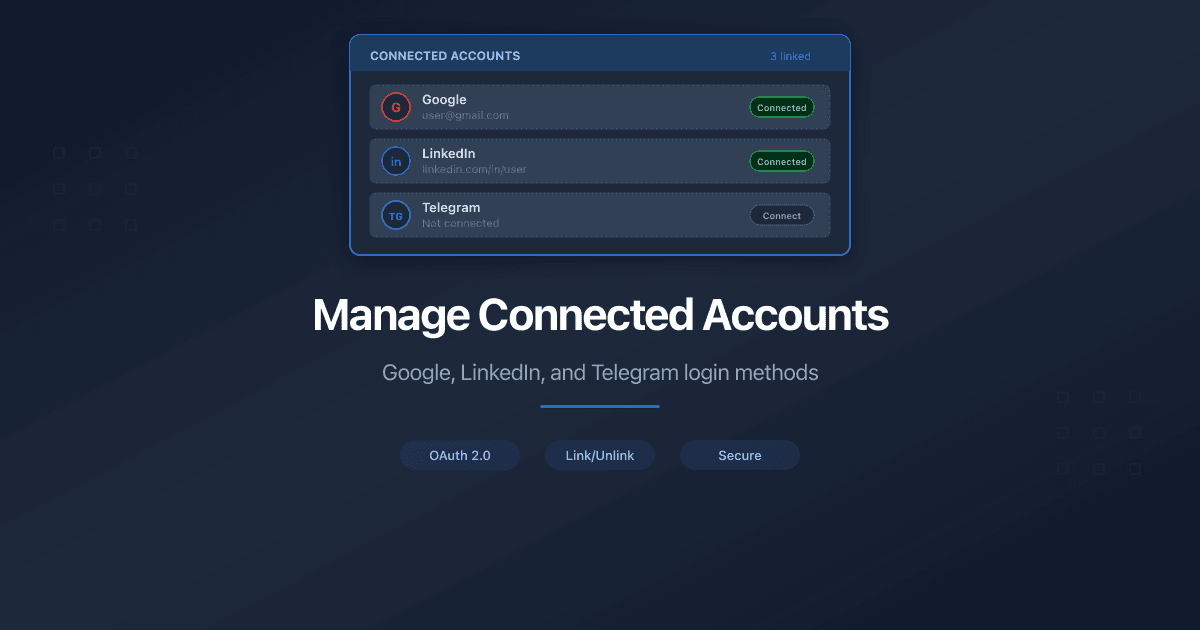
PaperLink supports three login providers: Google, LinkedIn, and Telegram. You can connect multiple providers to your account so you have more than one way to sign in.
How Do I View My Connected Accounts?
- Click Settings in the sidebar.
- Open the Profile tab.
- Scroll to the Connected Accounts card.
Each provider shows its current status:
- Connected - you can sign in with this provider
- Connect - not linked yet, click to add it
How Do I Connect a New Provider?
- Find the provider you want to add (Google, LinkedIn, or Telegram).
- Click Connect.
- Approve the request in the provider's sign-in screen.
After connecting, PaperLink redirects you back to your profile with a confirmation message.
If your account has no email address (for example, you signed up with Telegram), connecting Google or LinkedIn automatically adds the email from that provider to your PaperLink profile.
How Do I Disconnect a Provider?
- Find the provider you want to remove.
- Click Disconnect.
You will no longer be able to sign in with that provider.
You cannot disconnect your only login method. Connect a second provider first, then disconnect the one you no longer need.
Related
- Sign In to PaperLink - how to create your account with Google, LinkedIn, or Telegram
- Sign In with Google - why Google is the default for most business users
- Sign In with LinkedIn - professional identity authentication
- Sign In with Telegram - messenger-based sign-in for mobile-first markets
- Change the Interface Language - switch PaperLink to another language
Was this article helpful?
Need more help?
Browse our help center or reach out to our team for personalized assistance.
Related Articles
Sign In to PaperLink
Sign in to PaperLink with Google, LinkedIn, or Telegram. No password needed - pick your provider and you're in.
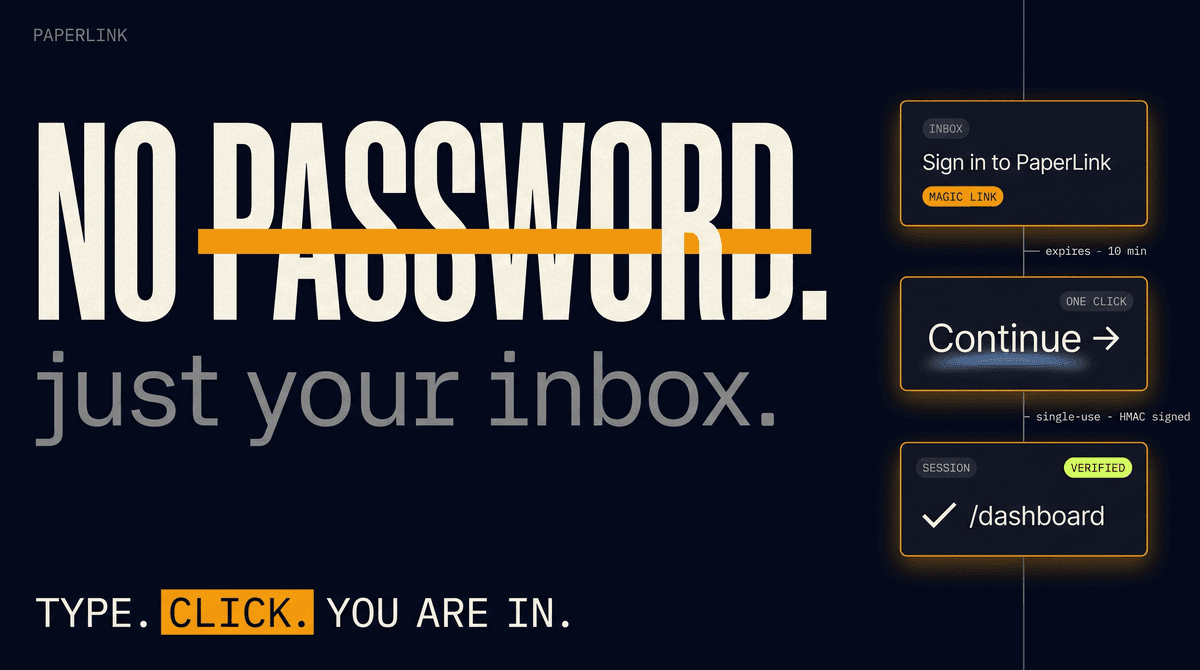
Sign In to PaperLink with Just Your Email
PaperLink now supports passwordless email sign-in. Type your address, click the link in your inbox, and you are in. No password, no Google account required.
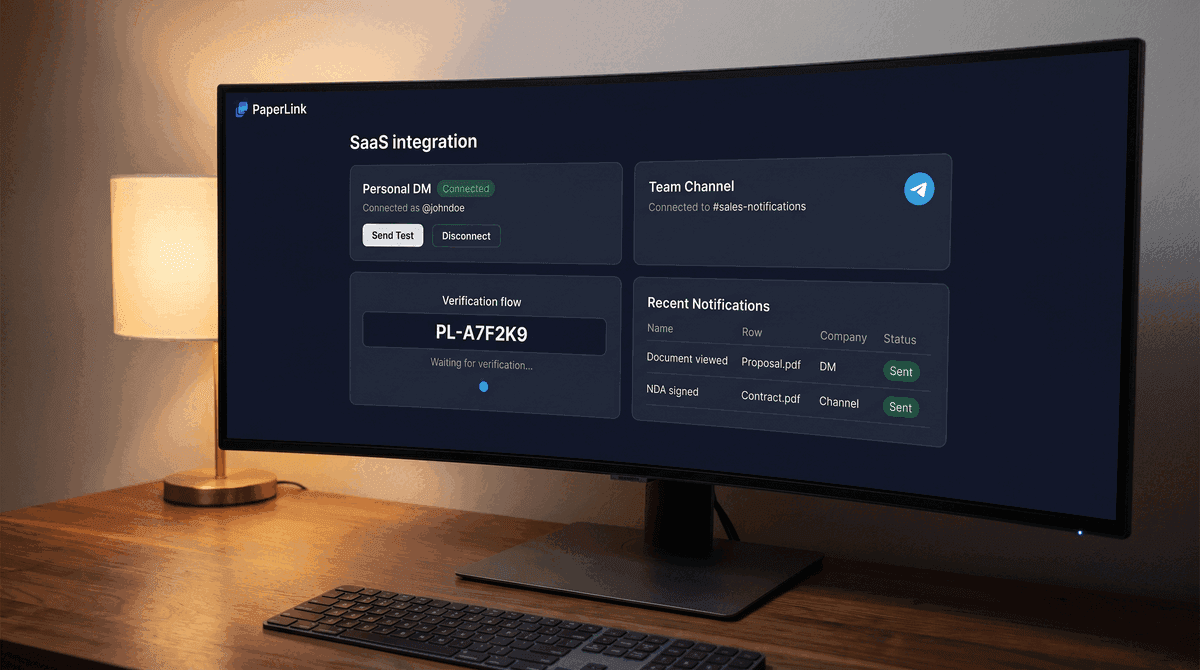
Telegram Notifications When Someone Views Your Document
Get a Telegram message the moment someone opens your shared document - in your personal DM and team channel simultaneously. Native bot, no Zapier needed.
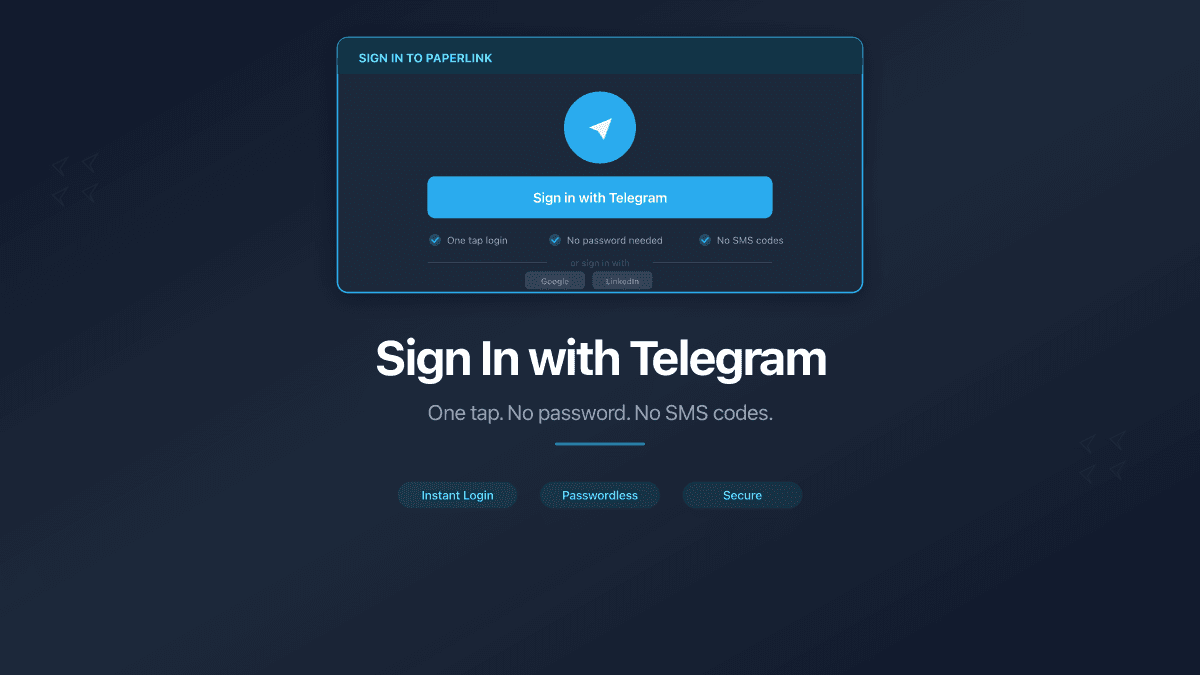
Sign In with Telegram
PaperLink now supports Telegram as a sign-in option. No password needed - authenticate with the messenger 1 billion people already use.